

This guide explains how to switch between Hovering Mouse and Locked Mouse from a webpage using the Eagle 3D Streaming Frontend SDK.
Instead of relying on the default controls, you can build your own UI and switch the mouse control scheme programmatically through the SDK.
There are three ways to control the mouse scheme during runtime:
-
Inside the Unreal App (Blueprint): Refer to Control Mouse Scheme in Unreal Engine.
-
Control Mouse Scheme in iFrame: Refer to Control Mouse Scheme in iFrame.
-
Control Mouse Scheme Using SDK: Covered in this guide.
Live Streaming URL
https://e3ds.github.io/pixelstreaming-sdk/e3ds_streaming_FE.html
Demo Project GitHub Repository
Follow the steps below:
Step 1. Add the Mouse Control Functions
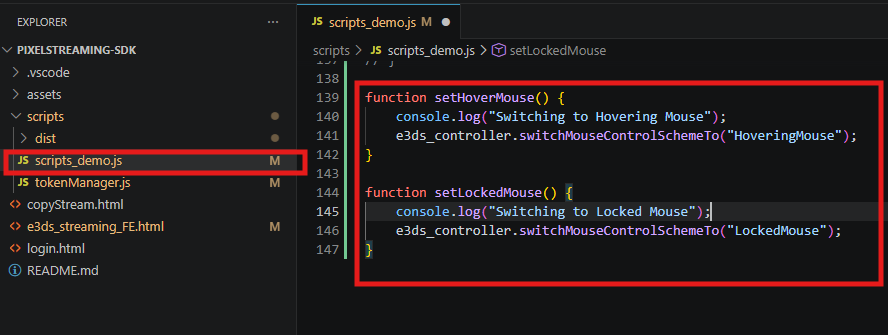
Add the following functions inside your scripts_demo.js file:
function setHoverMouse() {
    console.log("Switching to Hovering Mouse");
    e3ds_controller.switchMouseControlSchemeTo("HoveringMouse");
}

function setLockedMouse() {
    console.log("Switching to Locked Mouse");
    e3ds_controller.switchMouseControlSchemeTo("LockedMouse");
}
Explanation
|
Code |
Meaning |
|---|---|
|
|
Creates a function that switches the stream to Hovering Mouse mode. |
|
|
Creates a function that switches the stream to Locked Mouse mode. |
|
|
Switches the stream to Hovering Mouse mode. |
|
|
Switches the stream to Locked Mouse mode. |
Step 2. Add Mouse Control Buttons to the HTML Page
Add the following buttons to your HTML page:
<button onclick="setHoverMouse()">Hovering Mouse</button>
<button onclick="setLockedMouse()">Locked Mouse</button>
Explanation
|
Code |
Meaning |
|---|---|
|
|
Creates a clickable button on the webpage. |
|
|
Switches to Hovering Mouse mode when clicked. |
|
|
Switches to Locked Mouse mode when clicked. |
|
|
Button label displayed to the user. |
|
|
Button label displayed to the user. |
Step 3. Test the Mouse Control Buttons
After adding the functions and buttons:
-
Run your SDK webpage.
-
Wait until the stream is fully connected.
-
Click Locked Mouse.
-
Move your mouse inside the stream.
Expected Result: The cursor is locked to the streaming window.
-
Press Esc to release the cursor.
-
Click Hovering Mouse.
Expected Result: The cursor is released and can move freely across the webpage.
Important
-
Wait until the Pixel Streaming session is fully connected before changing the mouse control scheme.
-
Mouse control changes are applied immediately without restarting the stream.
-
Use HoveringMouse for UI-driven applications.
-
Use LockedMouse for first-person, third-person, and free-camera applications.
Troubleshooting
|
Issue |
Possible Cause |
Solution |
|---|---|---|
|
Clicking the button has no effect. |
The stream is not fully connected. |
Wait until the Pixel Streaming session is connected before clicking the button. |
|
Mouse behavior does not change. |
An invalid mouse scheme value was provided. |
Use only |
|
|
The SDK has not finished initializing. |
Ensure the SDK is initialized before calling |
|
Pressing Esc does not release the cursor. |
Pointer Lock has not been activated correctly. |
Click inside the streaming window first, then press Esc again. |
|
Commands are ignored. |
The command was sent before the stream was ready. |
Wait until the streaming session is fully connected before sending commands. |
Need help?
If you need any assistance, feel free to reach out through any of the following channels:
🛠️ Support Portal: Contact Our Support Team
💬 Discord Community (Faster Support): Join Our Discord Community
📧 Email Support: support@eagle3dstreaming.com
Follow us on: