

This guide explains how to use the Use with AI feature available in the Eagle 3D Streaming documentation.
The AI integration allows you to ask questions about the current documentation page, generate implementation examples, troubleshoot issues, and better understand the content without leaving the documentation.
Prerequisites
-
A ChatGPT or Claude account
Follow the steps below:
Step 1. Open the Documentation
Navigate to the Eagle 3D Streaming documentation and open the page you want to learn about.
For example, you might open the Embed Stream Using iFrame guide: https://docs.eagle3dstreaming.com/wiki/embed-e3ds-app-with-your-html-webpage
Step 2. Open the Use with AI Menu
On the top-right corner of the documentation page, click Use with AI.
A menu will appear with several options:
-
Copy as Markdown
-
View as Markdown
-
Open in ChatGPT
-
Open in Claude
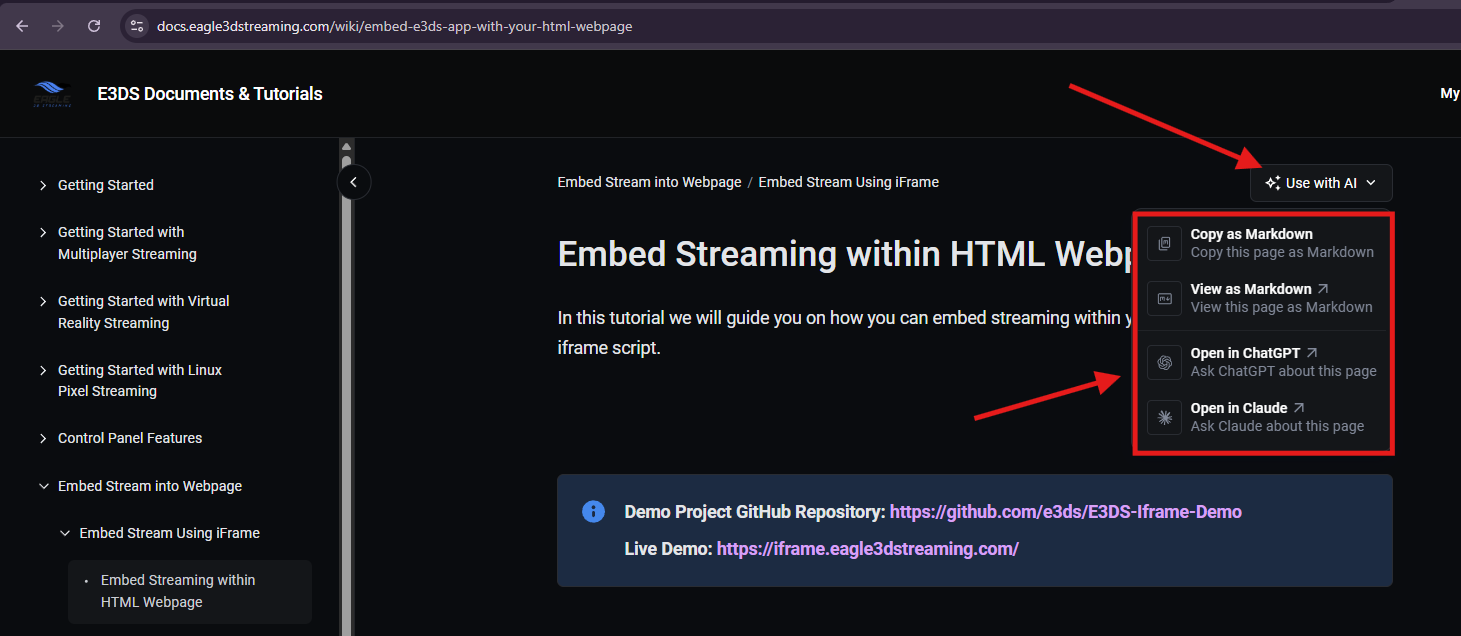
Step 3. Choose how you want to use AI
The Use with AI menu provides multiple options depending on how you want to work with the documentation
|
Option |
When to Use |
What Happens |
|---|---|---|
|
Open in ChatGPT |
You want to interact with the documentation directly in ChatGPT. |
Opens the current documentation page in ChatGPT, where you can ask questions, request code examples, troubleshoot issues, or get explanations based on the page content. |
|
Open in Claude |
You prefer using Claude instead of ChatGPT. |
Opens the current documentation page in Claude, allowing you to ask questions, generate implementation examples, or request explanations. |
|
Copy as Markdown |
You want to use another AI assistant or combine multiple documentation pages. |
Copies the current documentation page in Markdown format so you can paste it into any AI assistant or include it with your own project code for additional context. |
|
View as Markdown |
You want to review or manually copy the documentation before using it with an AI assistant. |
Opens the documentation in Markdown format, allowing you to view, copy, or share the raw Markdown content. |
Step 4. Ask AI Questions
Once the documentation is available in your AI assistant, you can ask questions such as:
-
Explain this documentation.
-
Summarize this guide.
-
Generate a complete working example.
-
Convert the code to TypeScript.
-
Convert the code to React.
-
Convert the code to Angular.
-
Help me fix this error.
-
Add additional features.
-
Optimize this implementation.
-
Explain what each function does.
The AI will answer using the selected E3DS documentation page as context.
Best Practices
-
Open the documentation page that is most relevant to your question.
-
Include your own code when asking AI for debugging help.
-
Ask specific questions for more accurate responses.
-
If your implementation spans multiple guides, provide all relevant documentation to the AI.
Troubleshooting
|
Issue |
Possible Cause |
Solution |
|---|---|---|
|
The Use with AI button is not visible. |
The page has not fully loaded or the feature is unavailable. |
Refresh the page and try again. |
|
ChatGPT or Claude does not open. |
Browser pop-ups or redirects are blocked. |
Allow pop-ups for the documentation website and try again. |
|
AI gives an incomplete answer. |
Only one documentation page was provided. |
Include additional E3DS documentation pages or ask a more specific question. |
|
AI cannot answer your implementation question. |
The question requires information outside the selected documentation. |
Provide additional context, your project code, or relevant E3DS documentation pages. |
|
Copied Markdown formatting looks incorrect. |
The destination editor does not fully support Markdown. |
Paste it into a Markdown-compatible editor or directly into an AI assistant. |
Need help?
If you need any assistance, feel free to reach out through any of the following channels:
🛠️ Support Portal: Contact Our Support Team
💬 Discord Community (Faster Support): Join Our Discord Community
📧 Email Support: support@eagle3dstreaming.com
Follow us on: