This guide explains how to use Sunshine to host a desktop application on one Windows machine and access it remotely from another machine through a web browser.
Sunshine can stream virtually any Windows desktop application and games, including:
-
VLC Media Player
-
Visual Studio Code
-
Telegram
-
Unreal Engine packaged applications
-
Google Chrome
-
Fortnite
-
PUBG
-
Any Windows executable (.exe)
In this guide, VLC Media Player is used as the example application.
Architecture
-
Machine A (Host) – Runs the application.
-
Machine B (Client) – Connects to and controls the application remotely.
Machine A – Host the Application
Step 1. Download Sunshine Zip
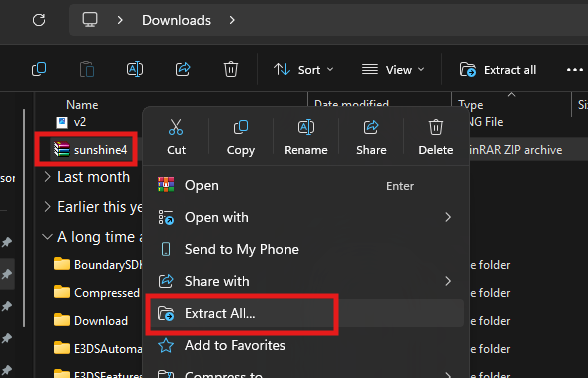
Download the provided Sunshine ZIP package and extract it to your preferred location.
Step 2. Install Sunshine
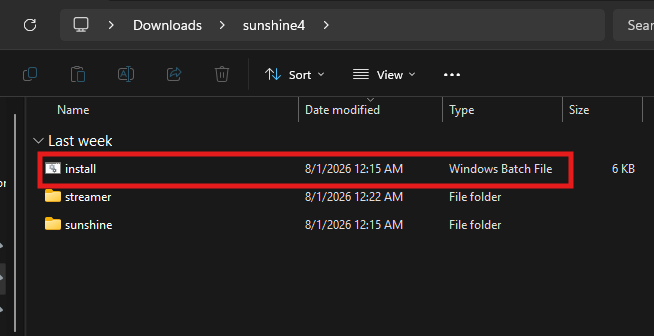
Double-click “install Sunshine Package.bat” to begin the installation.
Step 3. Complete the Initial Setup
Follow the installation prompts below.
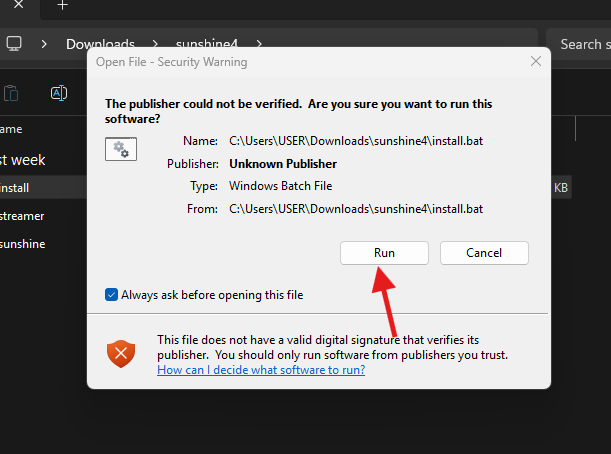
(I) Allow the Batch File to Run
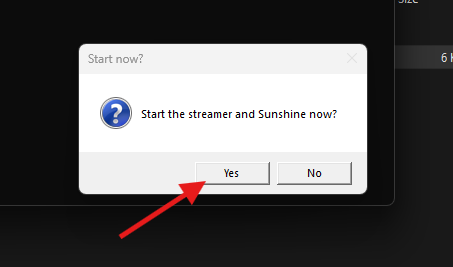
(II) When prompted, click Yes to start Sunshine.
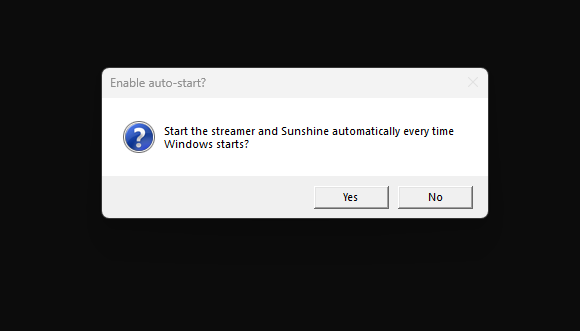
(III) Choose whether Sunshine should automatically start whenever Windows starts.
Select either:
-
Yes – Start automatically
-
No – Start manually
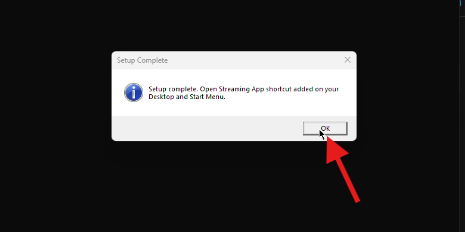
(IV) Click OK when prompted that Sunshine shortcuts have been added to your Desktop and Start Menu.
(V) Click Yes to open the Sunshine configuration page.
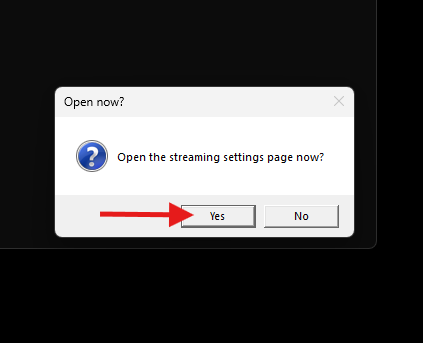
(VI) A new browser tab will open automatically displaying the Sunshine configuration dashboard.
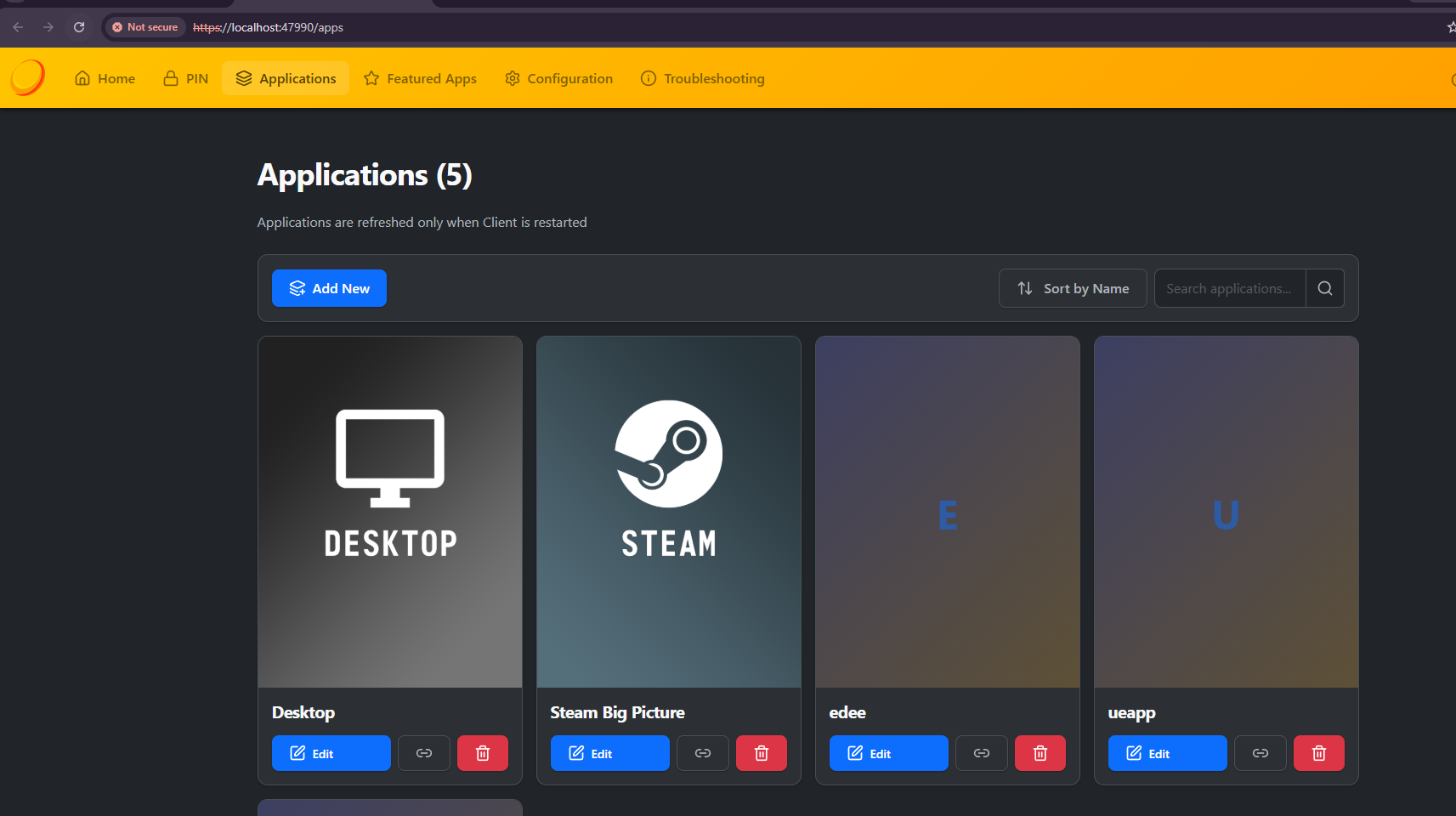
Step 4. Add an Application
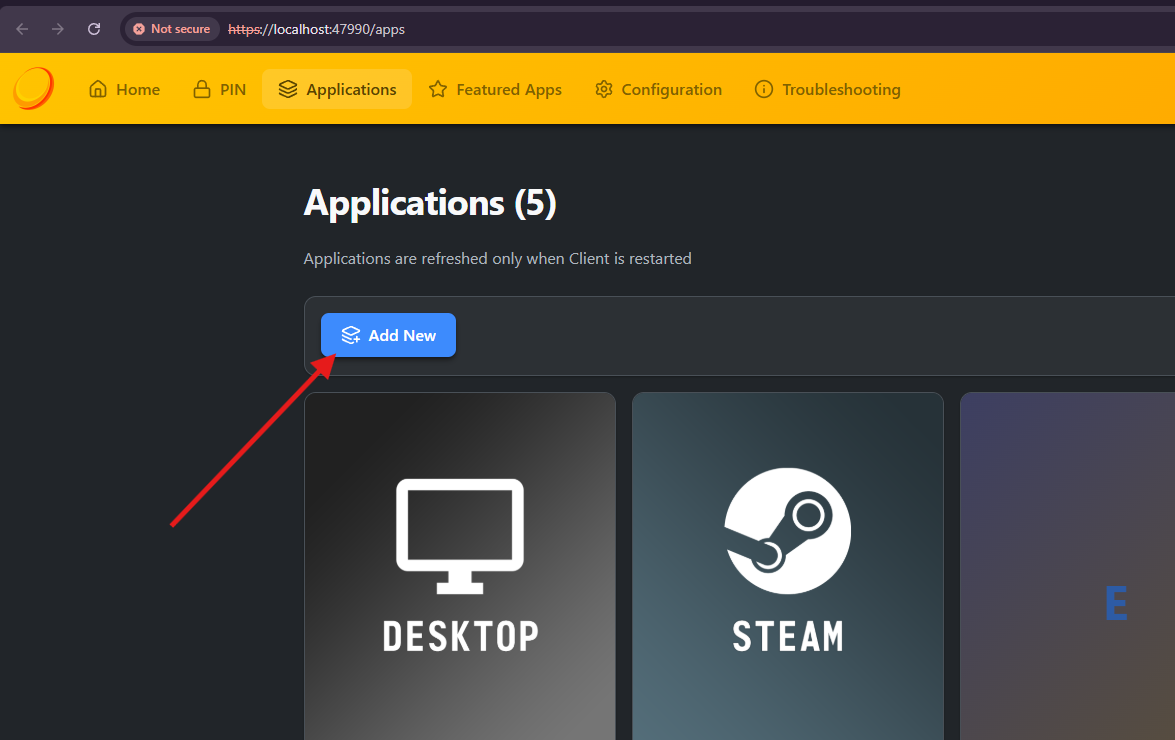
From the Sunshine dashboard, click the Add New button.
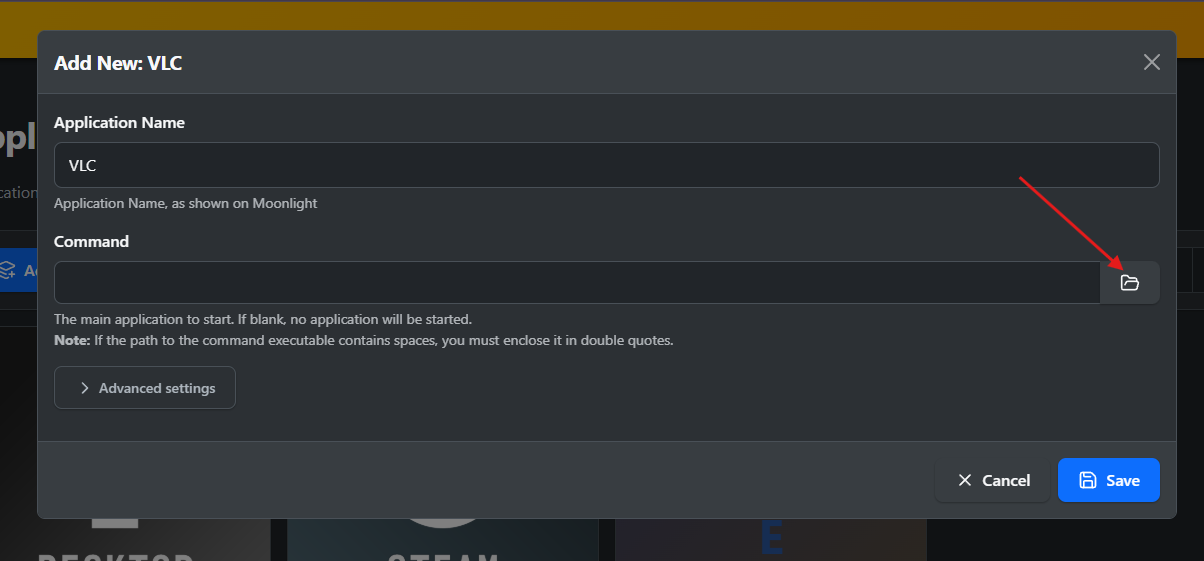
Step 5. Enter the Application Name
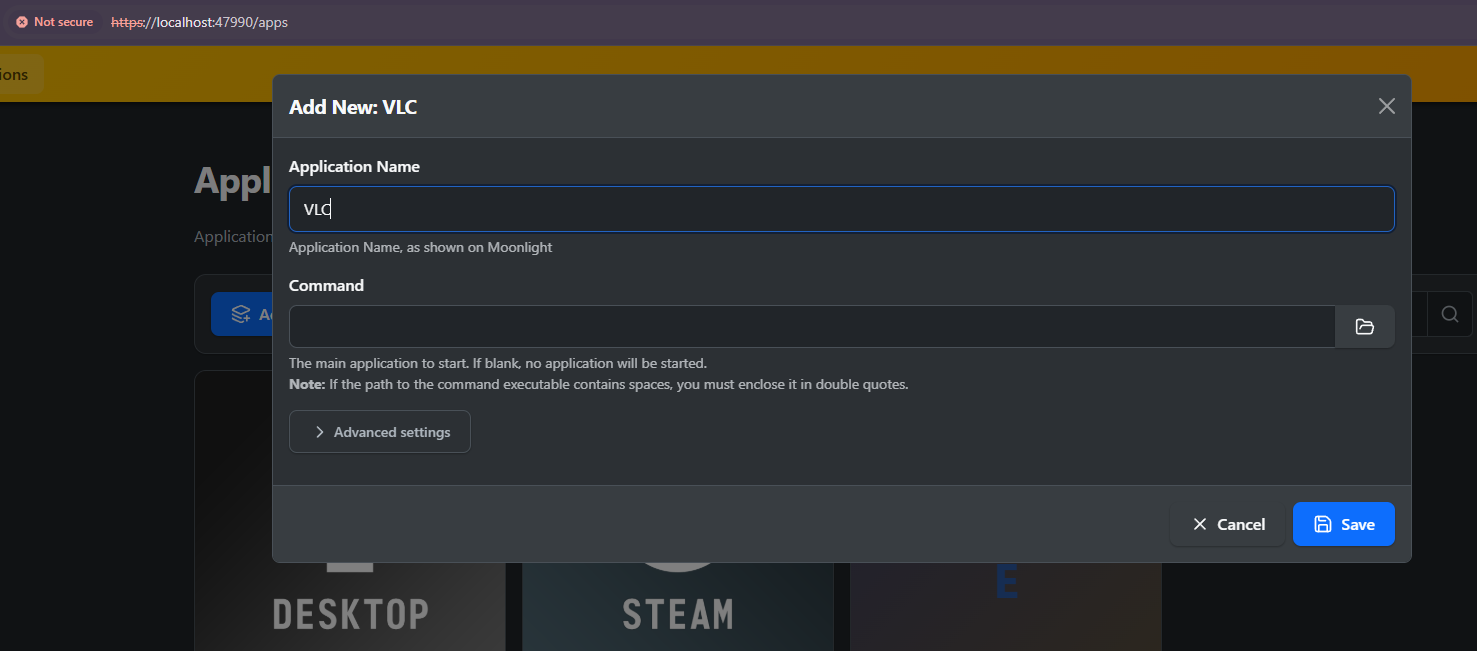
Provide a friendly name for the application.
Example:
VLC
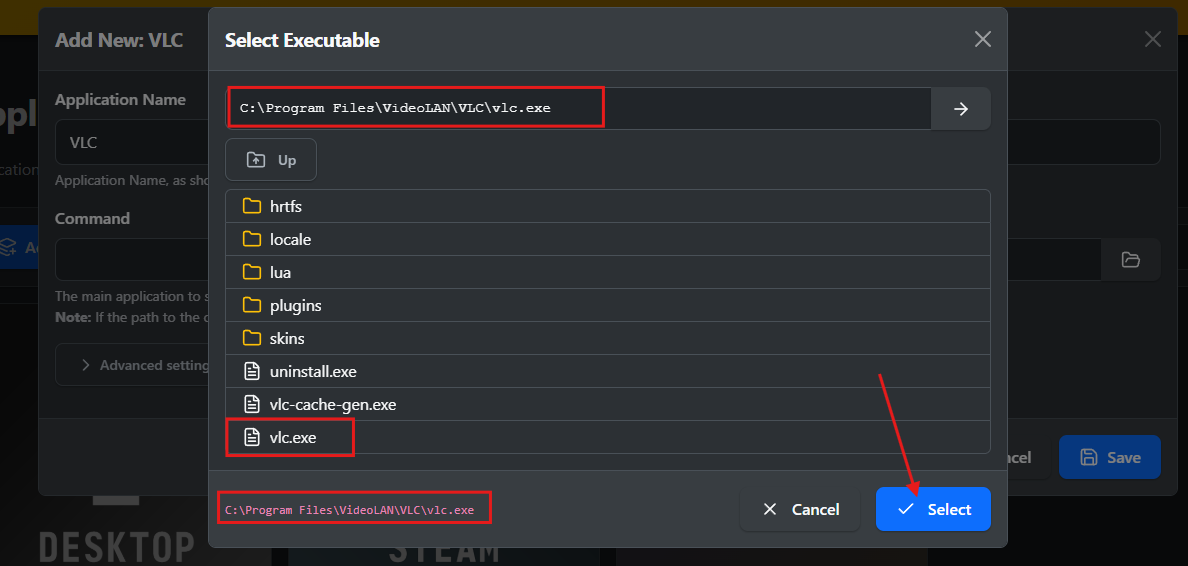
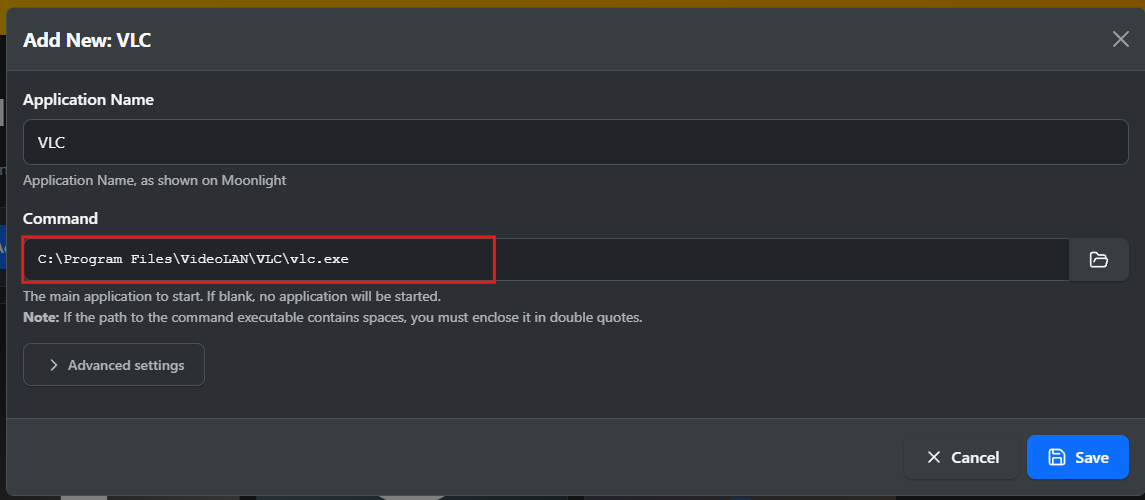
Step 6. Select the Application Executable in the Command Field
Browse to the executable (.exe) file of the application you want to stream.
Important: Make sure you enter the executable path in the Command field only. Do not enter the path in any other field, as this may prevent the application from launching correctly.
Example:
C:\Program Files\VideoLAN\VLC\vlc.exe
You can also add applications such as:
-
Visual Studio Code
-
Telegram
-
Unreal Engine packaged applications
-
Chrome
-
Any Windows executable (.exe)
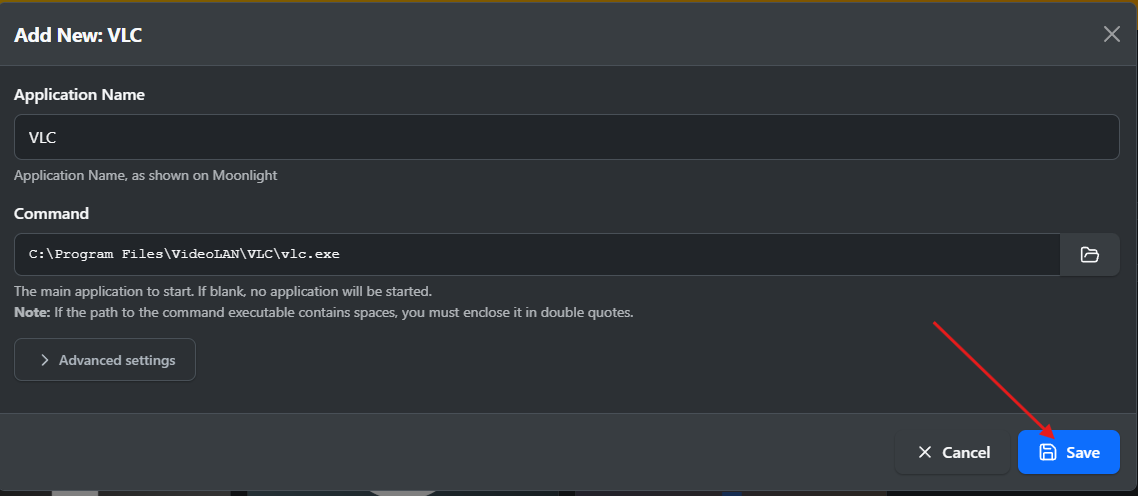
Step 7. Save the Configuration
Click Save to add the application.
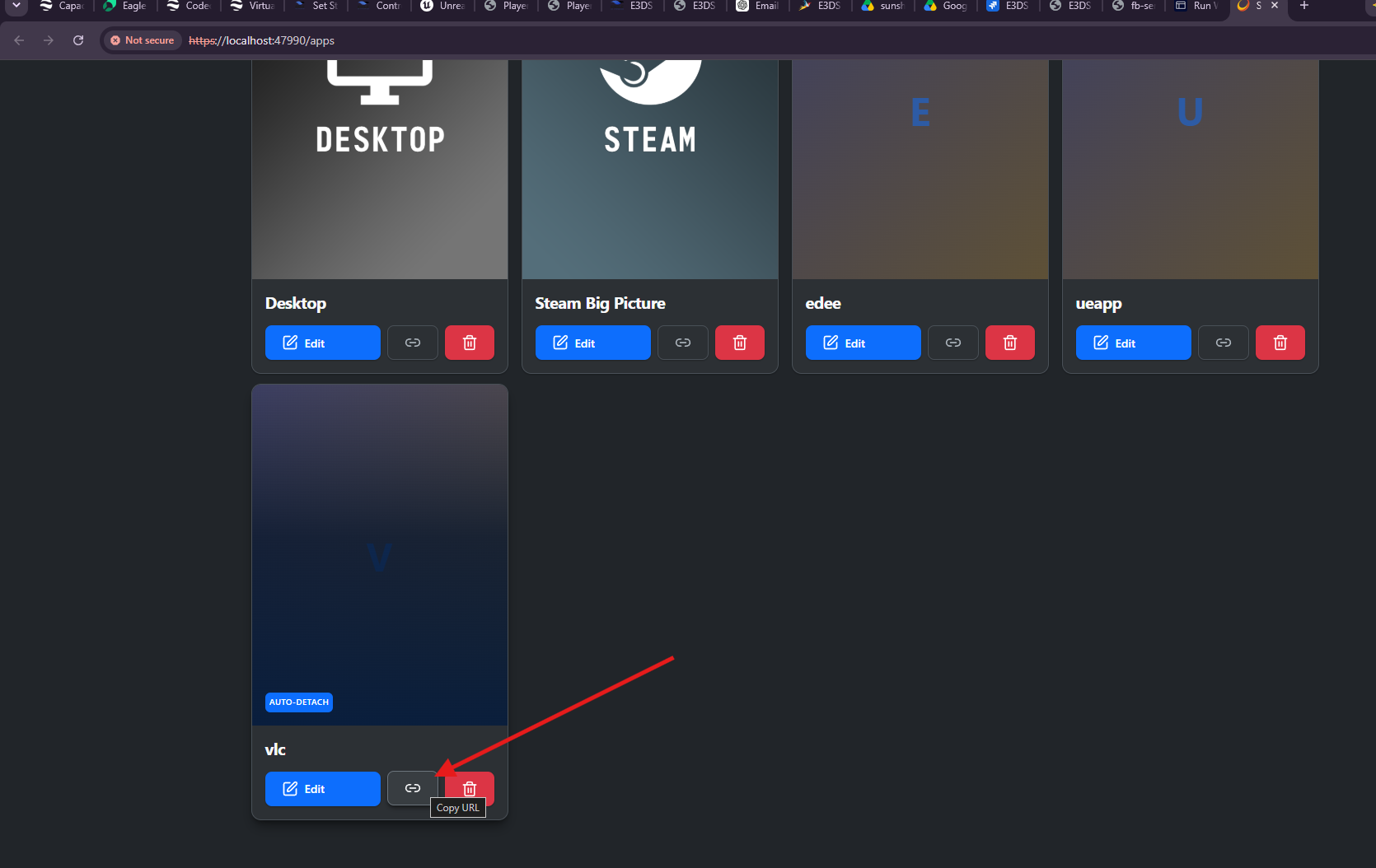
Step 8. Share the Access URL
Copy the generated Sunshine URL and share it with the user who will connect from Machine B.
Machine B – Access the Application in the Browser
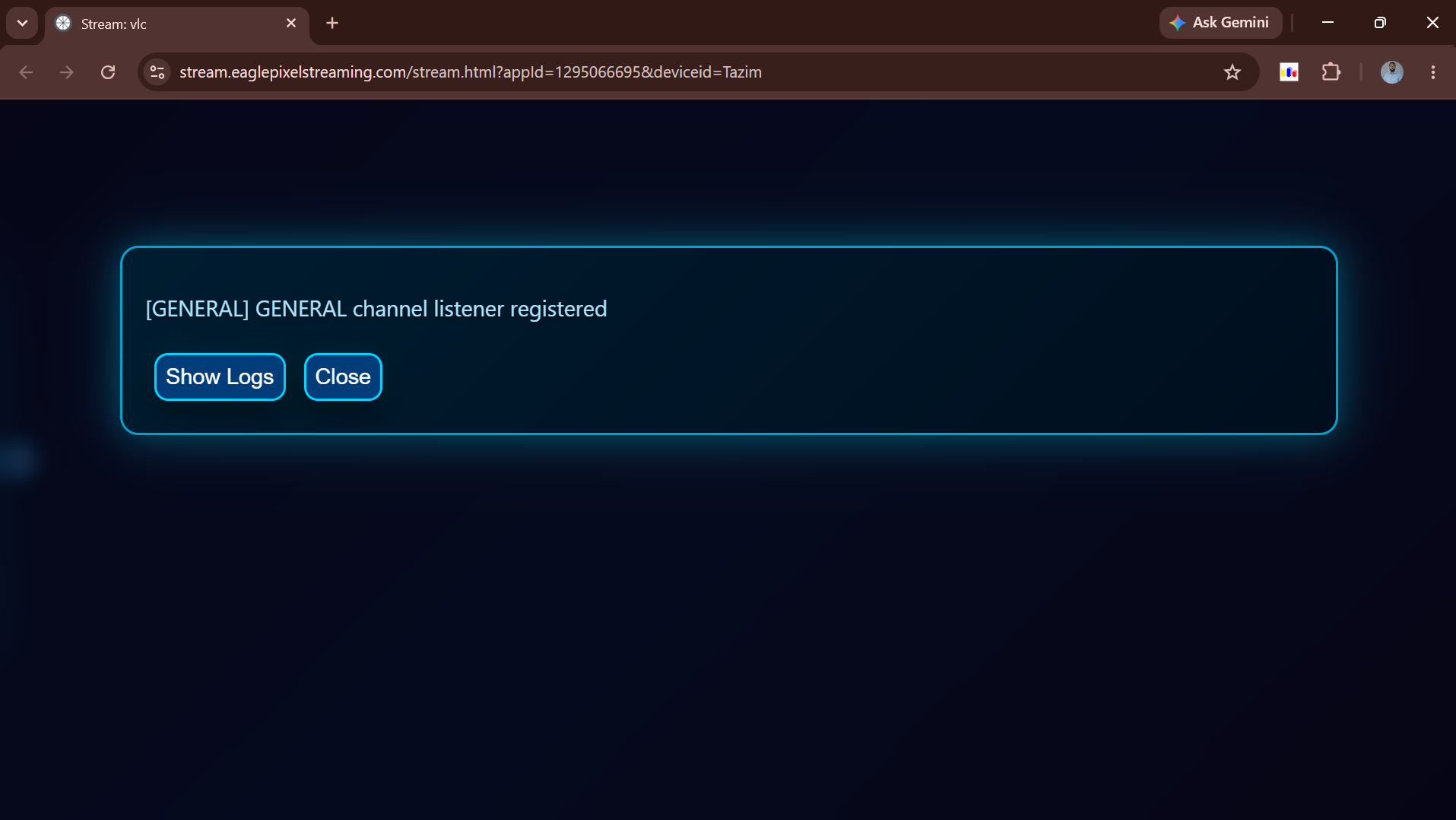
Step 1. Open the Shared URL
Open the Sunshine URL shared from Machine A using any supported web browser.
Wait a few moments while the connection is established.
Step 2. Control the Application
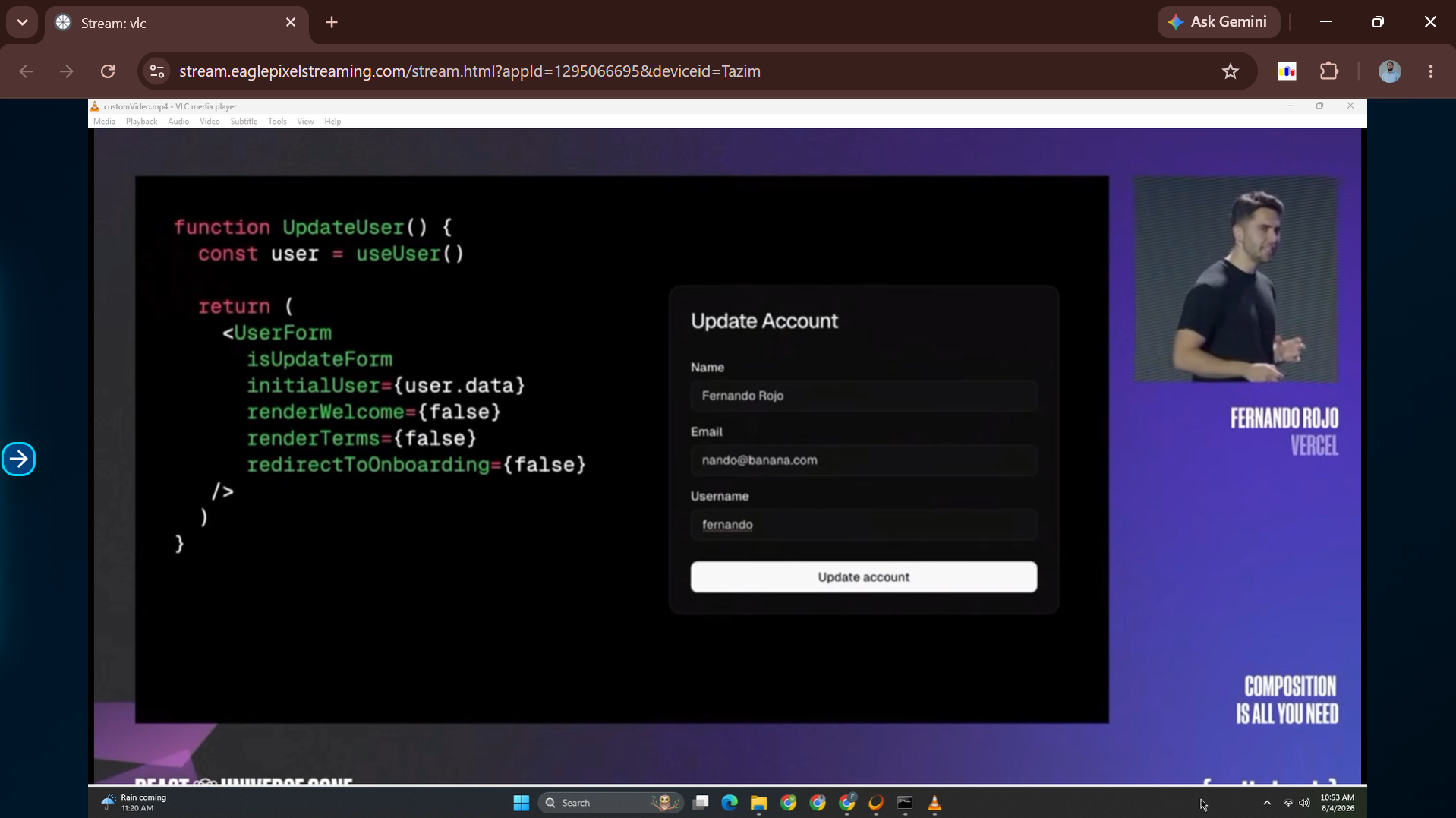
Once connected, the application will automatically launch on Machine A and will appear inside your browser on Machine B.
Although you interact with the application from Machine B, it is actually running on Machine A. Any mouse and keyboard input from Machine B is transmitted to Machine A in real time.
For example:
-
VLC runs on Machine A.
-
All mouse and keyboard input is sent from Machine B.
-
Changes are reflected immediately on Machine A.
Additional Features
You can access additional streaming controls by clicking the arrow icon on the left side of the streaming interface.
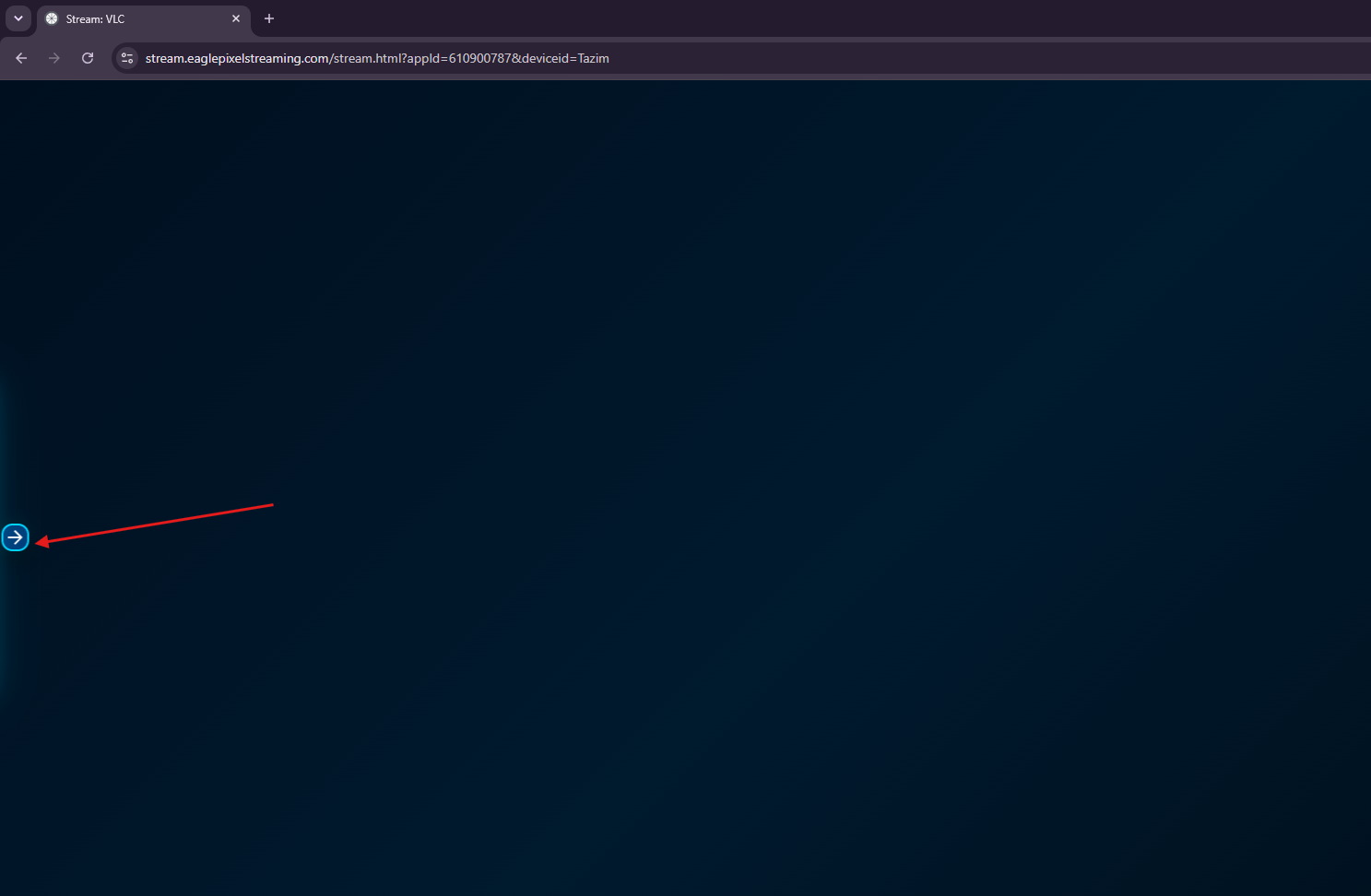
After clicking the arrow icon, the available options will be displayed.
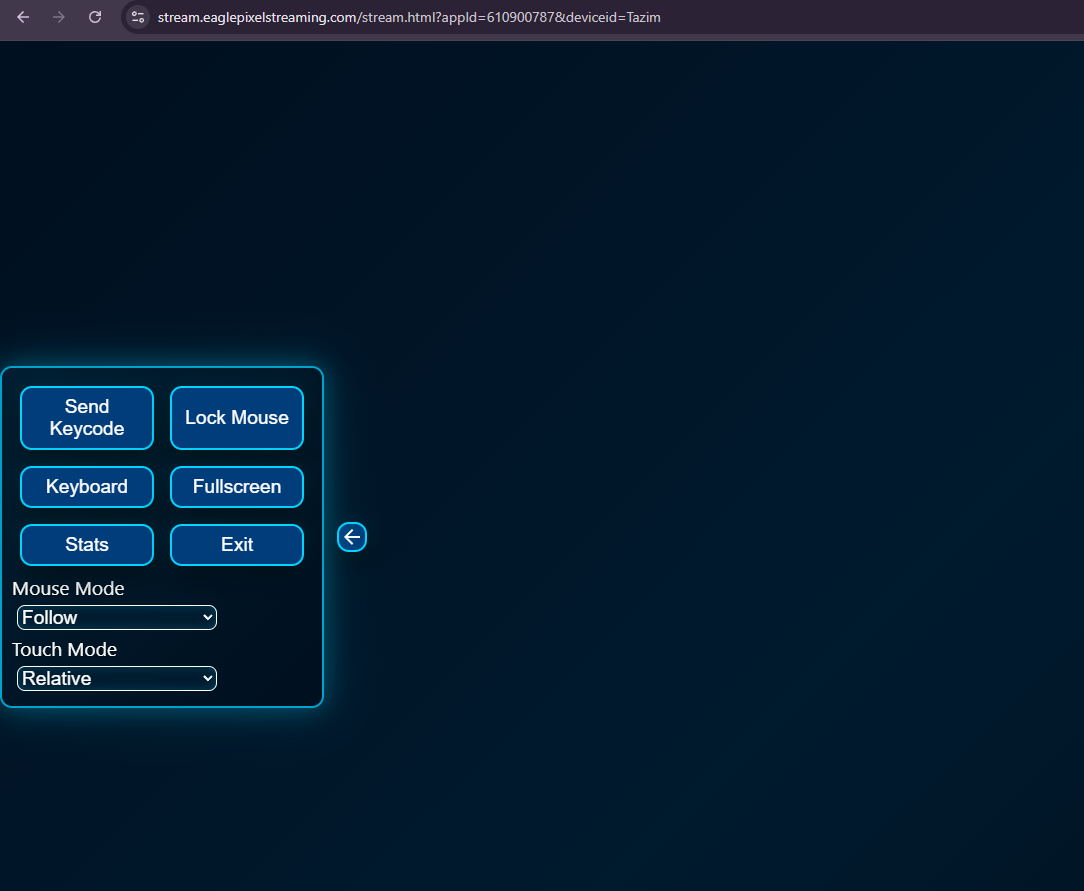
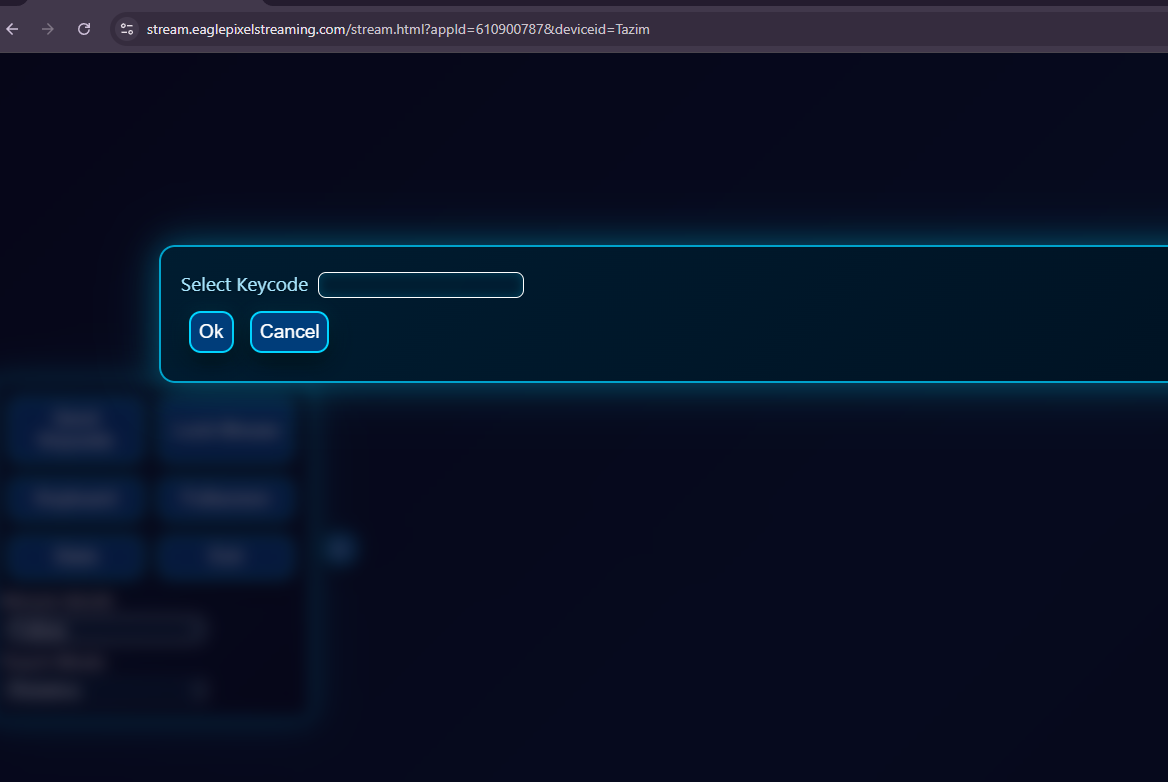
Send KeyCode
Use the Send KeyCode option to send keyboard key codes to the application running on Machine A.
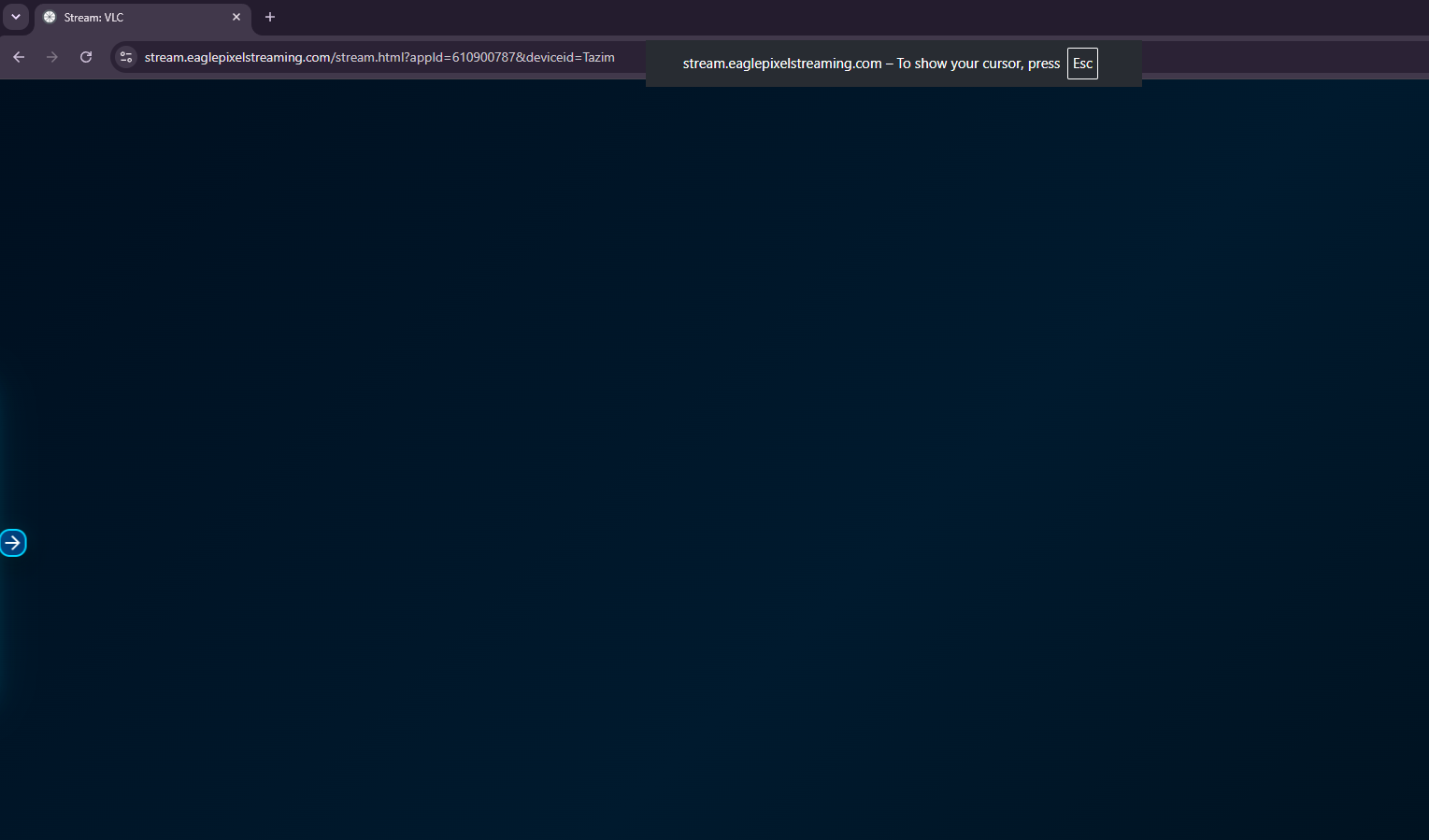
Lock Mouse
Select Lock Mouse to switch to Locked Mouse mode. This allows the mouse to remain captured within the streaming session.
To exit Locked Mouse mode, press Esc on your keyboard.
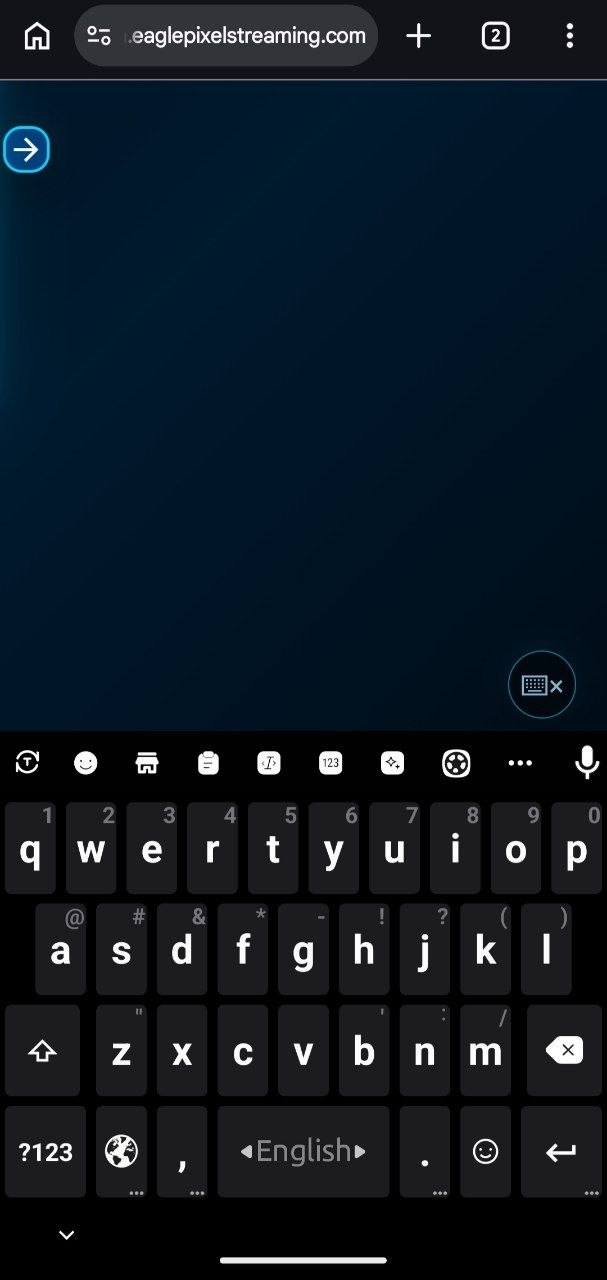
Keyboard
Select Keyboard to display an on-screen keyboard. This option is particularly useful when accessing the application from a mobile device.
Fullscreen
Click Fullscreen to expand the streaming session to fullscreen mode. To exit fullscreen mode, press and hold the Esc key.
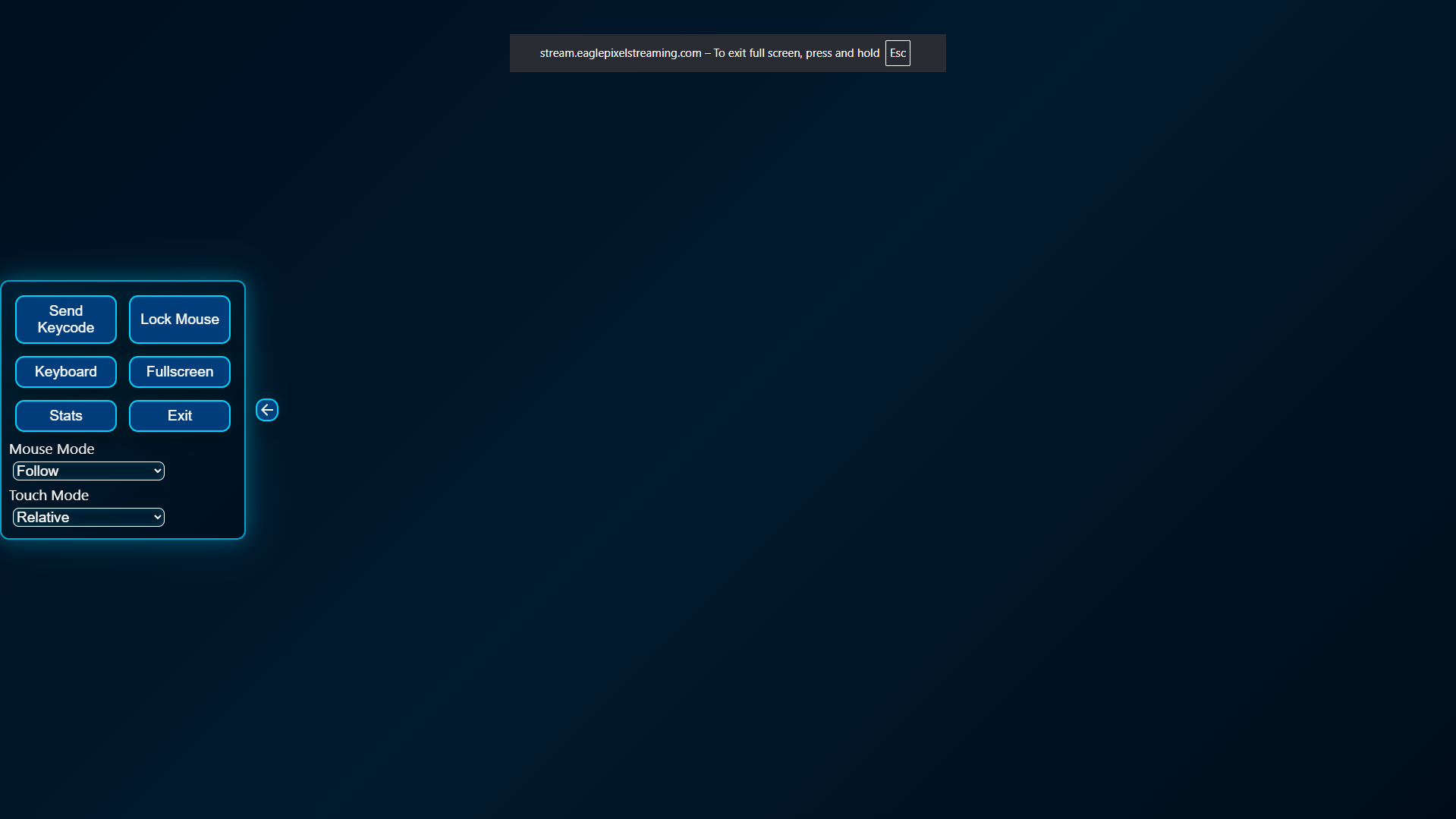
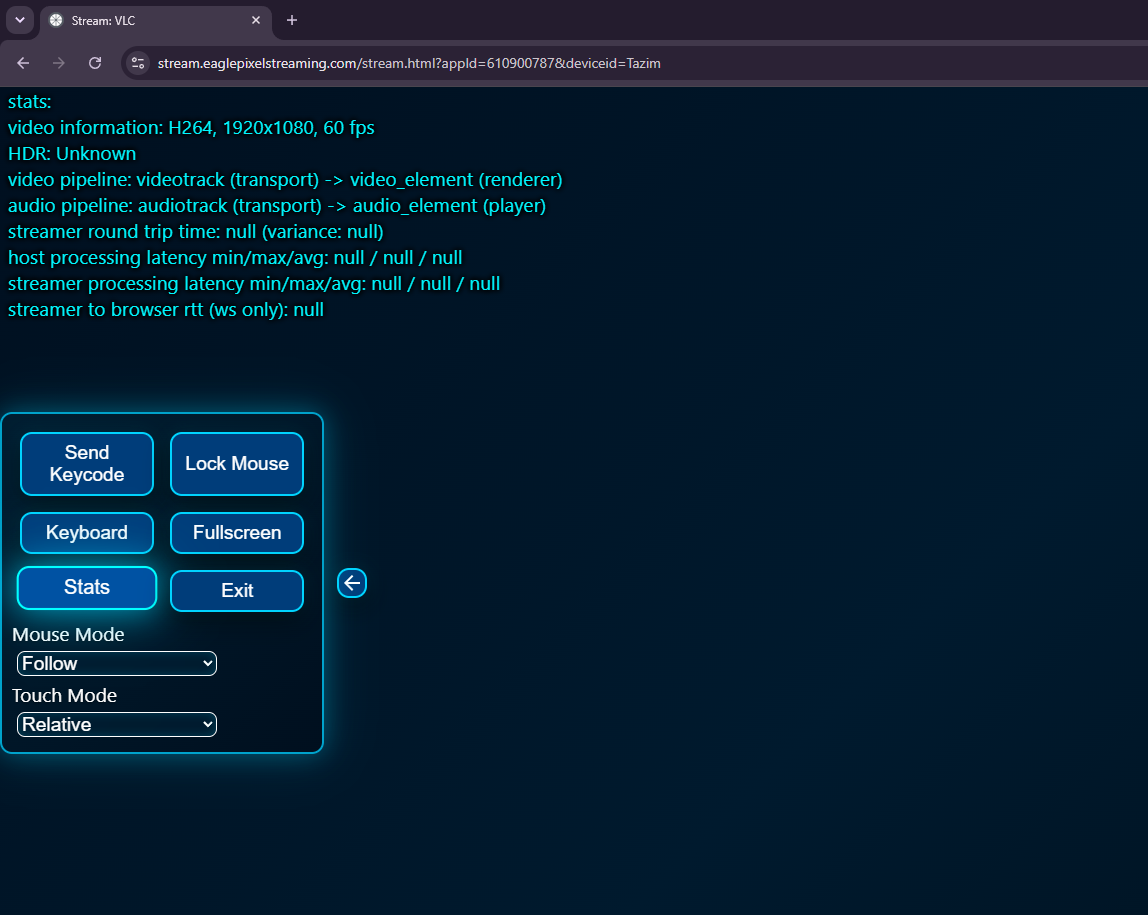
Stats
Select Stats to display streaming and connection statistics.
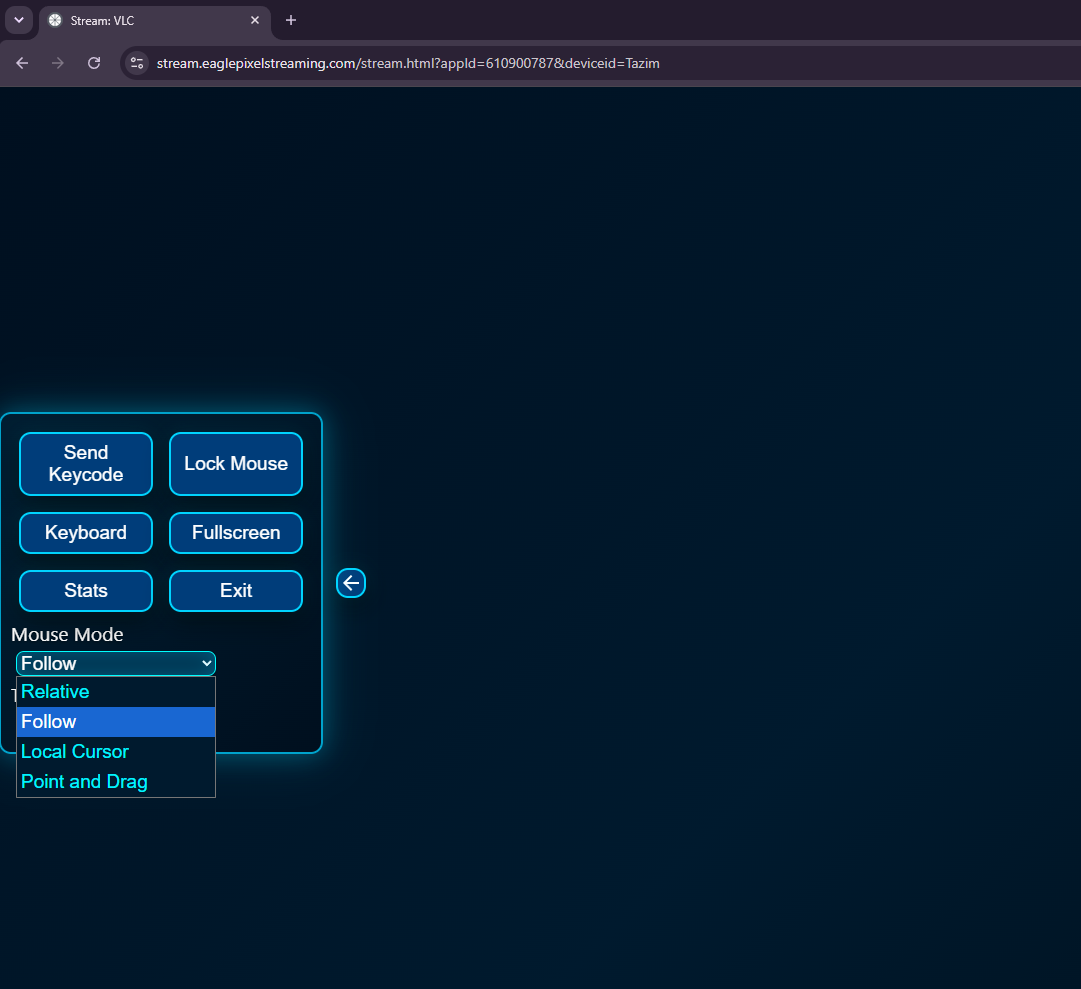
Mouse Mode
Select Mouse Mode to choose your preferred mouse control mode.
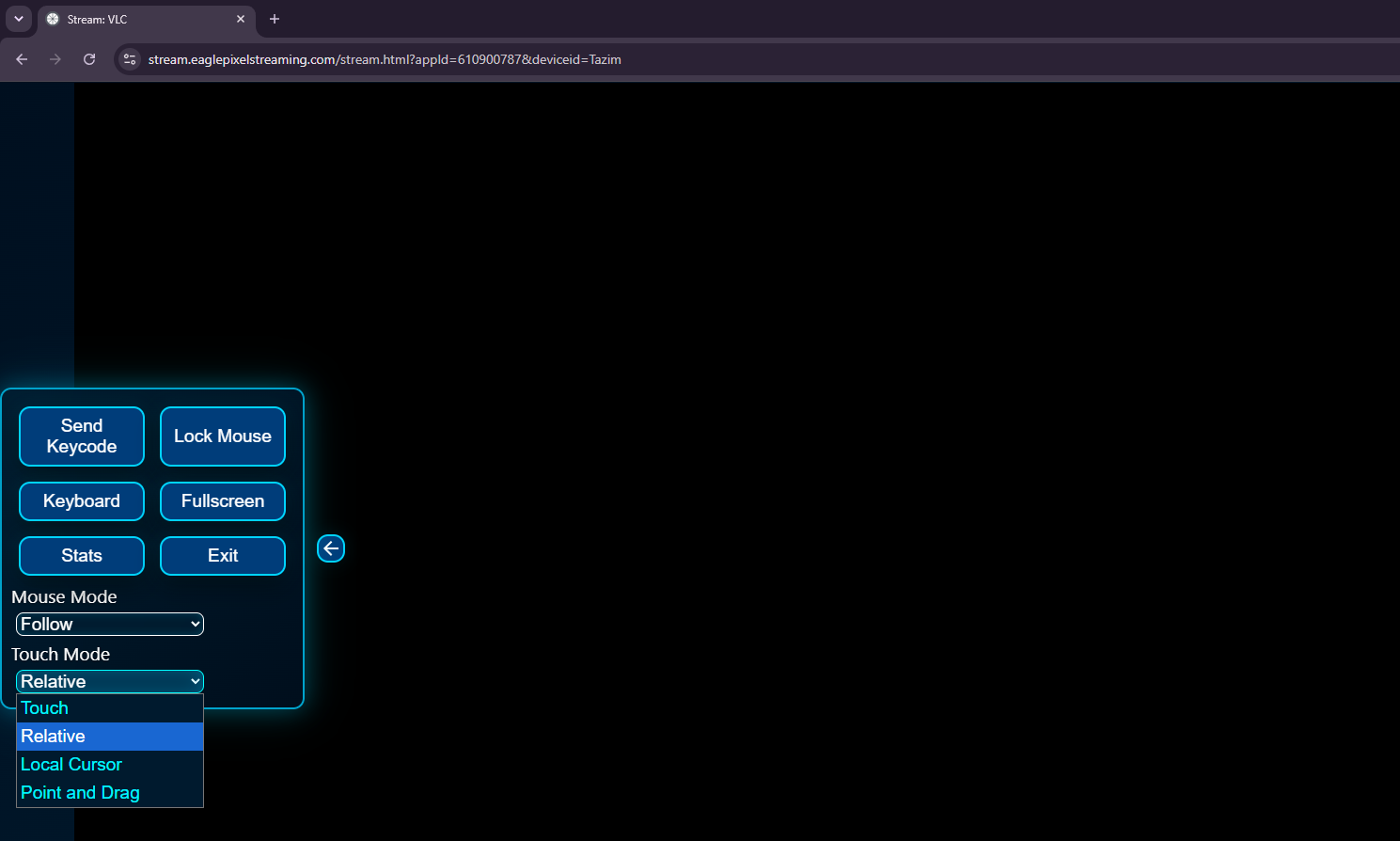
Touch Mode
Select Touch Mode to choose your preferred touch interaction mode. This feature is for touch devices.
Important Notes
-
Do not open the Sunshine URL on the host machine (Machine A).
-
Machine A should only host the application.
-
Machine B should connect using the shared URL.
-
-
Avoid minimizing or closing the application while it is being accessed remotely.
-
Only one user should actively control the application at a time to prevent conflicting inputs.
Troubleshooting
|
Issue |
Possible Cause |
Solution |
|---|---|---|
|
Cannot access the Sunshine URL |
Sunshine service is not running |
Restart Sunshine and verify it is running. |
|
Application does not appear |
|
|
|
Black screen after connecting |
Application is minimized or not active |
Bring the application to the foreground on Machine A. |
|
Connection fails |
Firewall or network restrictions |
Ensure both machines can communicate over the required ports and Sunshine is allowed through the firewall. |
|
High latency or poor responsiveness |
Slow or unstable network connection |
Use a faster and more stable network connection whenever possible. |
Final Thoughts
Once Sunshine is configured, you can remotely access and control almost any Windows desktop application directly from a web browser without installing the application on the client machine.
This setup is ideal for remotely accessing development tools, media players, Unreal Engine applications, productivity software, and other desktop applications from another computer.