
This guide explains how employees should manage their daily tasks using the company Trello board.
Follow these steps to keep task tracking clear, organized, and consistent across the team.
1. Access the Trello Board
You must first be granted access by an admin.
Steps:
-
Log into Trello with your company email.
-
Open the shared company board.
-
Confirm that you can view and edit task columns.
2. Create a Column With Your Name
Every employee manages tasks under their own personal column.
Steps:
-
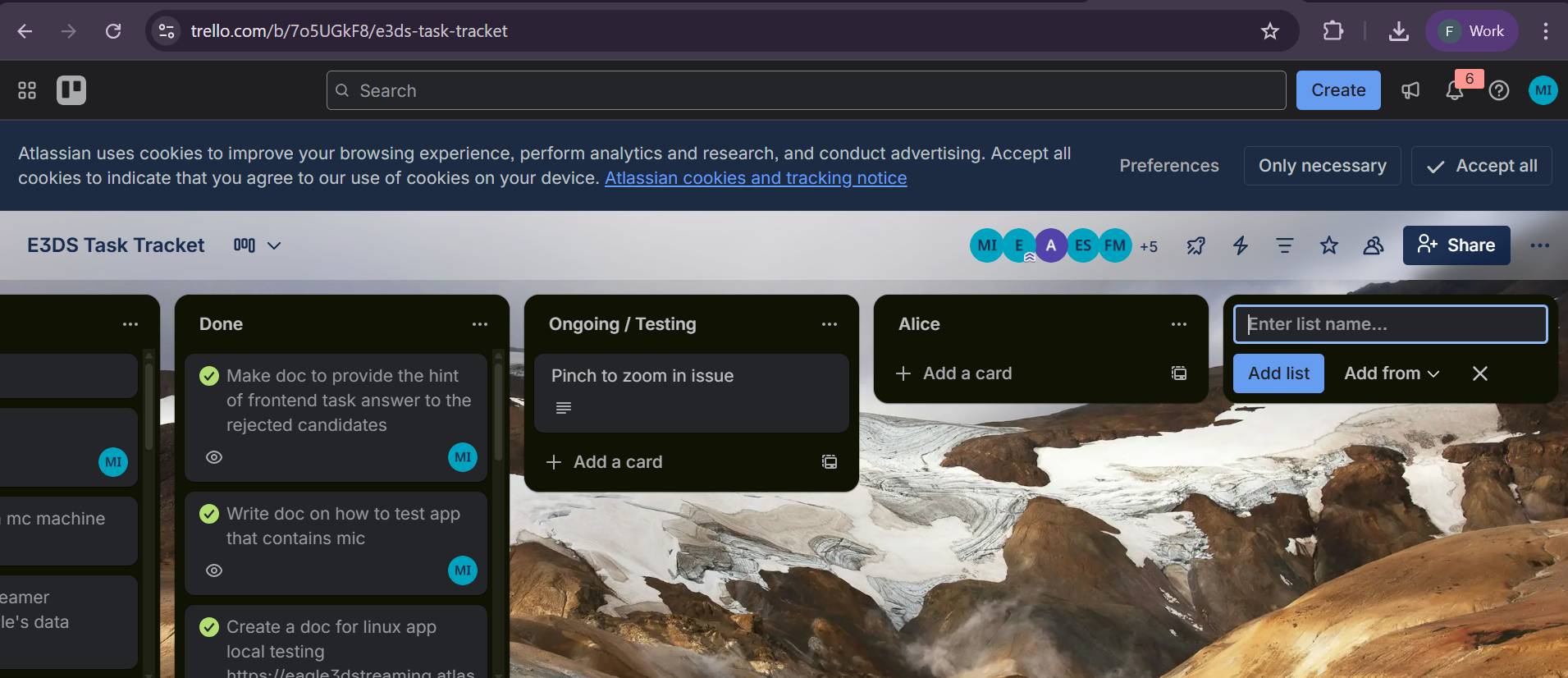
Click Add List on the right side of the board.
-
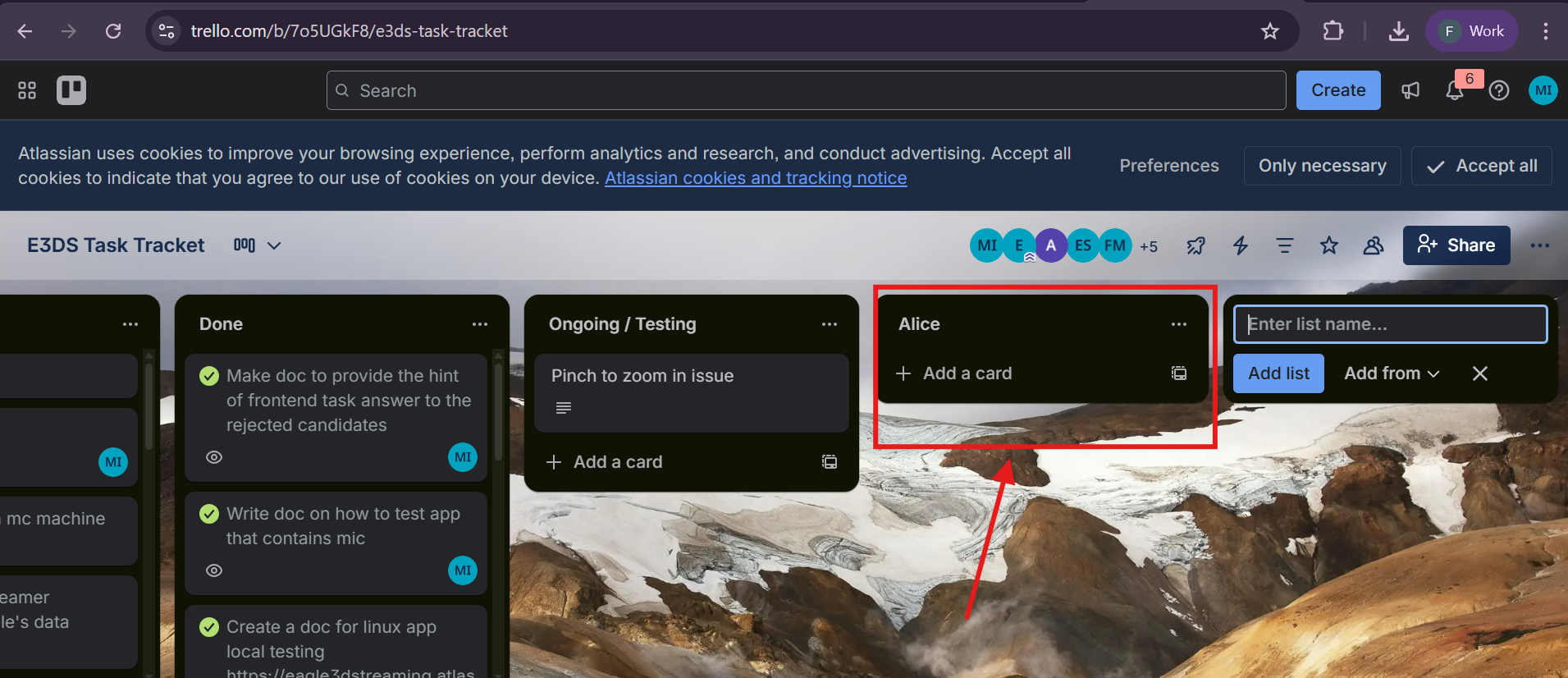
Name the list using the format:
YourName (ex. Alice) -
Press Enter to create the column.
3. Add Your Tasks
Tasks should be added as individual cards.
Include the following in each card:
-
Task Title (clear and short)
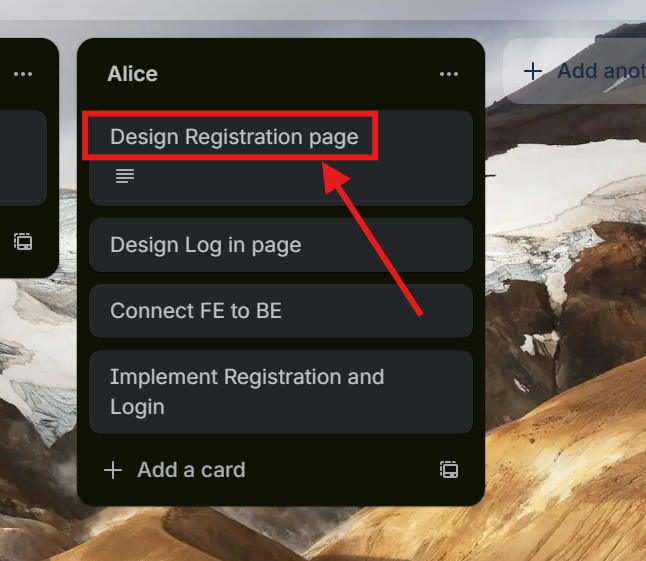
Figure 3: Creating a new task card
-
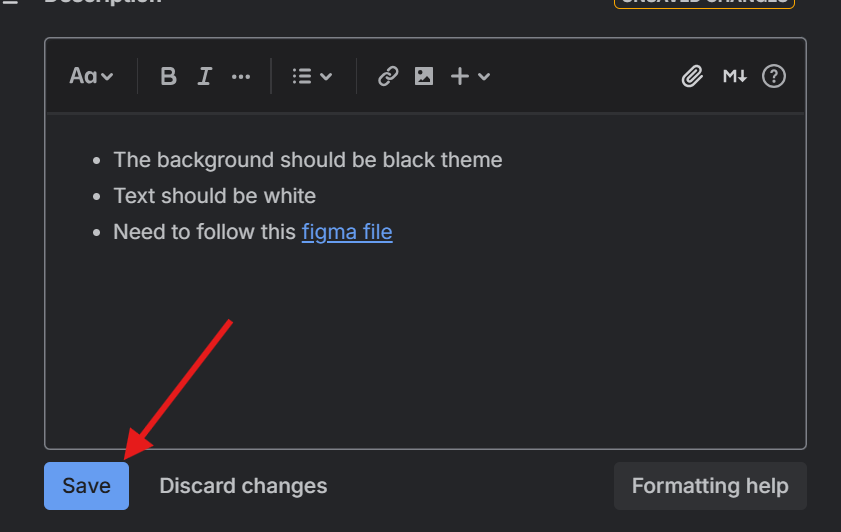
Description (what needs to be done)
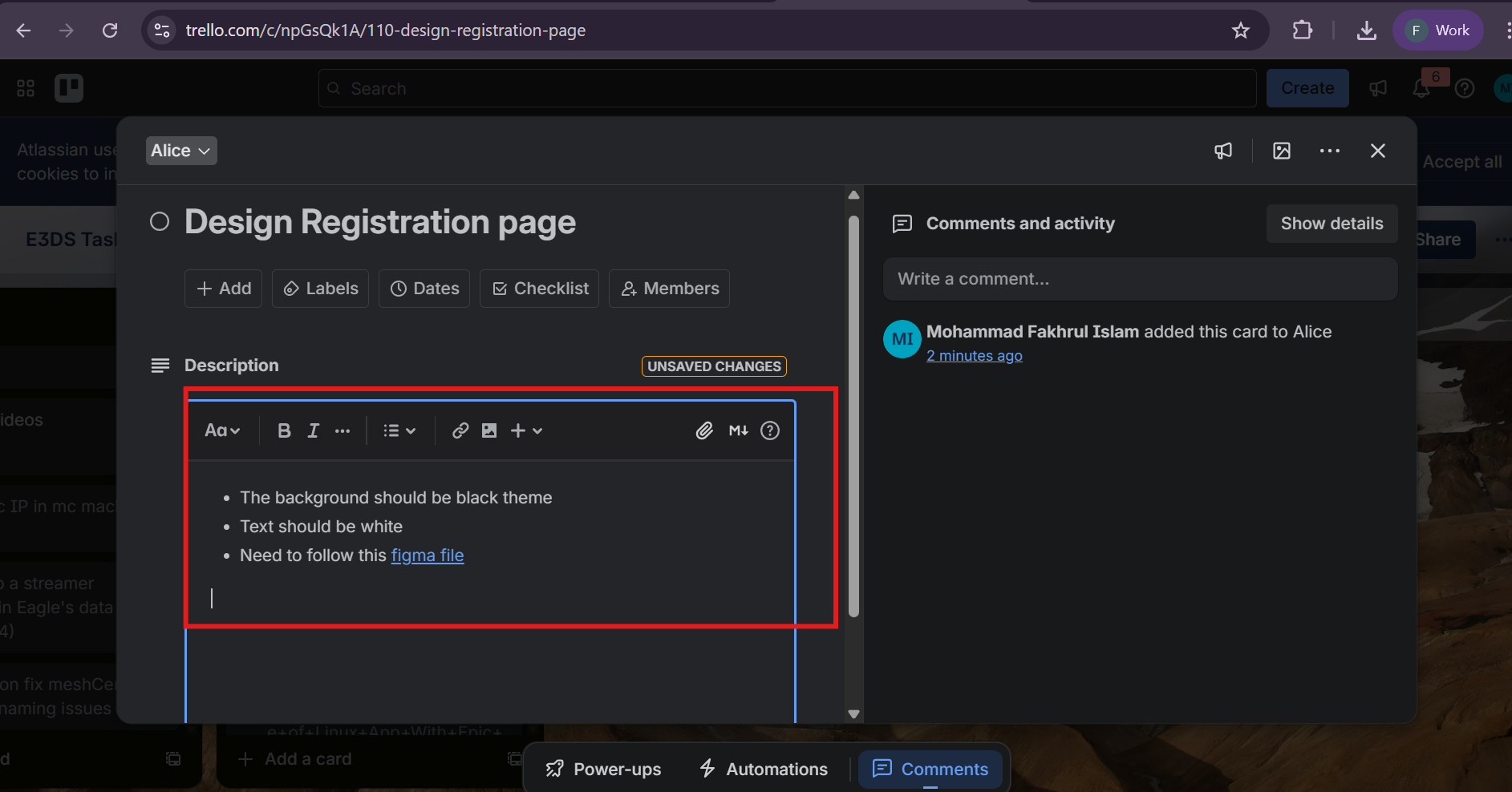
Figure 4. Add Details of the Task
-
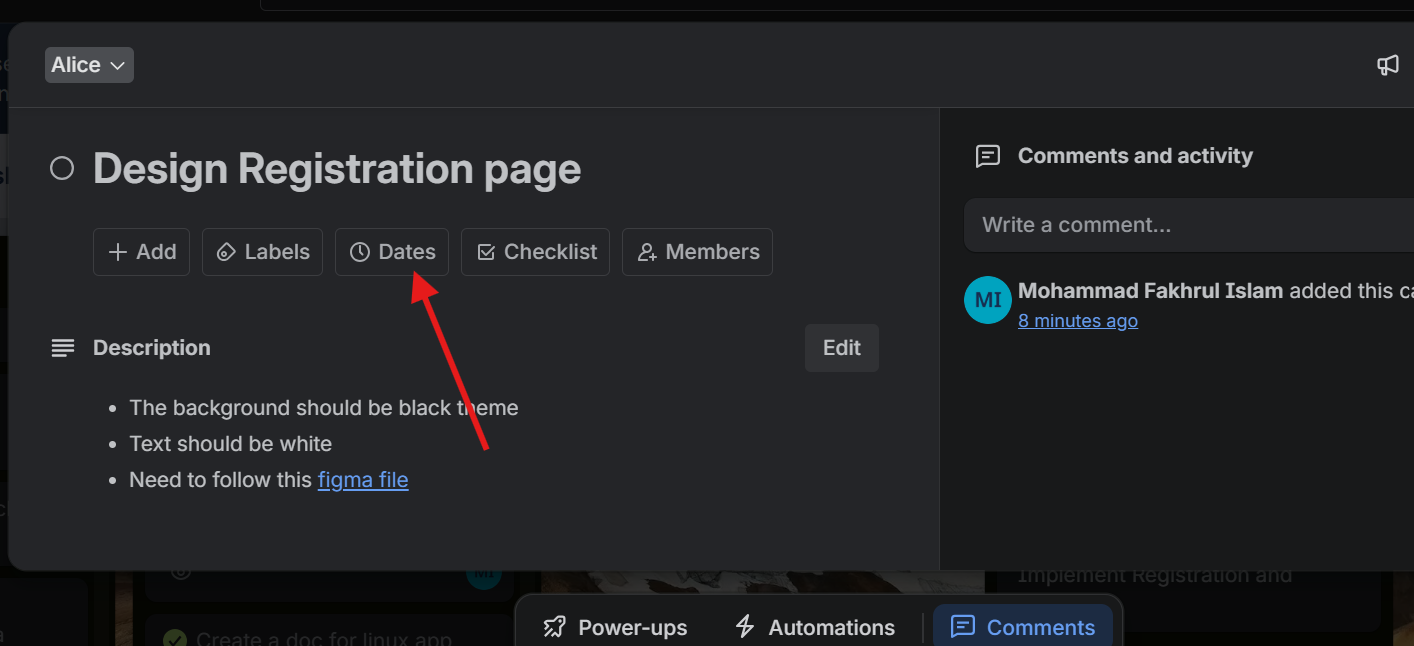
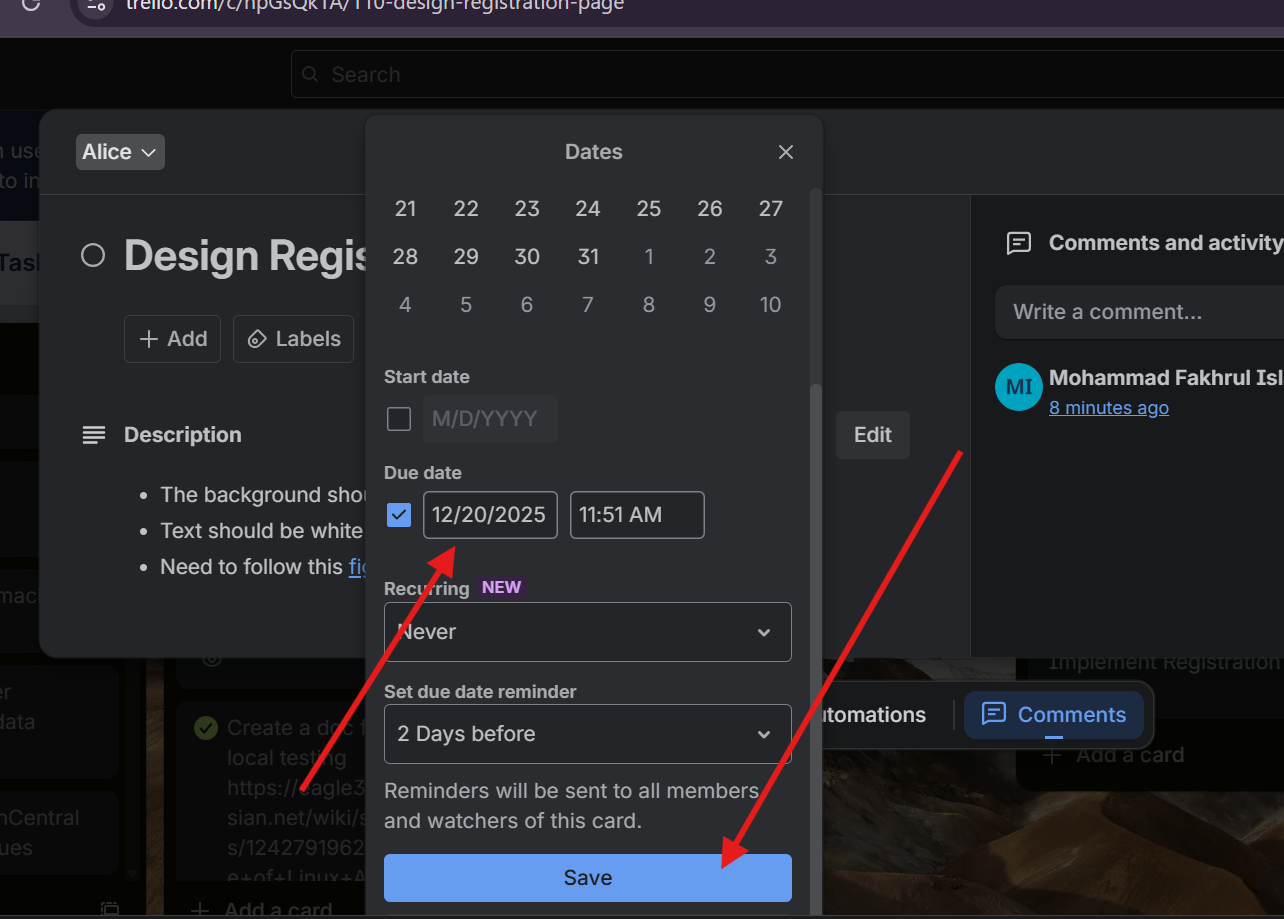
Deadline or expected date
-
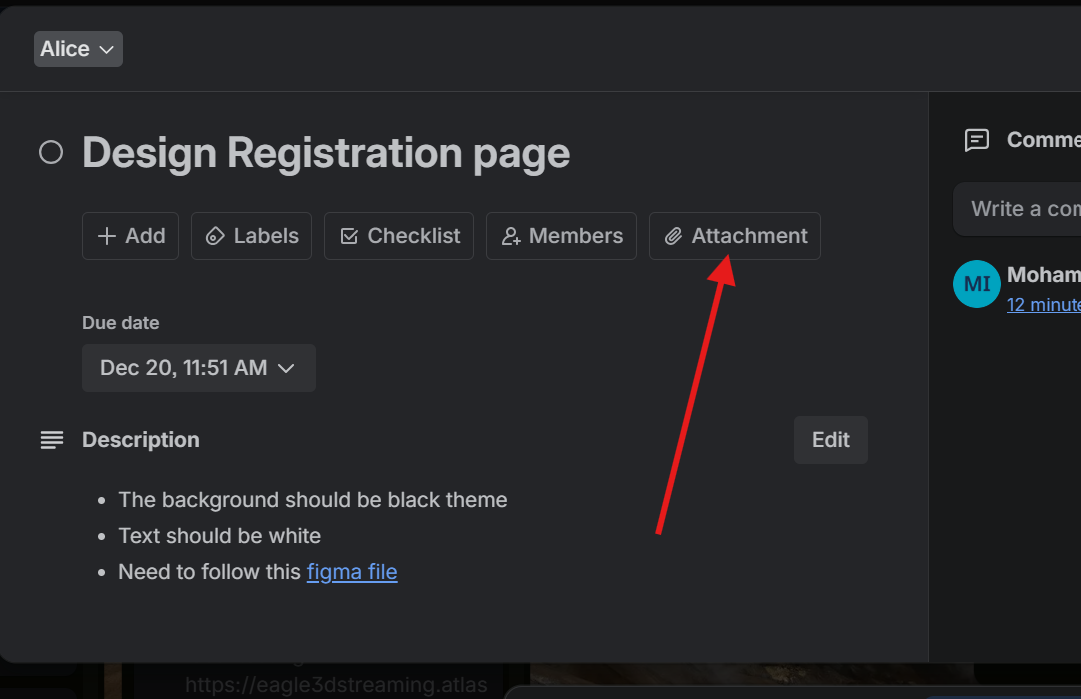
Attachments (if needed)
-
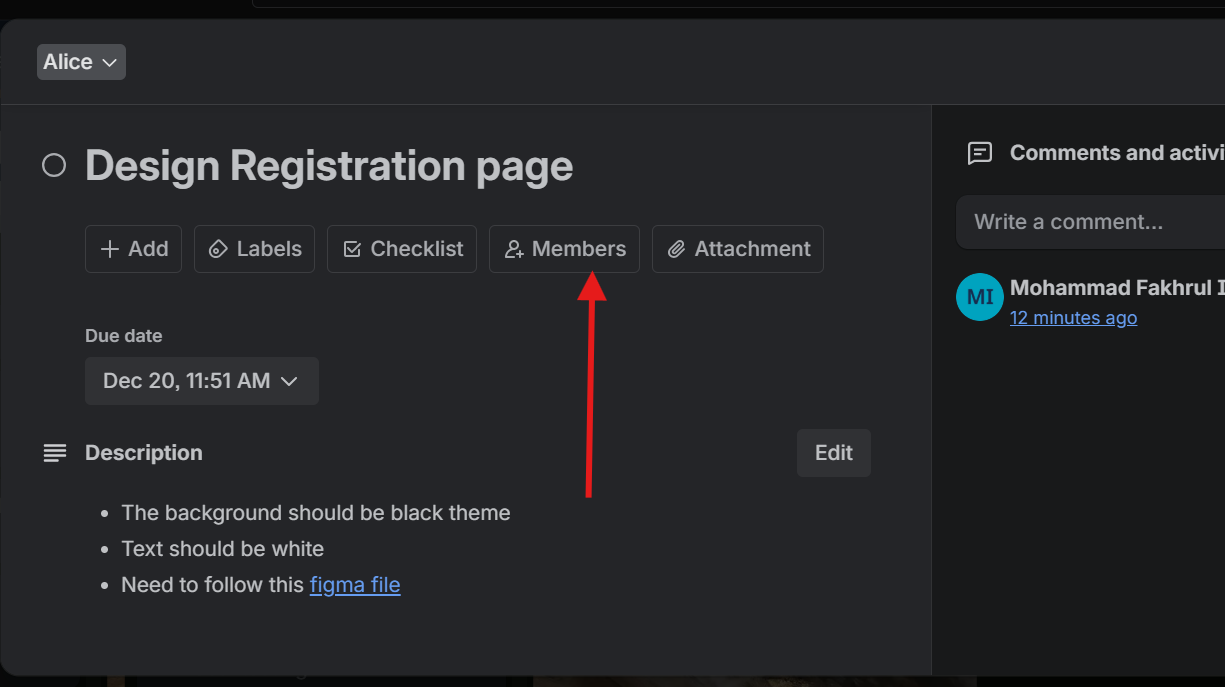
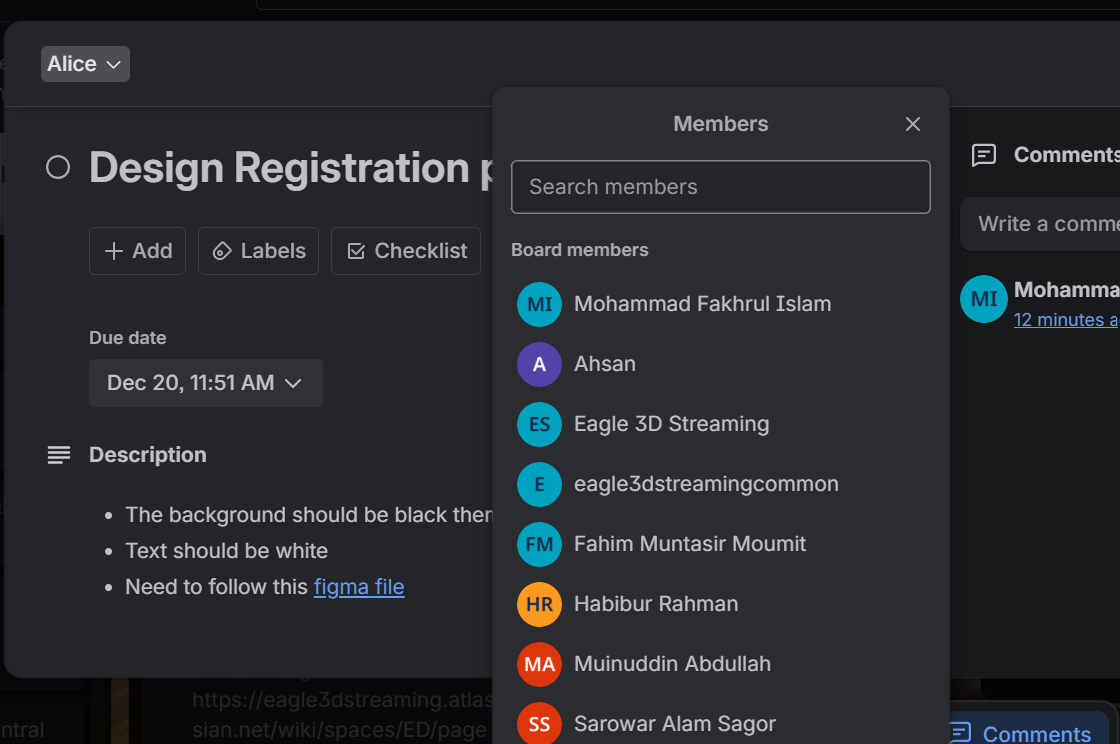
Add all members related to that task (assignee, you, tester etc)
-
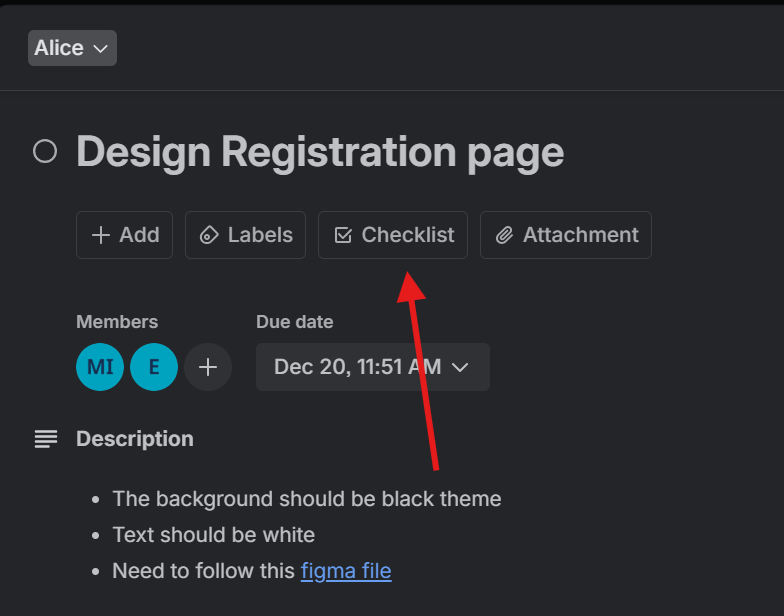
If a task has multiple steps, add a checklist inside the card.
This helps track progress and makes reviews easier.
4. Prioritize Your Tasks
Your Trello column must always reflect clear priority order.
Rules:
-
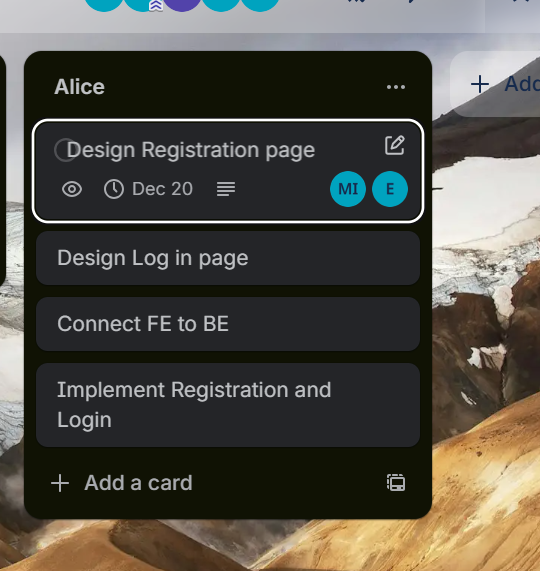
The most urgent/high-priority task stays at the top of your column.
-
The second most important task goes right below it.
-
Continue ordering tasks from highest to lowest priority.
Note: Reorder your tasks daily or whenever priorities change.
5. Mark Tasks as Completed
When a task is finished:
Steps:
-
Open the card and mark it with the “Done” label.
-
Move the completed task to the bottom of your column.
-
Add any final notes or attachments if needed.
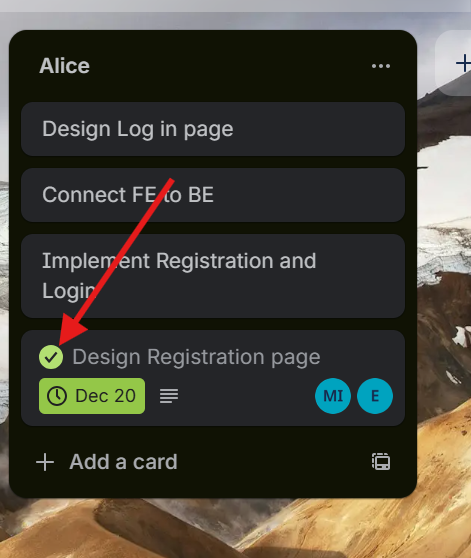
Figure 6: Moving a completed task
6. Daily Review Routine
Every employee must:
✔ Review their Trello column at the start of the day
✔ Reorder tasks based on new priorities
✔ Add newly assigned tasks
✔ Remove or archive tasks that are no longer needed
This ensures transparency and keeps everyone aligned.
7. Communication Rules (Important)
To avoid confusion:
-
Always comment on a task card if you need clarification or want to give an update.
-
Tag teammates when you need a response: @Name
-
Never leave a task without an updated status.
-
Do not rely on memory — everything must be tracked in Trello.