

In this document we will guide you on how to create, upload and test a DLSS app.
Graphics & DLSS Settings
-
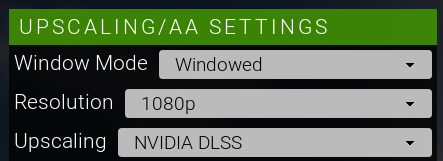
Window Mode: Set to "Windowed," meaning the game is running in a window on your desktop rather than occupying the full screen.
-
Resolution: Set to "1080p" (1920x1080 pixels), which is the final output resolution being sent to your monitor.
-
Upscaling: "NVIDIA DLSS" is selected. DLSS (Deep Learning Super Sampling) is an AI-powered technology that renders the game at a lower internal resolution and then uses AI to intelligently upscale the image to your target resolution, boosting performance.

Toggle RTX: This is set to "RTX ON," indicating that real-time ray tracing effects are enabled. Ray tracing is an advanced rendering technique that simulates the physical behavior of light to create more realistic shadows, reflections, and global illumination.
DLSS Supported Hardware
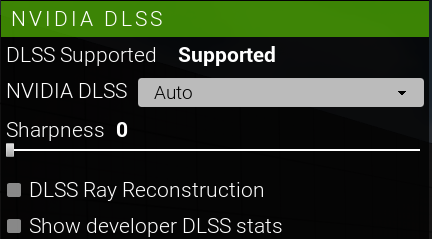
Nvidia 20,30,40,50 Supports Nvidia DLSS
DLSS Supported means hardware is supported the dlss features
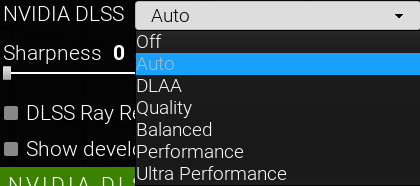
NVIDIA DLSS: The mode is set to "Auto." This setting dynamically adjusts the internal rendering resolution to maintain a stable target frame rate, balancing performance and image quality. Other common modes include Quality, Balanced, and Performance, which use fixed internal rendering resolutions.
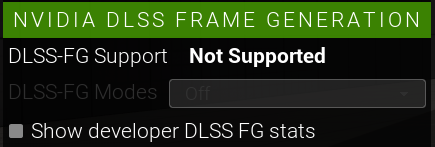
NVIDIA DLSS Frame Generation
This section relates to DLSS Frame Generation, a technology that inserts AI-generated frames between traditionally rendered ones to significantly boost the final displayed frame rate.
-
DLSS-FG Support: "NotSupported" indicates that the system cannot run Frame Generation. This feature requires specific hardware, such as the fourth-generation Tensor Cores and Optical Flow Accelerator found in GeForce RTX 40 and 50 Series GPUs.
-
DLSS FRAME GENERATION STATS: This panel lists the requirements for Frame Generation to function, such as minimum driver and OS versions, and confirms that features like Hardware-Accelerated GPU Scheduling ("Hardware Scheduling Required: true") must be enabled in the operating system.
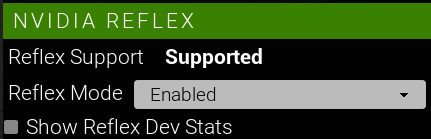
This section controls a technology designed to reduce system latency, which is the delay between a user's input (like a mouse click) and the corresponding action appearing on screen.
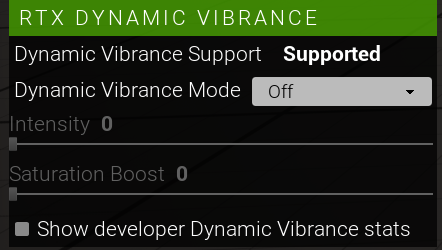
This is an AI-powered filter that enhances color and visual clarity on a per-game basis.
-
Dynamic Vibrance Support: "Supported" indicates the system can use this feature.
-
Dynamic Vibrance Mode: "Off" means the filter is currently disabled. When turned on, it makes colors "pop" without oversaturating the image to the point of "color crushing".
-
Intensity / Saturation Boost: These sliders would become active if the mode was turned on, allowing you to fine-tune the strength of the vibrance and saturation effects.
-
Show developer Dynamic Vibrance stats: Toggles the visibility of the "DYNAMIC VIBRANCE STATS" panel, which lists system requirements.