

This guide explains how you can montior the system from the observer and how you can access to the VMs.
Follow the guidelines below:
Step 1. Open the Streaming URL
Open your streaming URL in a browser.
Example:
https://connector_boundary2.eagle3dstreaming.com/v5/TB-Eagle/Amaala/z_e3ds
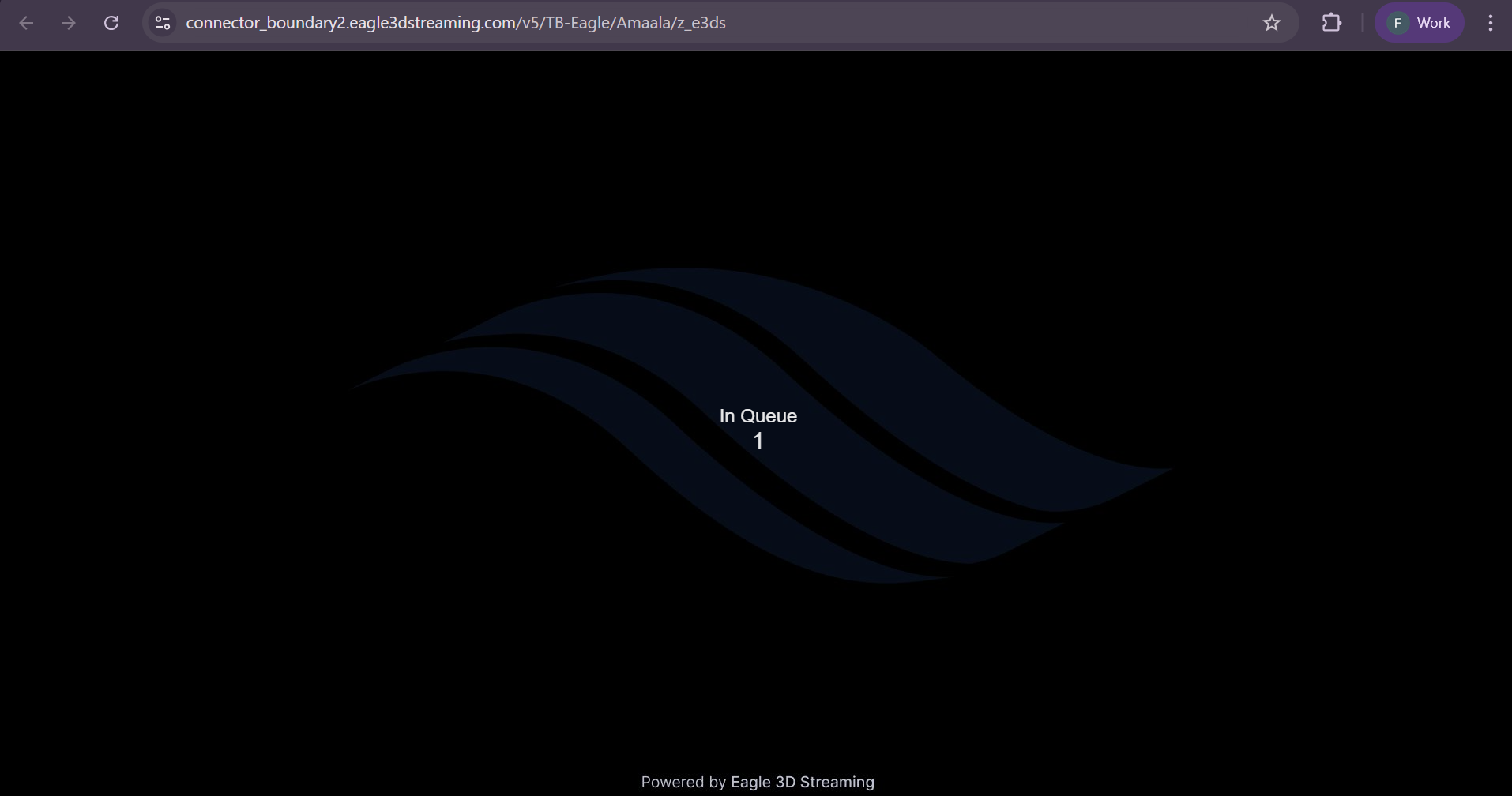
Step 2. Check the Observer for VM Assignment
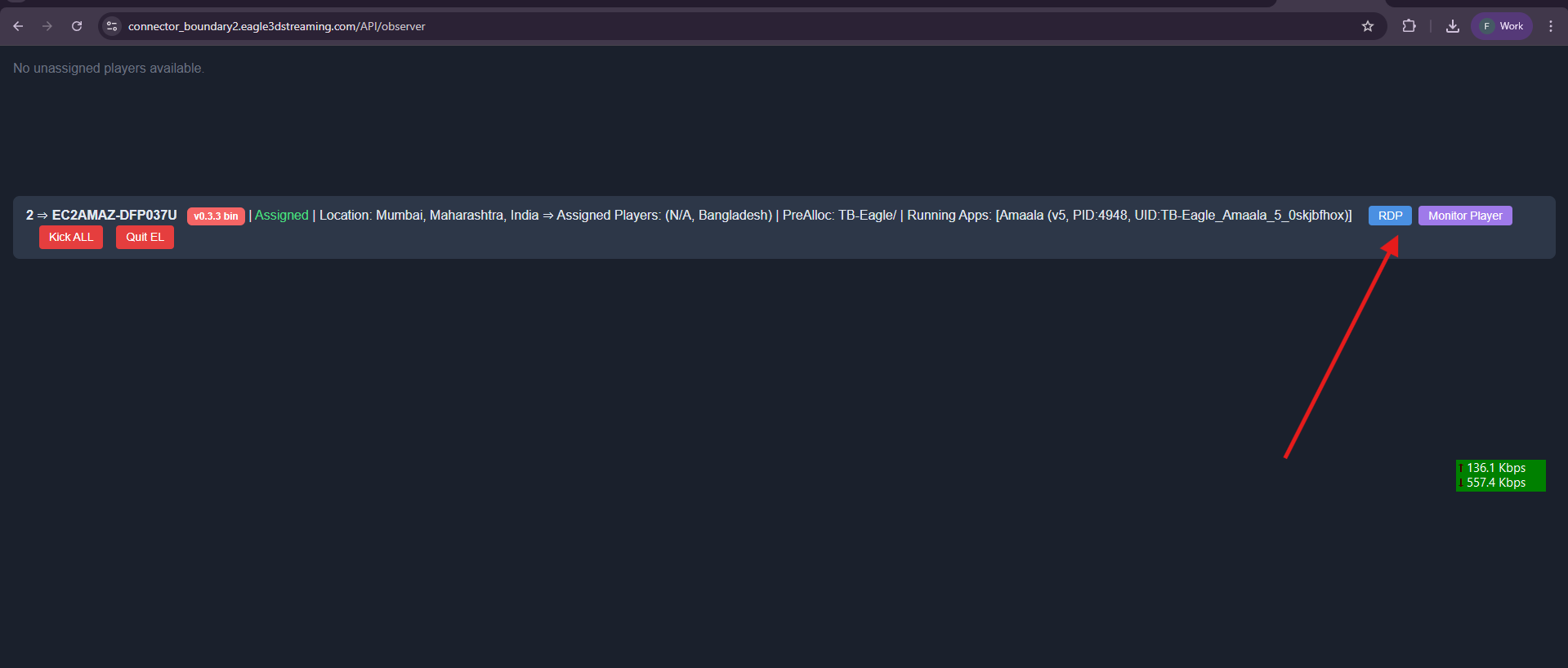
Navigate to the Observer to verify whether a VM has been assigned to the player: https://connector_boundary2.eagle3dstreaming.com/API/observer
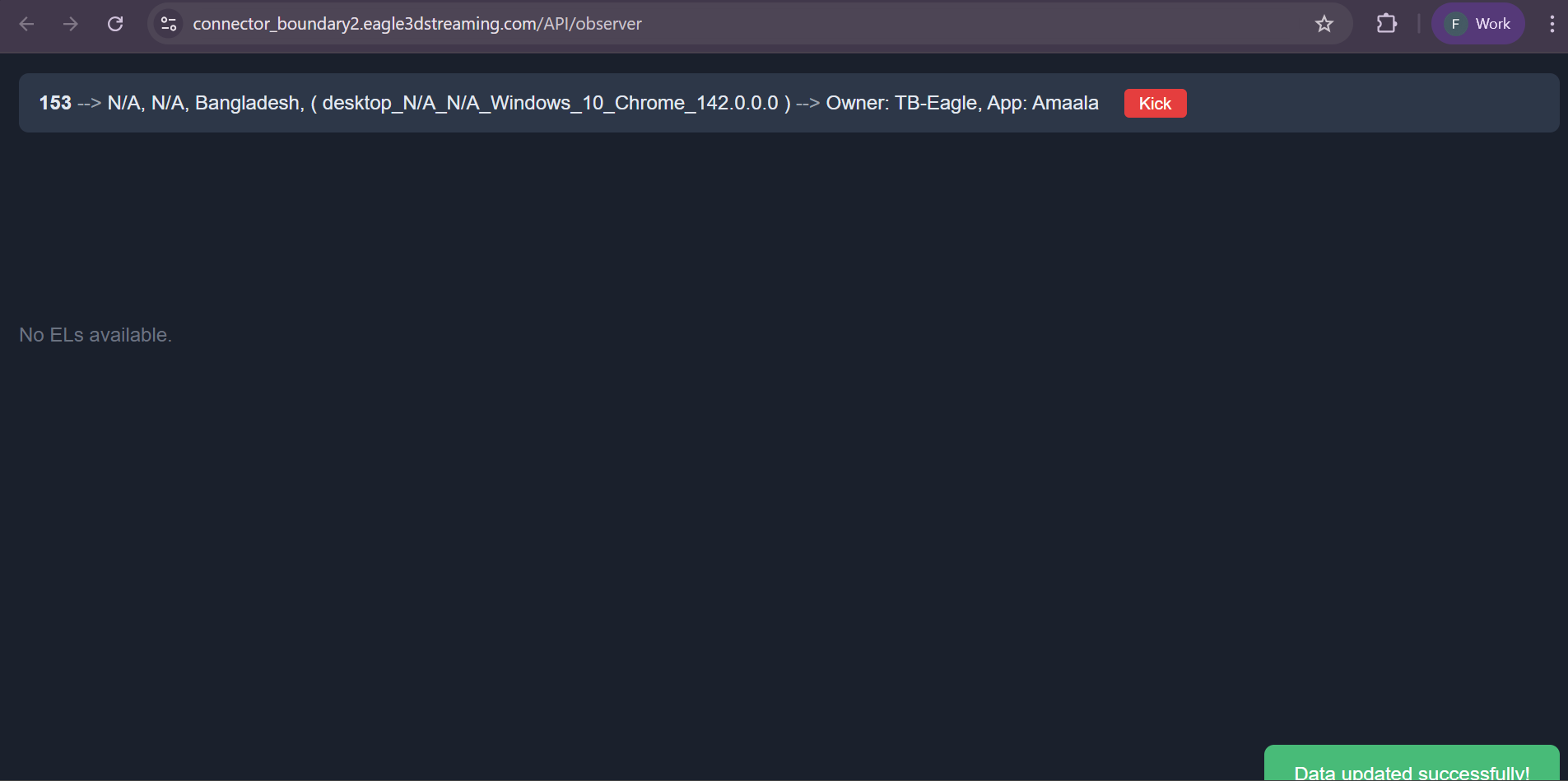
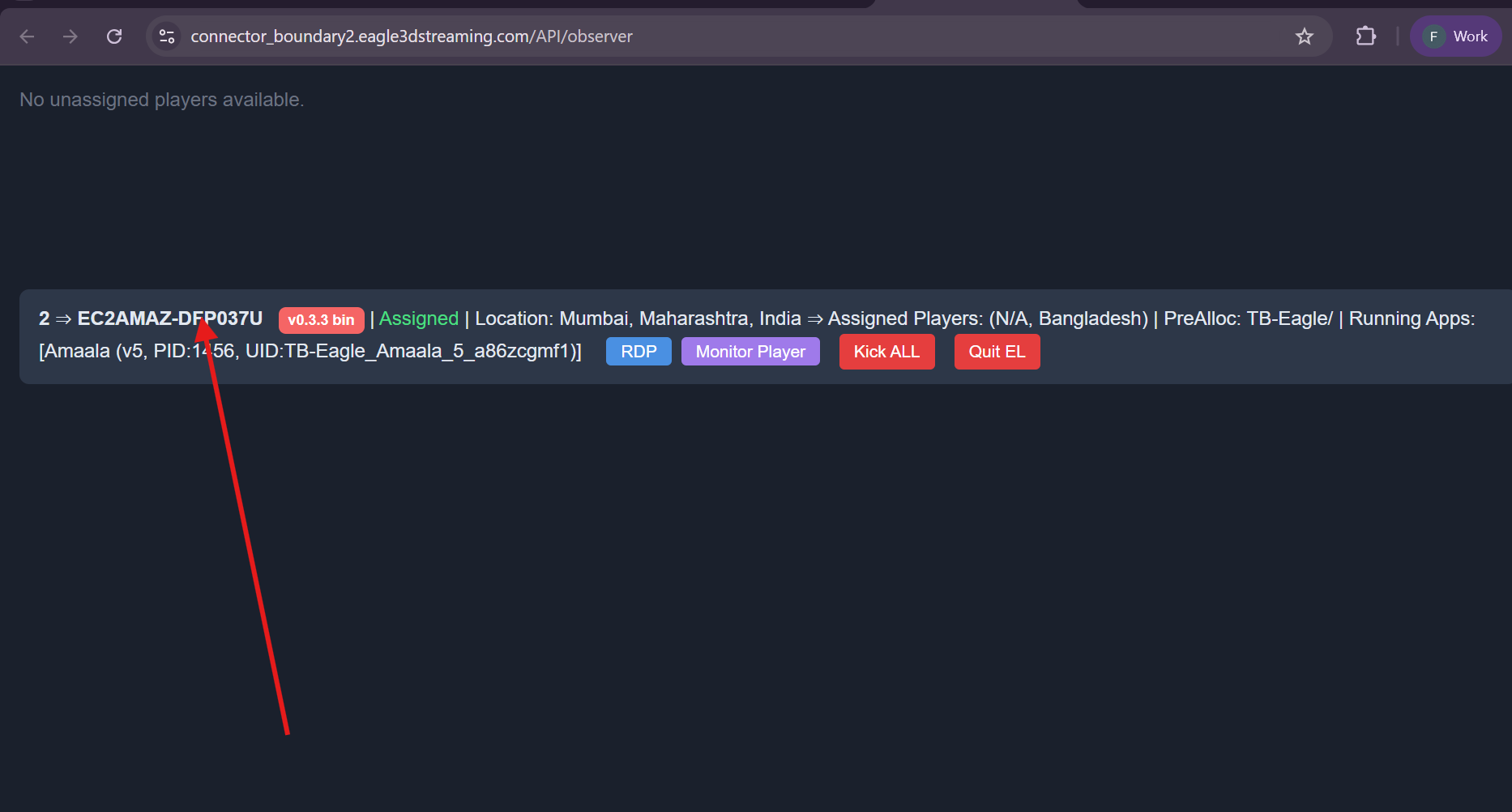
You will see here who from where connected to vms. How many vms currently using and connected to your system . Which app is running in a specific vm
Example of showing 3 player connected to system
Next steps showing how you can access an specific vm from the observer
Step 3. Download the RDP File
Once the VM is assigned, click Download RDP File from the dashboard
Step 4. Open the RDP File
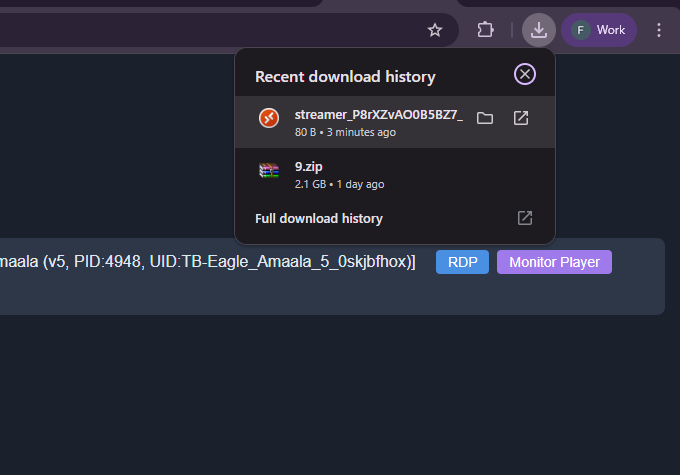
Double-click the downloaded .rdp file to open it.
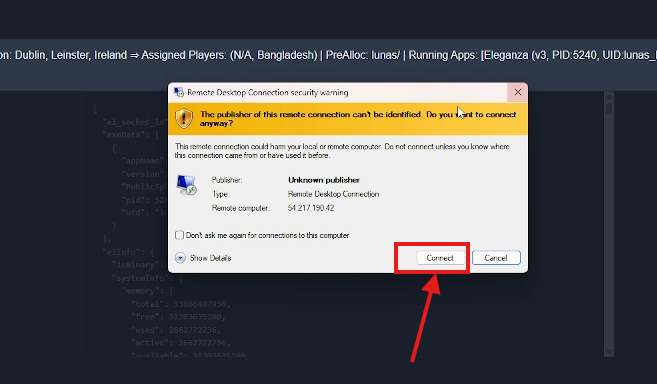
Step 5. Connect to the Remote VM
Click Connect when prompted.
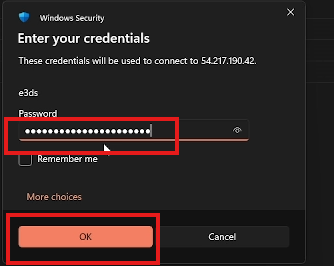
Step 6. Enter the Password
Password:
Eagle3D@Stream!ng#2025
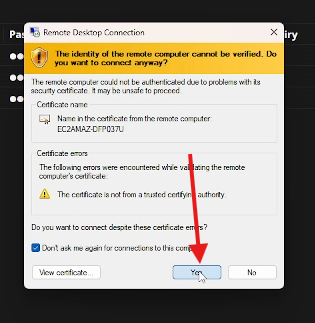
Step 7. Confirm Connection
Click Yes when prompted to trust the remote connection.
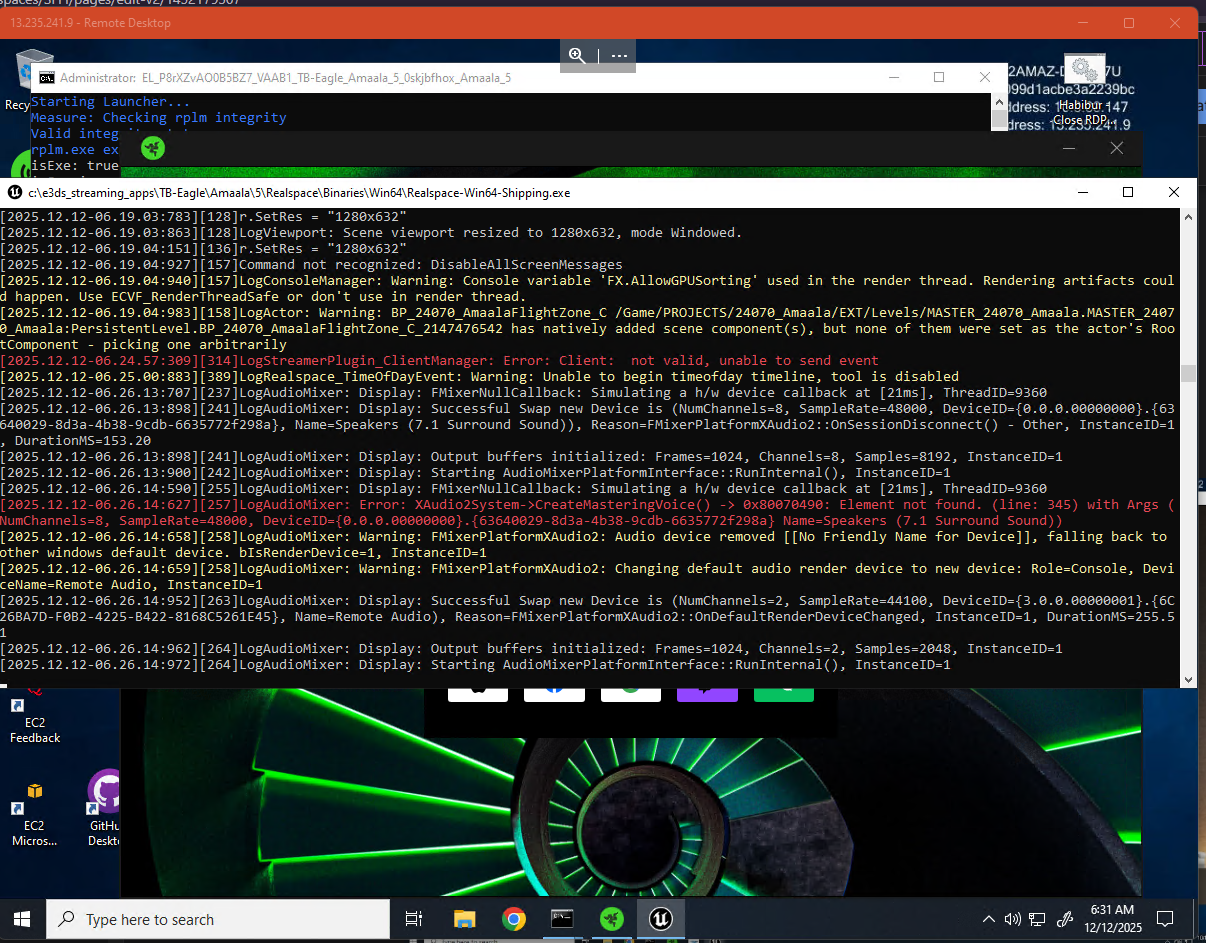
Step 8. Verify Connection to the Remote VM
After logging in, you will be connected to the remote VM that is currently running the Unreal application.
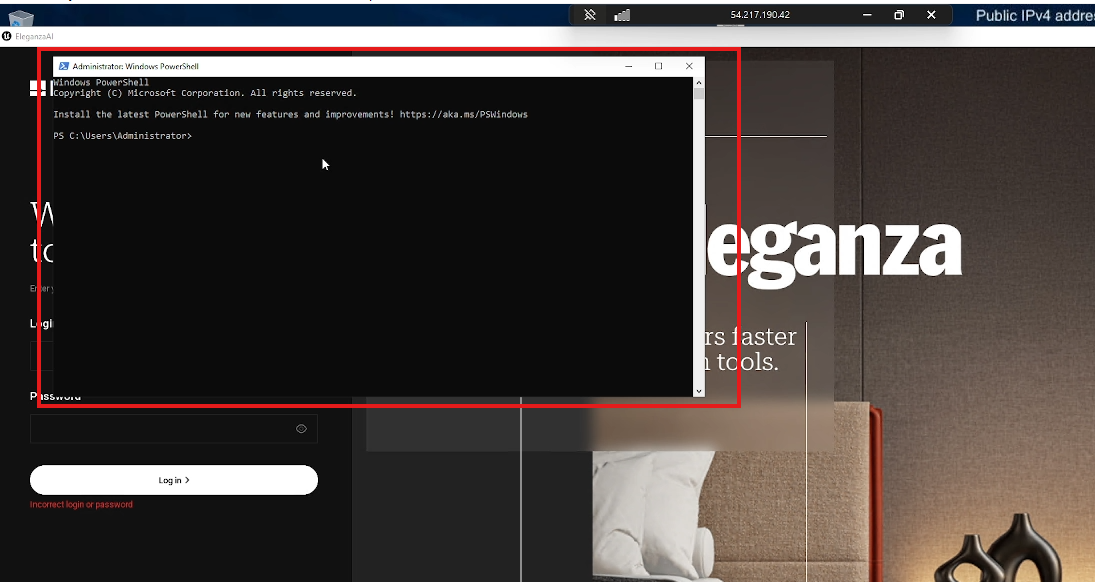
Step 9. Open PowerShell in the VM
Launch PowerShell inside the remote VM.
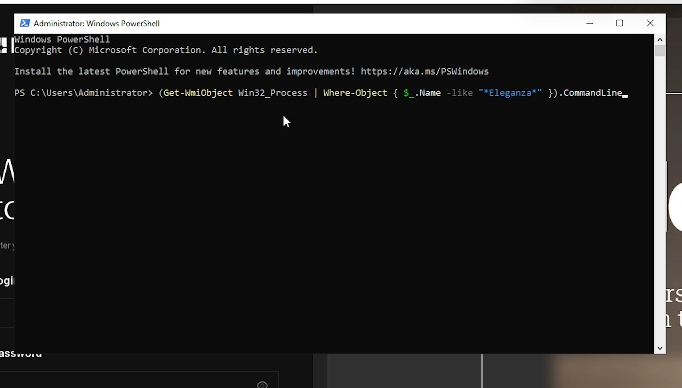
Step 10. Run the Command
Execute the following command to check the process command line:
(Get-WmiObject Win32_Process | Where-Object { $_.Name -like "*Eleganza*" }).CommandLine
Step 11. Verify the Passed Parameters
The output will display all parameters passed to the Unreal Engine executable.
In this example, you can see that the token parameter was successfully passed.
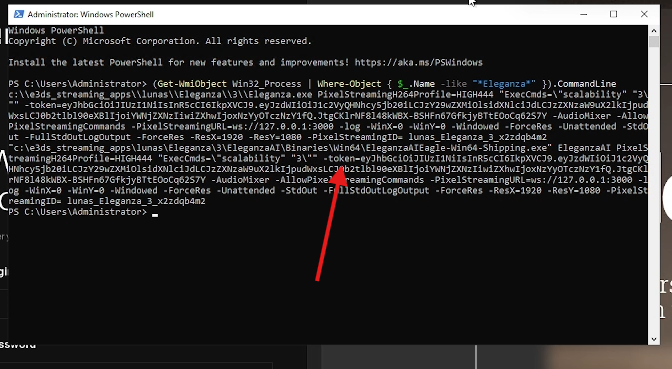
Result:
You’ve now confirmed that the token parameter is correctly passed to the Unreal Engine app during streaming.