This guide explains how to conditionally show or hide the fullscreen button in a Pixel Streamed Unreal Engine application running in a web browser using the E3DS Pixel Streaming Features Plugin.
The fullscreen button is:
-
Hidden on iOS devices
-
Visible on all other platforms (Windows, Android, etc.)
This approach ensures a consistent and reliable user experience across devices.
Why the Fullscreen Button Is Hidden on iOS
On iOS devices (Safari browser), fullscreen behavior is restricted by the operating system and browser. Apple does not allow the same level of programmatic fullscreen control for WebRTC-based experiences as desktop browsers.
Due to these platform limitations:
-
Fullscreen requests may fail or behave inconsistently
-
UI elements may conflict with system gestures
-
Overall user experience may degrade
To avoid these issues, the recommended approach is to detect the user’s device and hide the fullscreen button on iOS, while keeping it enabled for other platforms.
Prerequisite:
Before proceeding, ensure you have downloaded and installed the E3DS Features Plugin in your Unreal Engine project. Click here to download E3DS Features Plugin.
Follow the guidelines below:
Blueprint Logic: Show / Hide Fullscreen Button
Step 1. Open the level used for Pixel Streaming in Unreal Engine.
Step 2. Drag and drop an instance of E3DS_PS_Actor into your level.
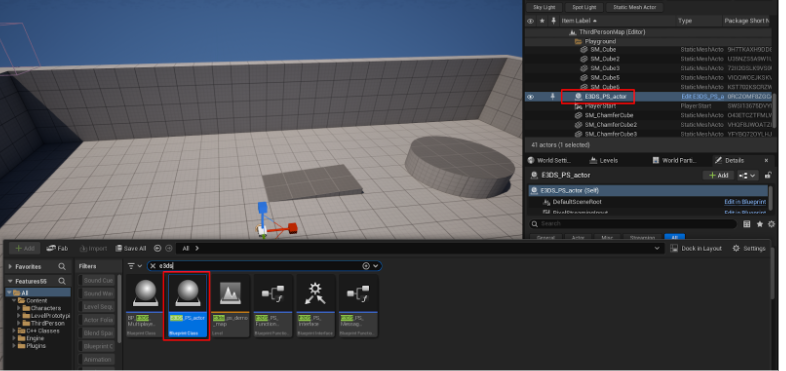
Step 3. Open the Level Blueprint and go to the Event Graph.
Step 4. Use the E3DS Request User Device Info node to detect the client operating system.
-
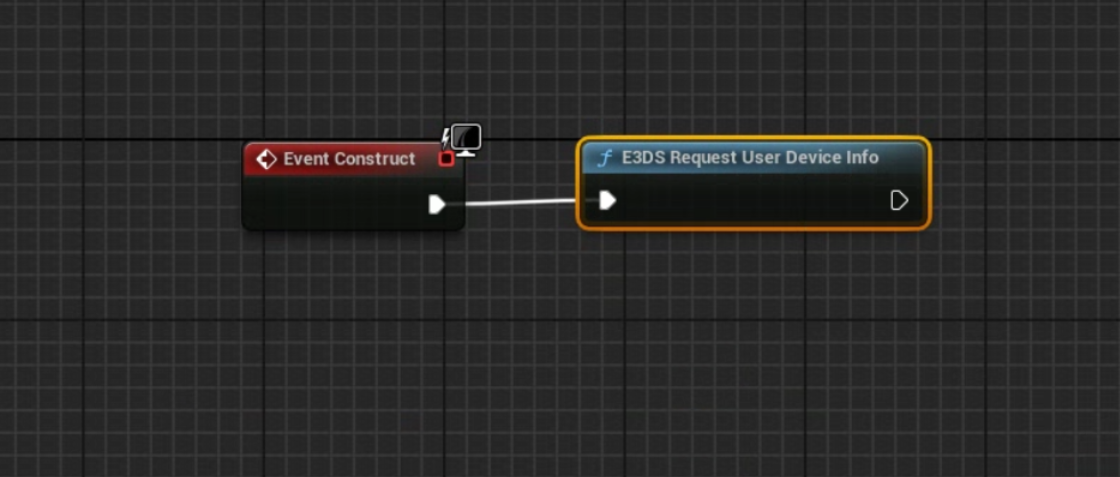
Figure 2. Get the User Device Info
Step 5. Show or Hide Fullscreen Button
Based on the detected device type:
-
iOS → Hide fullscreen button
-
Other devices (Windows, Android etc) → Show fullscreen button
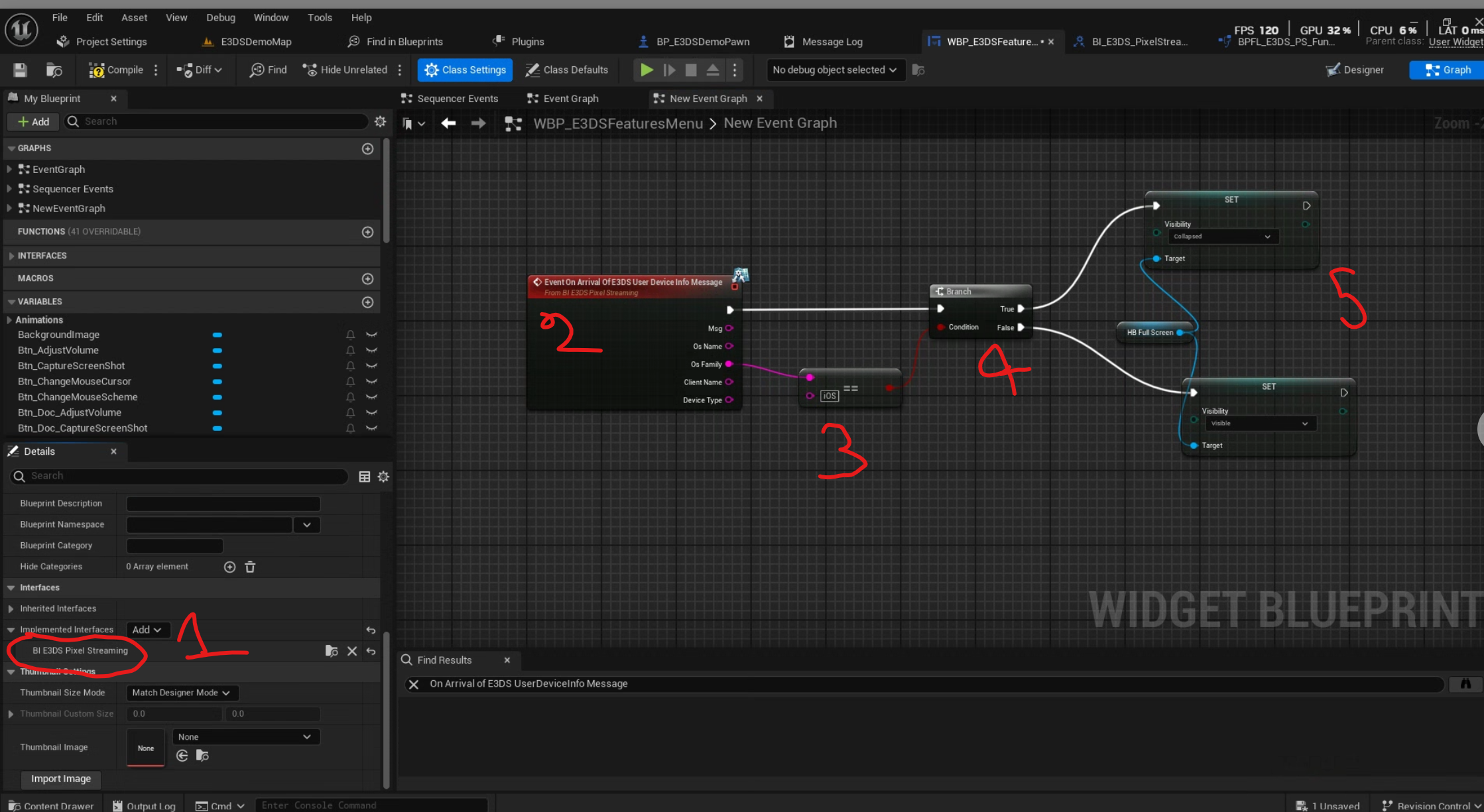
Step 6. Compile and Save
Compile and save the Blueprint.
Testing
-
Test Locally
-
Run the application locally and verify fullscreen behavior
-
-
Upload and Test via Pixel Streaming
-
Upload the build
-
Test across multiple devices:
-
Desktop browsers
-
Android
-
iOS (fullscreen button should be hidden)
-
-
Need help?
🛠️ Contact our Support Team
💬 Join the Community on Discord
Follow us on:
Facebook | GitHub | LinkedIn | YouTube