

In this document we will guide you on how you can embed streaming within your webpage.
Source Code: https://github.com/e3ds/E3DS-Iframe-Demo
Live Demo: https://iframe.eagle3dstreaming.com/
Developer Quick Start
Use this section if you are already familiar with HTML and iFrame integration.
Expand the section below and copy the production-ready snippet. Replace YOUR_STREAMING_URL with the streaming URL from the Eagle 3D Streaming Control Panel.
Step-by-Step Guide
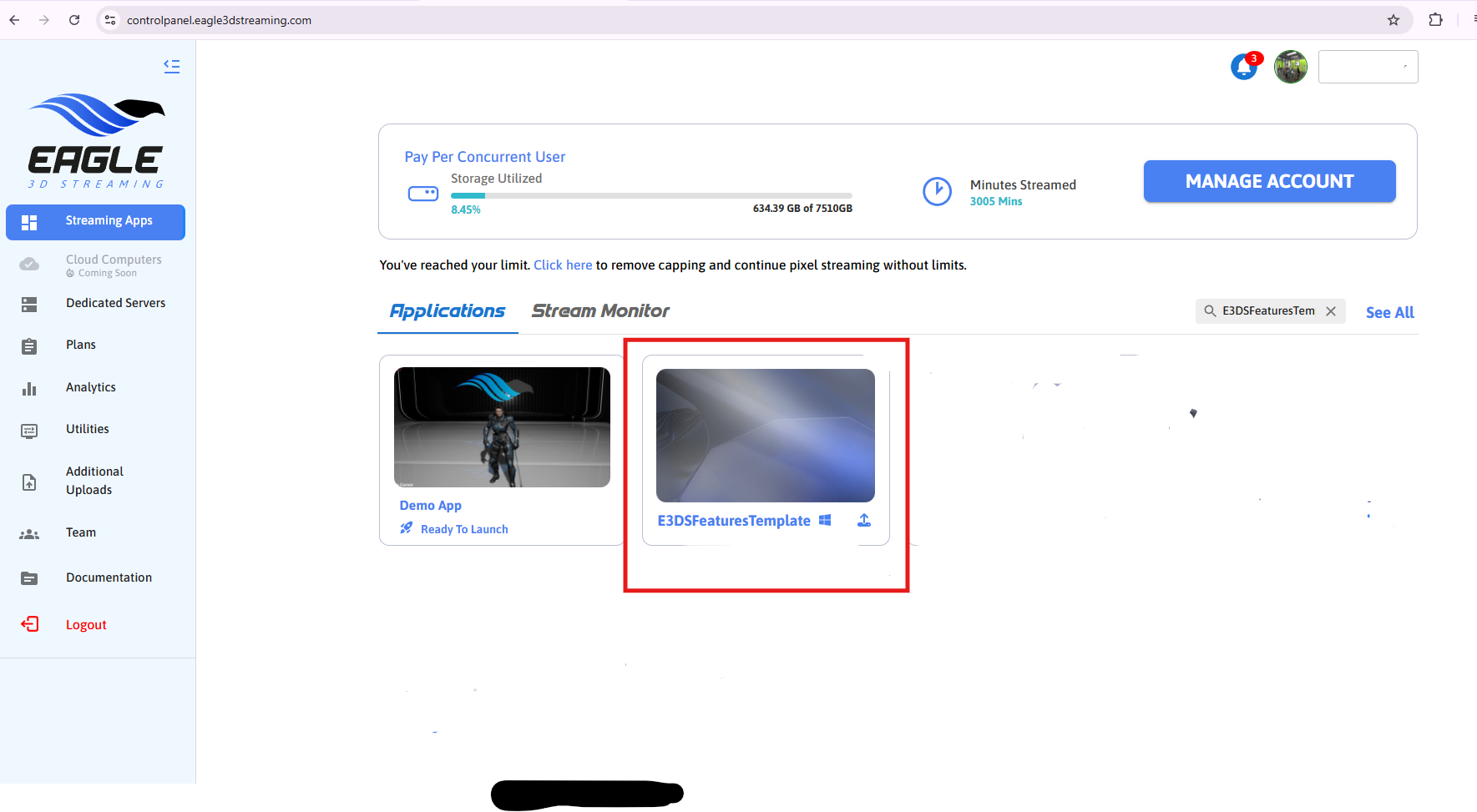
Step 1. Select the app which you want to embed with your webpage.
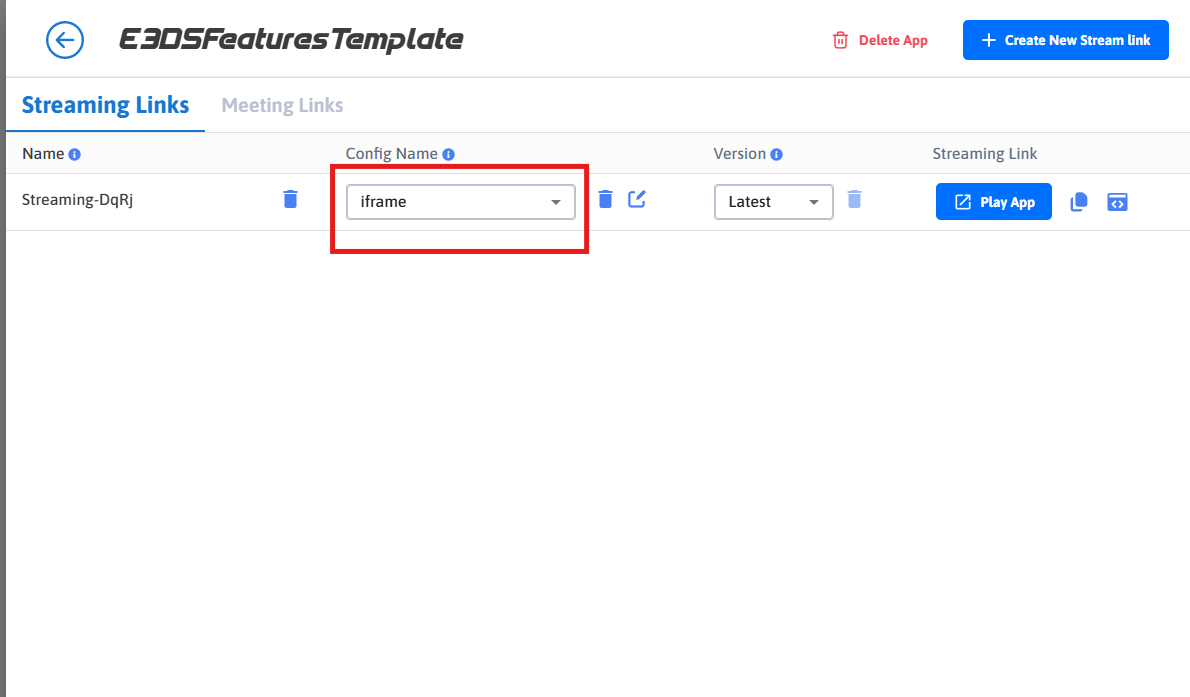
Step 2. Select a config.
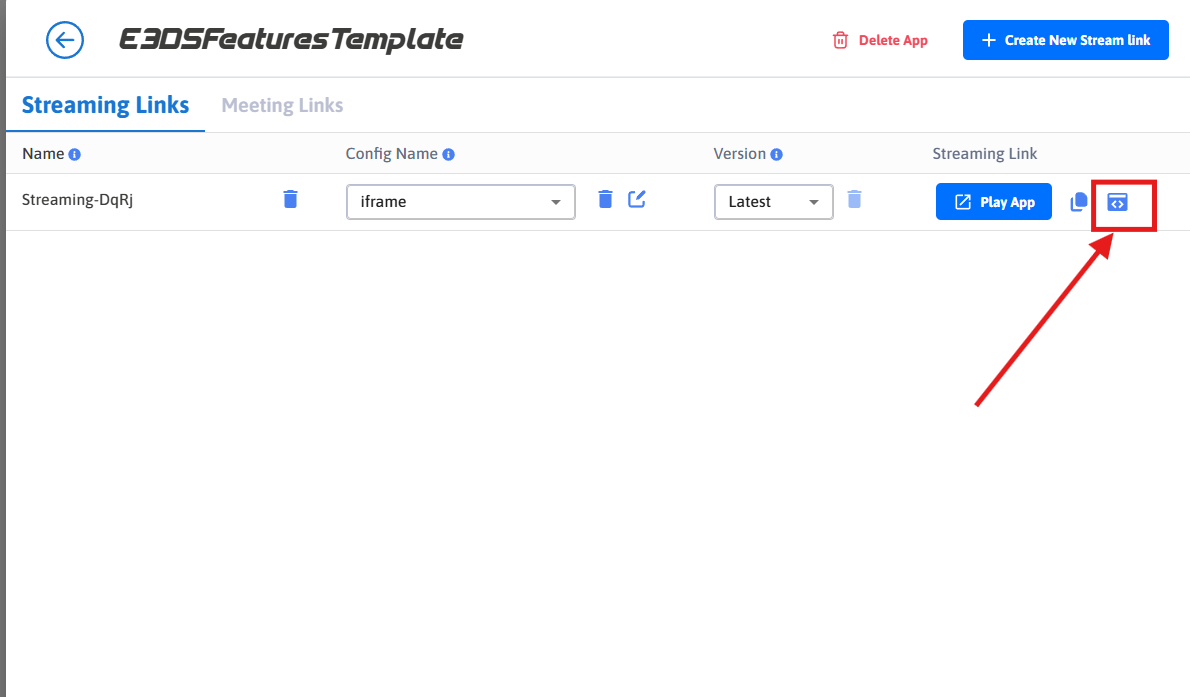
Step 3. Copy Streaming iFrame Script.
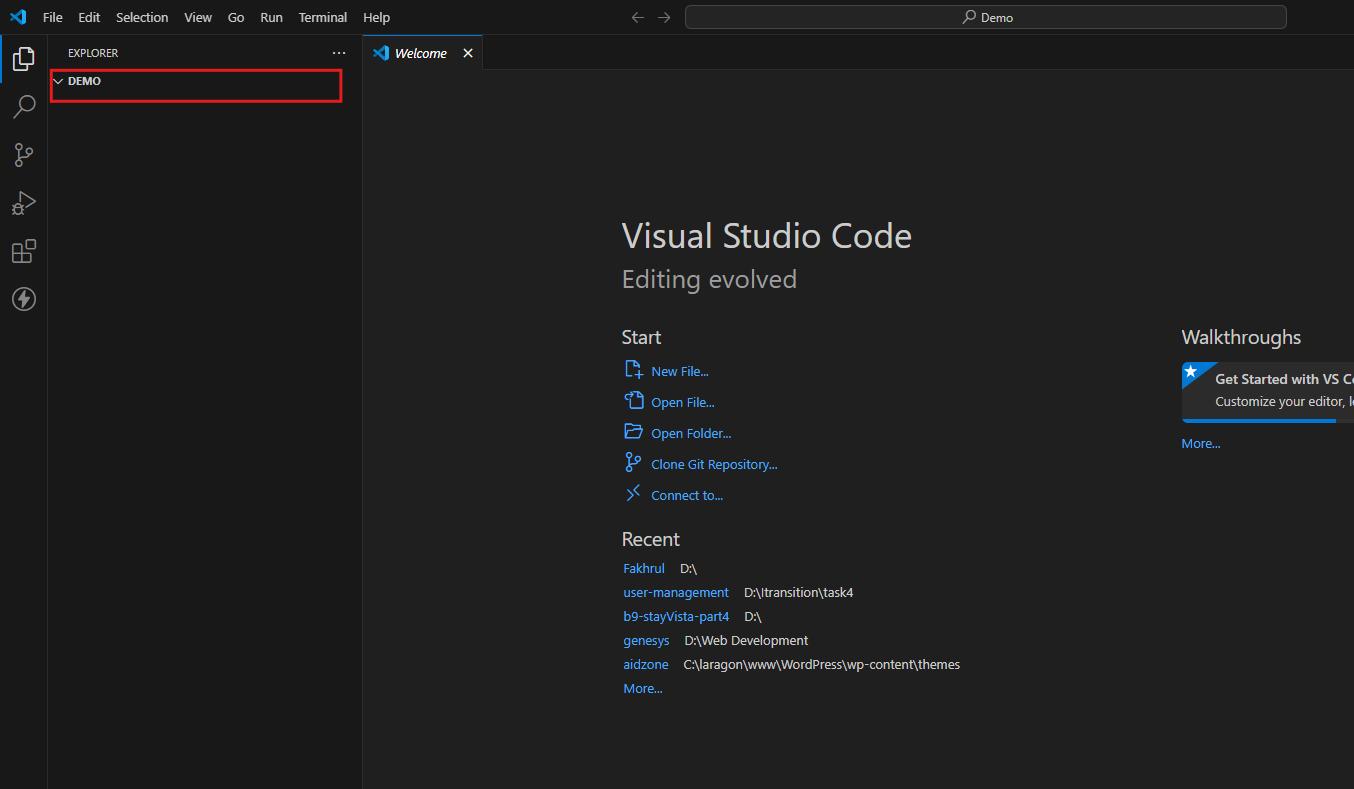
Step 4. Now open any html editor and create a folder.
Step 5. Create “index.html” file inside the folder.
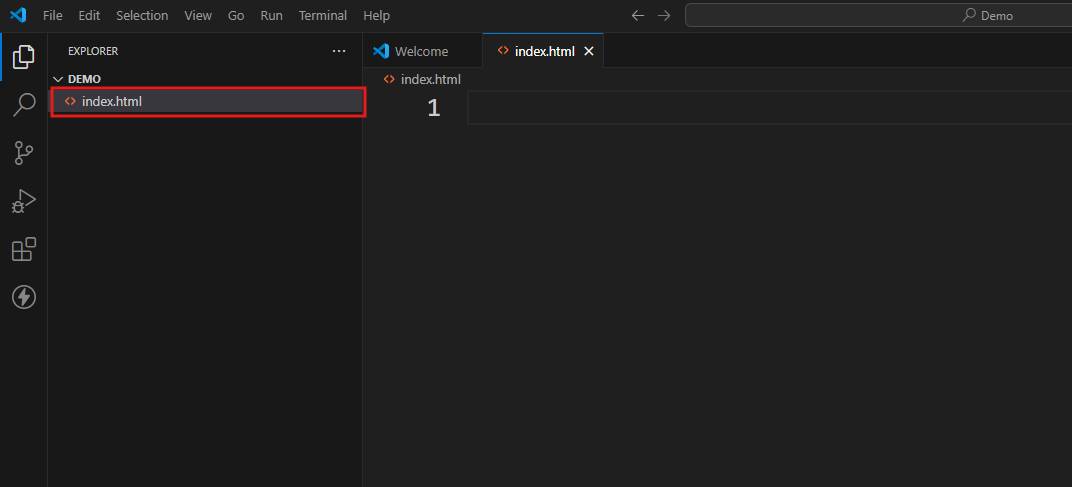
Step 6. Copy the code below and paste it inside index.html.
<html>
    <head>
        <title>Demo</title>
    </head>

    <body>
        <div>
           //paste the copied iFrame Script here
        </div>
    </body>
</html>
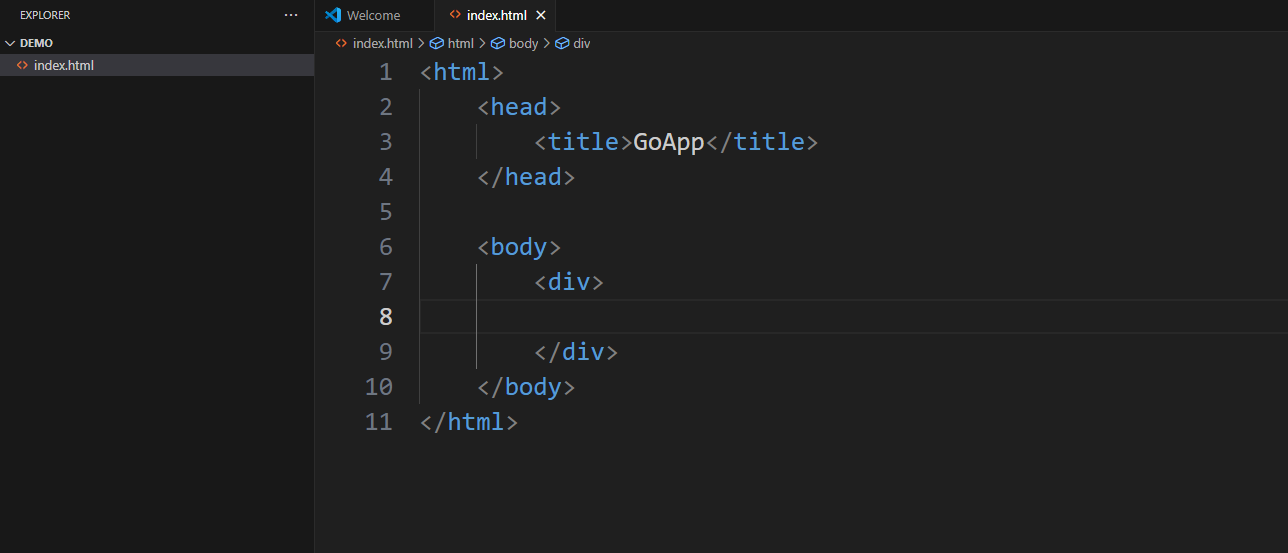
Step 7. Now paste the copied iFrame script inside the <div> below.
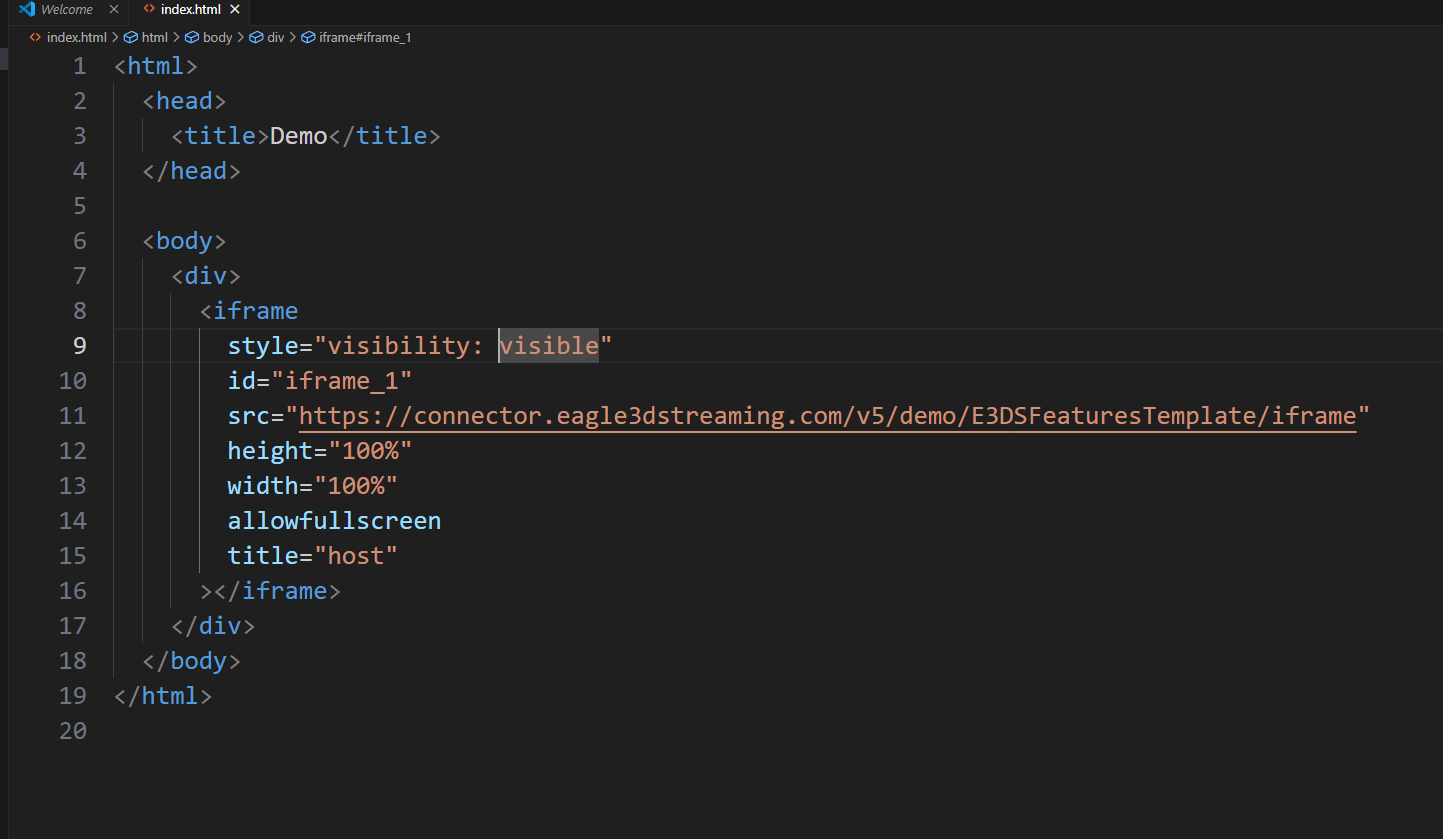
Step 8. Enable Keyboard Controls (W, A, S, D)
Add the following script to your HTML file (you can place it either inside the <head> section or just before the closing </body> tag):
<script>
  window.onload = function() {
      var iframe = document.getElementById('iframe_1');
      iframe.focus();
  };
</script>
Note:
Ensure your <iframe> element has the ID iframe_1 in your HTML.
This script ensures the iframe automatically receives focus when the page loads, allowing W, A, S, D keyboard controls to function properly.
Step 9. Run the page locally
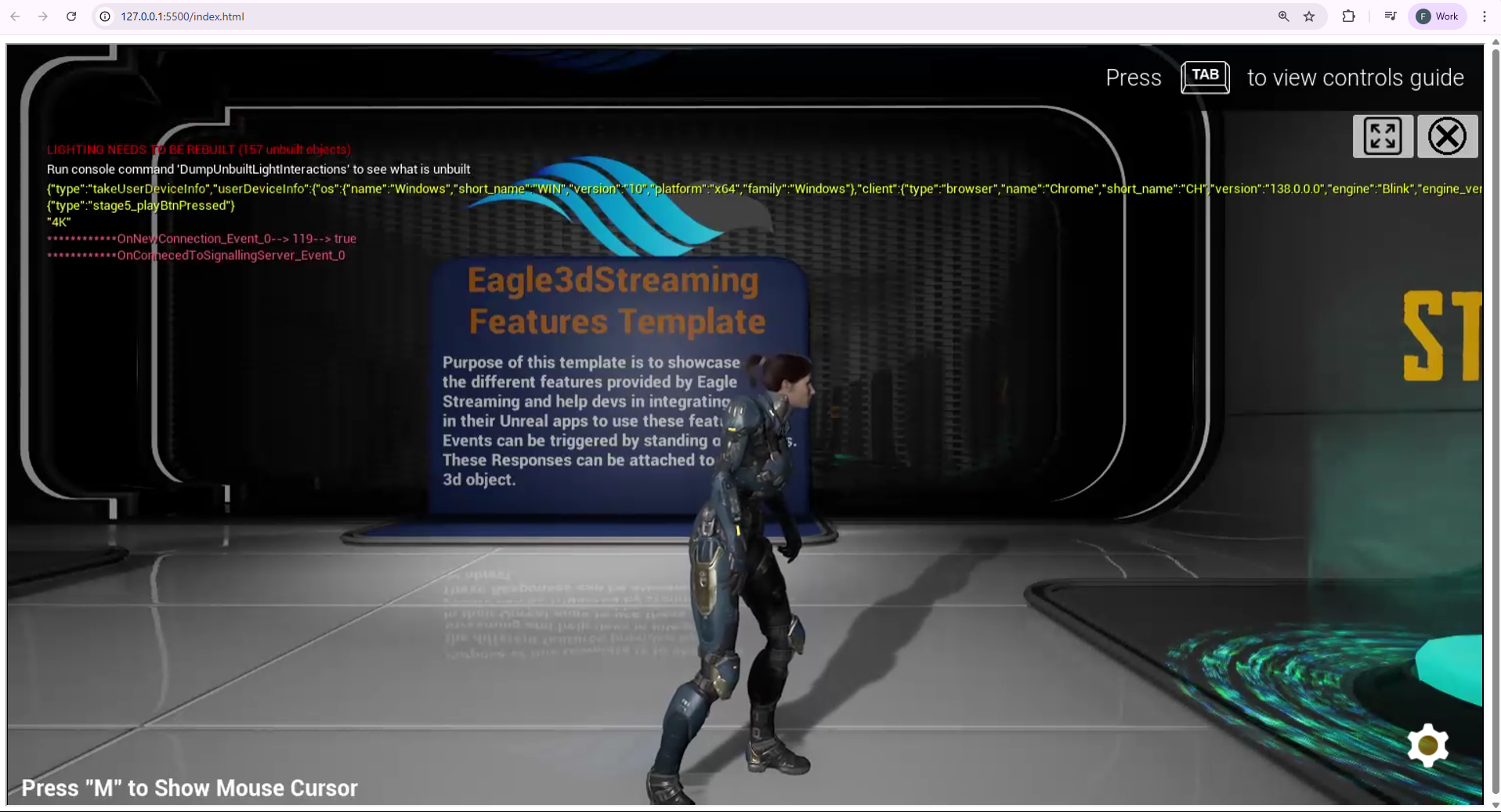
To learn how to communicate between Unreal app and the iFrame, follow this documentation:
To learn how to embed streaming within a React Webpage, follow this documentation:
Troubleshooting 🛠️
1. Mobile Autoplay
Enabling autoplay in iframe embedded system may create an issue in mobile. If you face such issues then first disable autoplay and see if that solves the issue or not.
2. Unresponsive Keyboard
If the keyboard does not work then it could be a focus issue. Please append the script from below and see if that helps or not.
<div id="content"   style="position: absolute;left: 0;right: 0;bottom: 0;top: 0px;" >
	<iframe id="iframe_1"
		src="YOURURL_from_"
		width="100%" height="100%" allowfullscreen>
	</iframe>
</div>


<script>
    setInterval(function () {
        $('#iframe_1').focus();
    }, 1000);
</script>
3. Quality of the stream in iFrame
The Quality of the stream drops after embedding the App URL in iFrame.
You can set a custom resolution by increasing the width and the height from iFrame. See this document.
4. XR Session Permission
If xr permission is not exclusively added in the iframe tag you might get this error:
SecurityError: Failed to execute 'isSessionSupported' on 'XRSystem': Access to the feature "xr" is disallowed by permissions policy.
If your app requires uses XR or you would like to get rid of this error message add the required permission in your html page like this:
<iframe
  allow="xr-spatial-tracking *; camera *; microphone *"
  style="visibility: visible;"
  id="iframe_1"
  src="Pixel Streaming URL"
  width="100%"
  height="100%"
  allowfullscreen
>
</iframe>
5. Full Screen Permission Error
When attempting to enable fullscreen mode, you may encounter the following error message:
“Permissions Error: Ensure your iframe has allow='fullscreen' enabled”
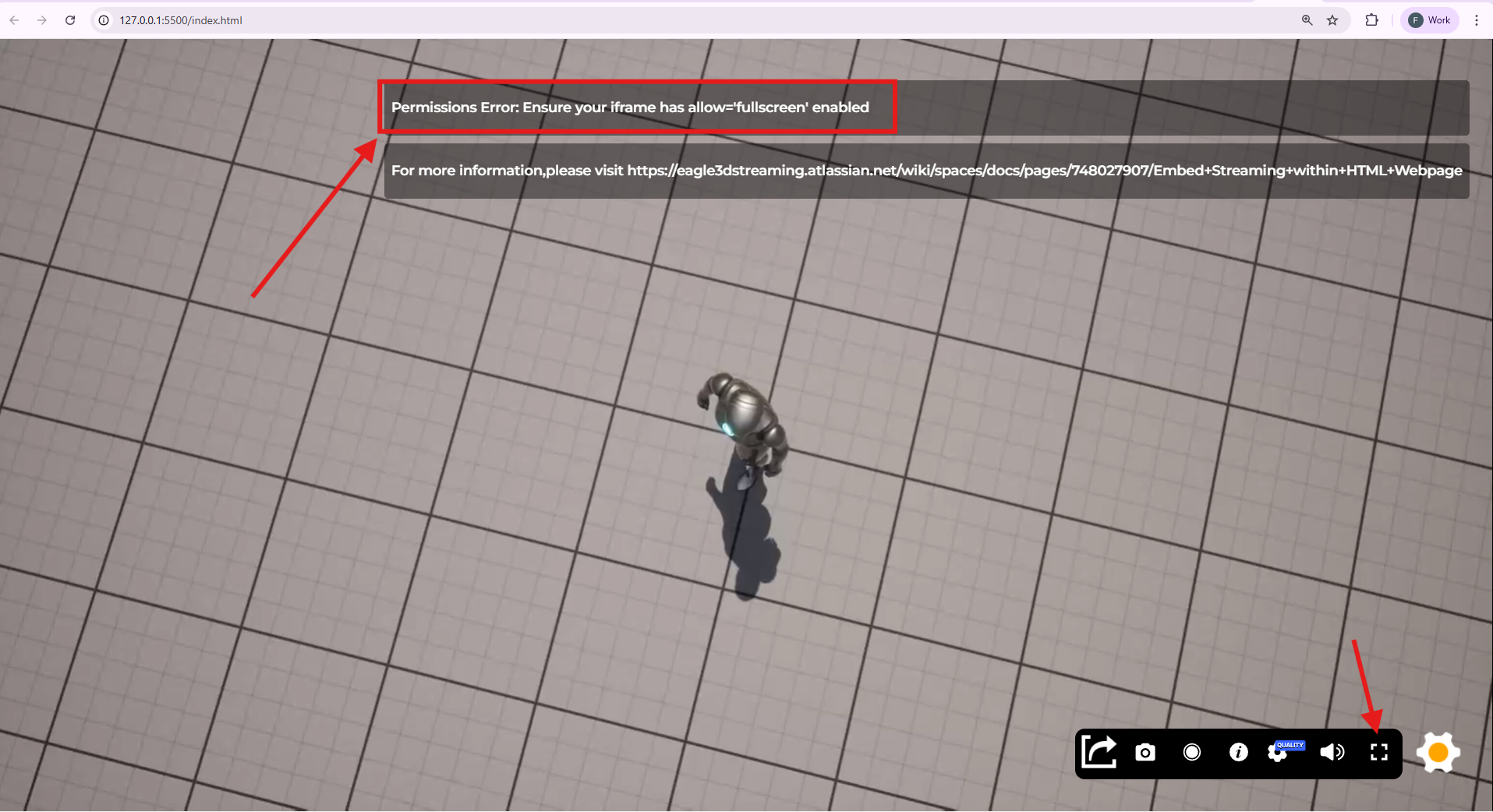
This issue occurs when the iframe does not have fullscreen permission enabled. To resolve this issue, you need to enable fullscreen permission in your iframe by adding the allow="fullscreen" attribute.
Example:
<iframe
      id="iframe_1"
      src="Pixel Streaming URL"
      allow="fullscreen"
 ></iframe>
Need help?
If you need any assistance, feel free to reach out through any of the following channels:
🛠️ Support Portal: Contact Our Support Team
💬 Discord Community (Faster Support): Join Our Discord Community
📧 Email Support: support@eagle3dstreaming.com
Follow us on:
Facebook | GitHub | LinkedIn | YouTube