

This guide will walk you through the process of installing and configuring the EL Launcher, which allows you to stream your Unreal Engine applications directly from your own hardware.
After subscribing to the Pay Per License plan and downloading the EL package from the Control Panel, you can easily configure it on your machine and begin streaming your apps.
Prerequisites
Before installing, ensure the following:
1. Pay Per License Activation
-
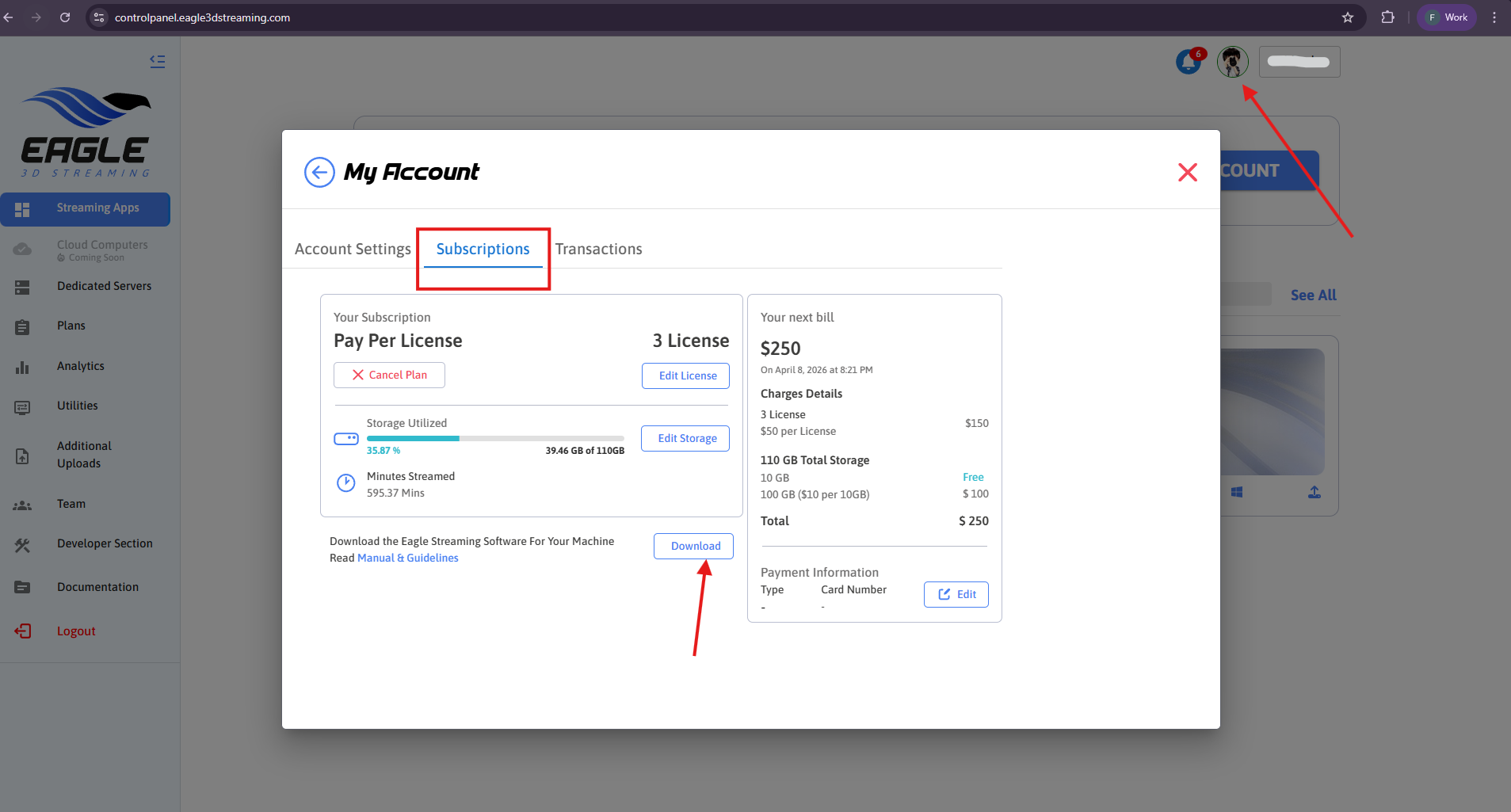
Activate the Pay Per License plan plan from the Control Panel
2. Download Eagle Streaming Software (EL)
-
Download the EL zip file from the Control Panel into your C: Drive.
Note: Ensure your C: drive has sufficient free space.
All applications streamed through EL will be stored in:
C:\e3ds_streaming_apps
3. Storage Requirement Formula
To avoid issues, make sure you have:
Required Space = zipped App size + extracted App size + largest extracted App size
4. Machine Requirements
-
Windows OS (Windows 10, 11, or Server)
-
Reliable Internet Connection
-
A GPU-enabled machine (any GPU supported, however some apps may not stream well on RTX 2080)
5. Required Software
Please install the following:
-
Download 7-Zip → Required for extracting and managing app files
Now follow the steps below:
Step 1. Configure 7-Zip in Environment Variables
-
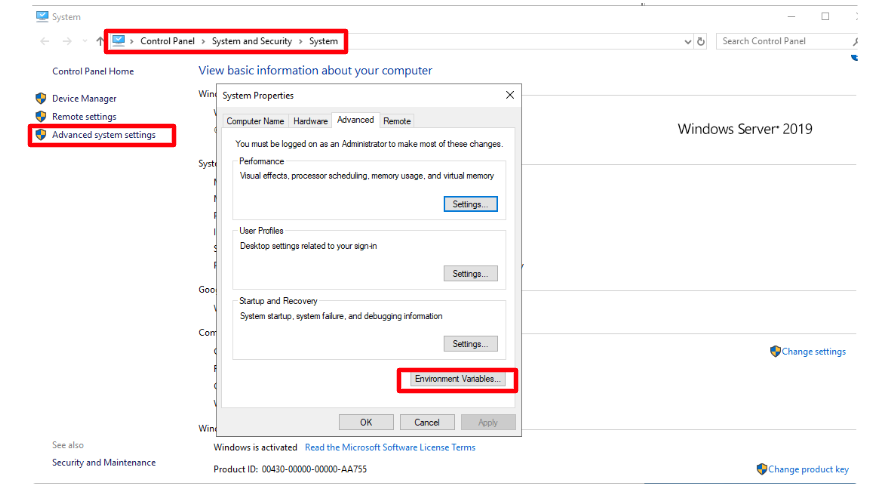
Go to:Control Panel → System and Security → System
-
Click Advanced system settings
-
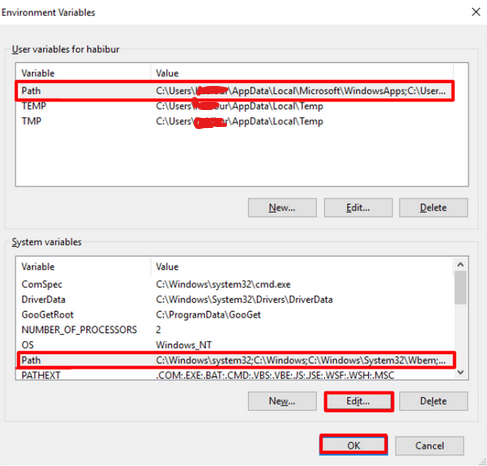
Click Environment Variables
-
Select the system Path variable and click Edit
-
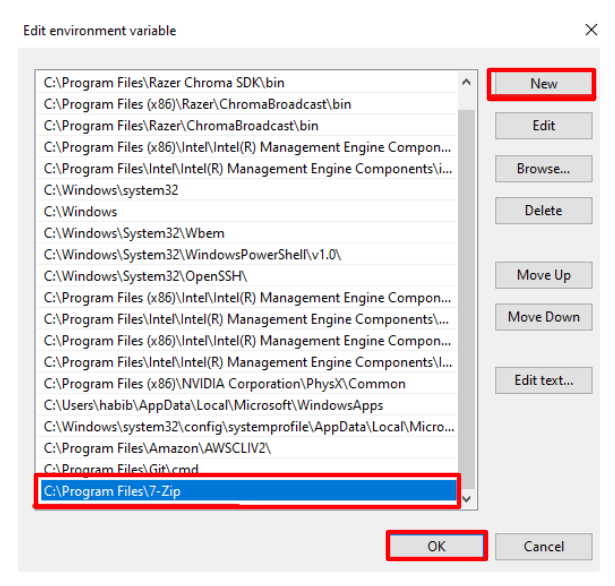
Click New
-
Add the following entry:
C:\Program Files\7-Zip
-
Click OK for all dialog boxes.
-
Restart your machine.
Step 2. Set Up EL
-
Go to your C: drive and locate EL.zip
-
Extract all files.
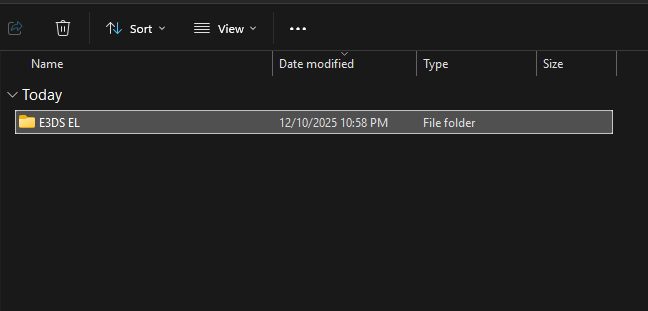
-
Double-click EL.exe
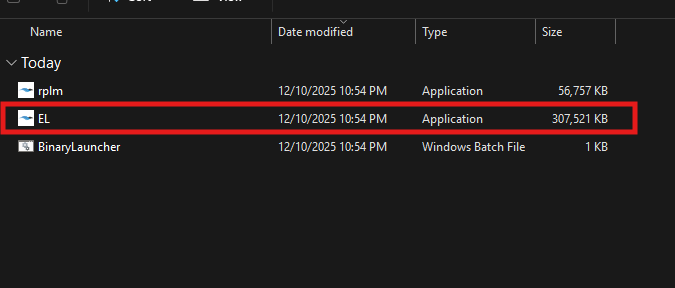
-
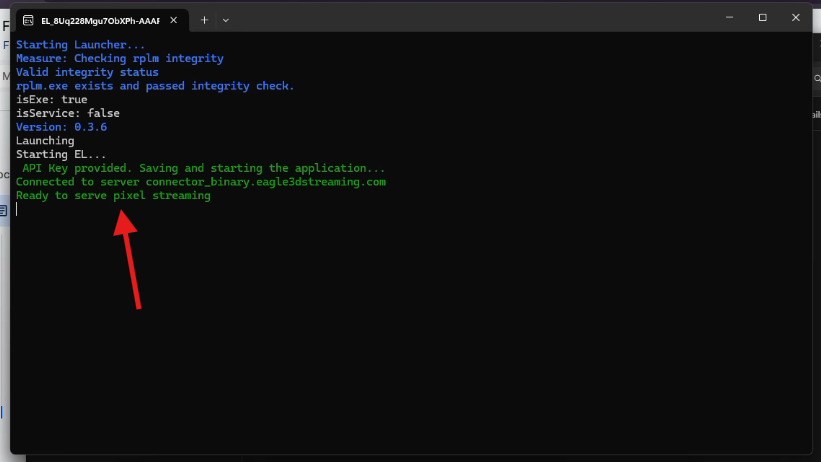
A popup and a black terminal window will appear.
Do not click inside the black terminal window. If you click by mistake, press Esc.
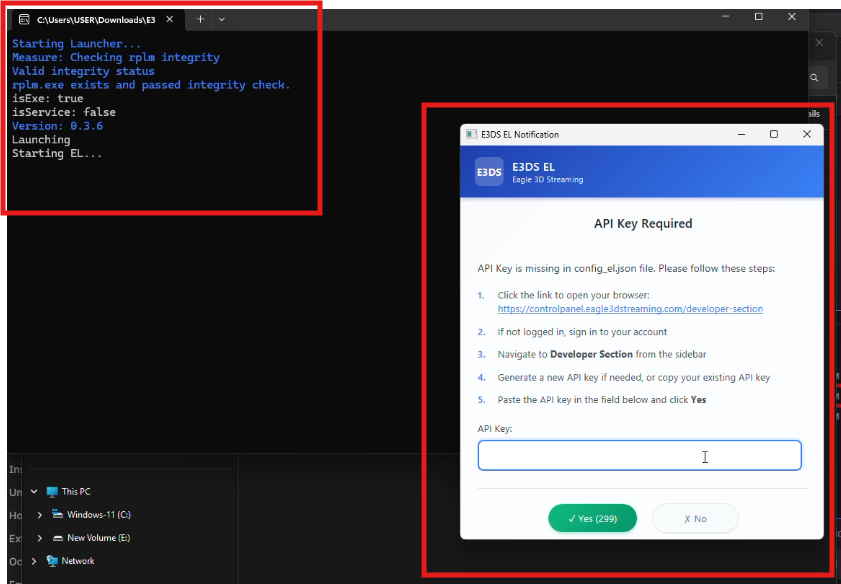
-
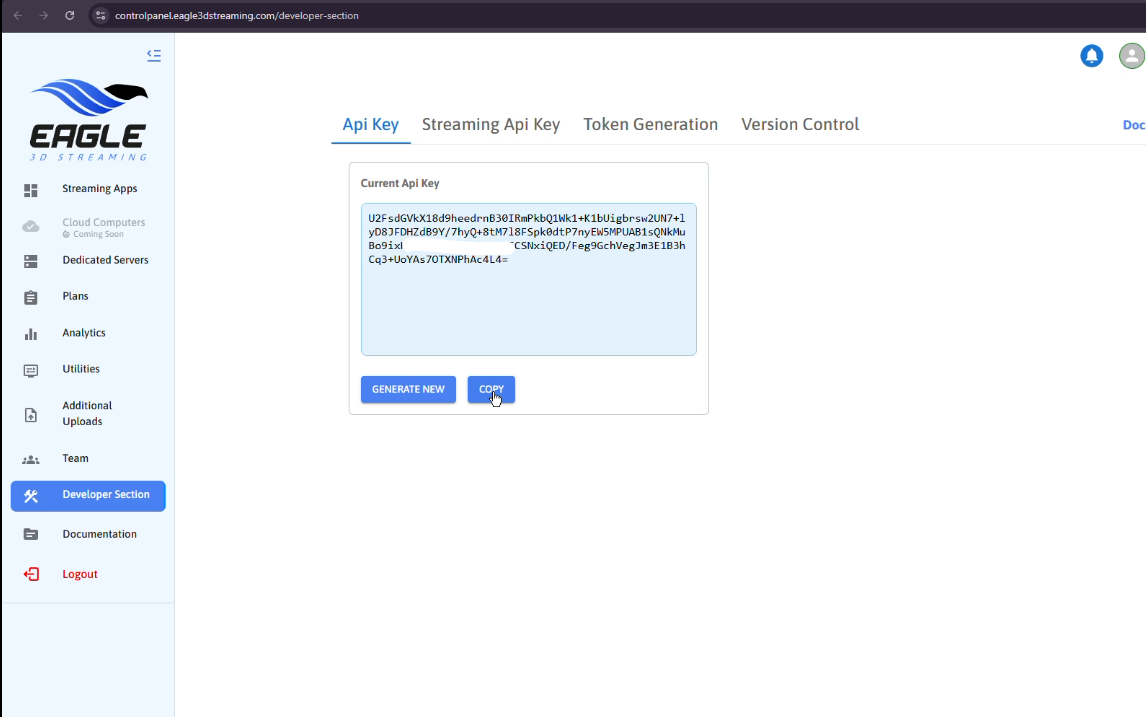
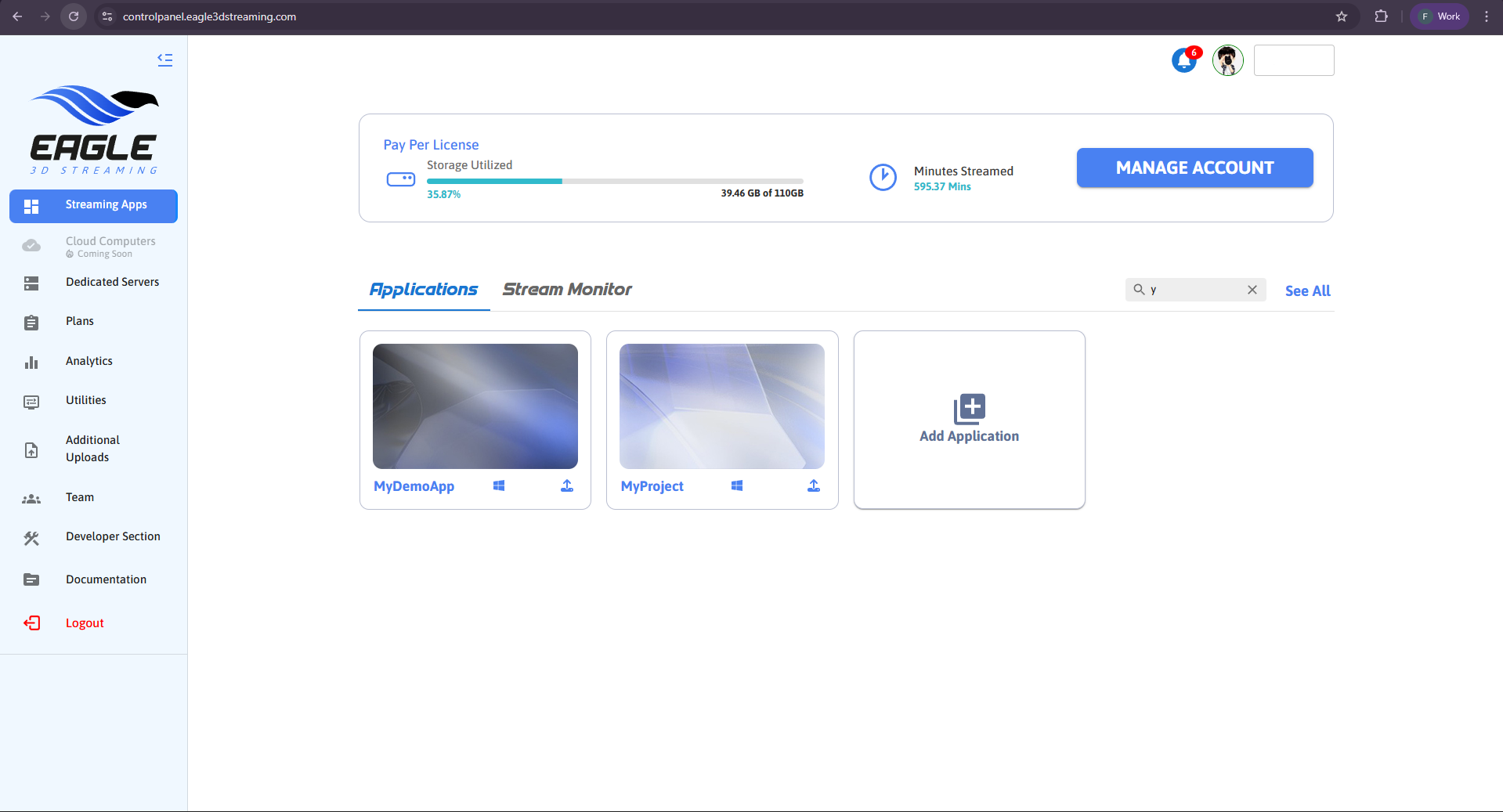
In the popup, click the link to open the Control Panel. It will take you to the control panel in the browser (Figure 9)
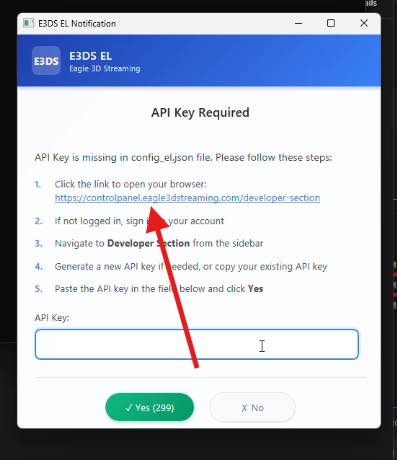
-
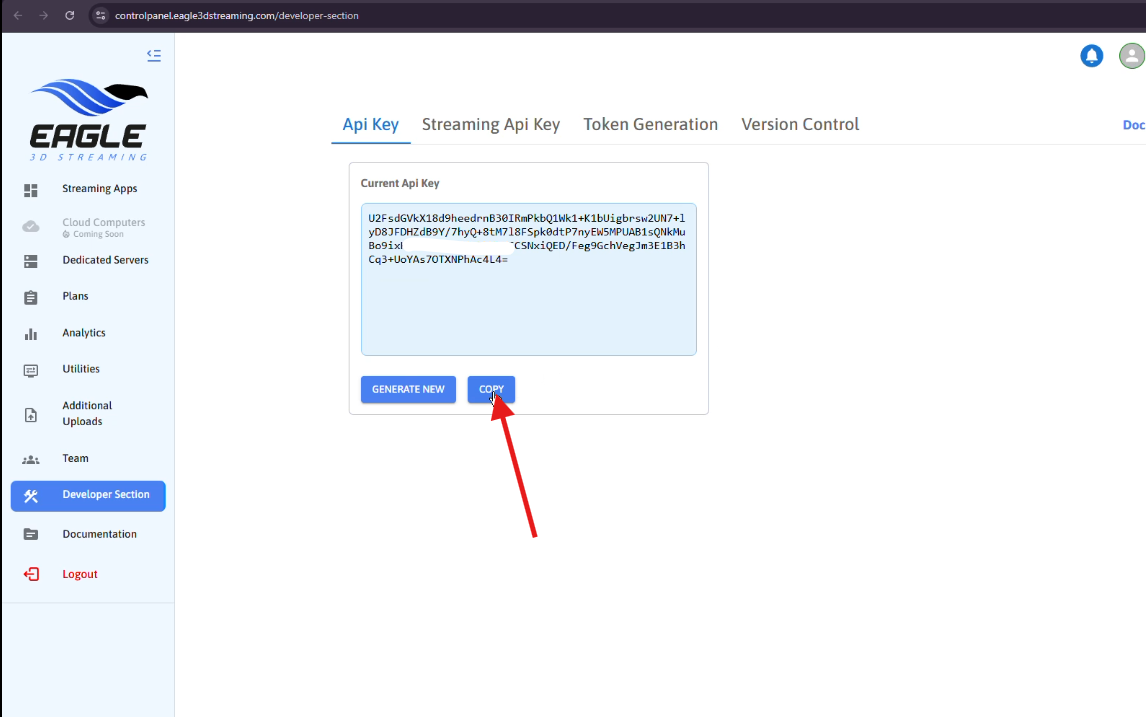
Copy the API Key shown in the Control Panel.
-
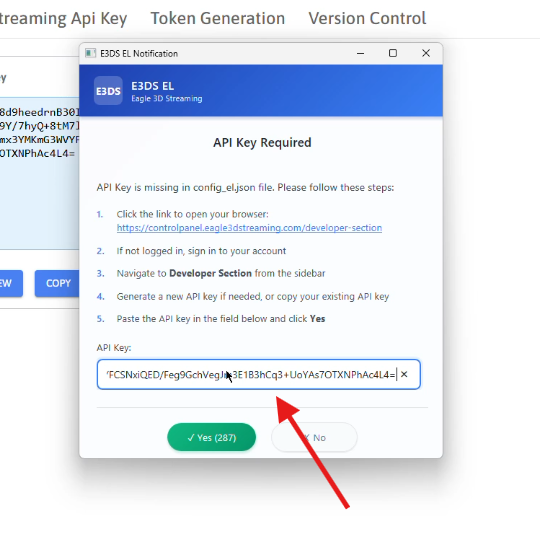
Paste the API Key into the popup’s input box
-
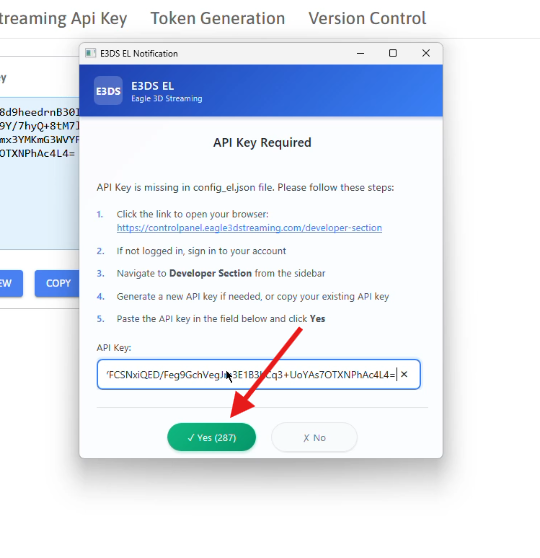
Click Yes to confirm.
-
Wait until EL.exe displays: “Ready to Serve Pixel Streaming”
Using EL
The machine where EL.exe is running acts as the streamer machine. You may stream apps from any client device using the streaming URL. Keep EL.exe running at all times.
-
Go to Control Panel
-
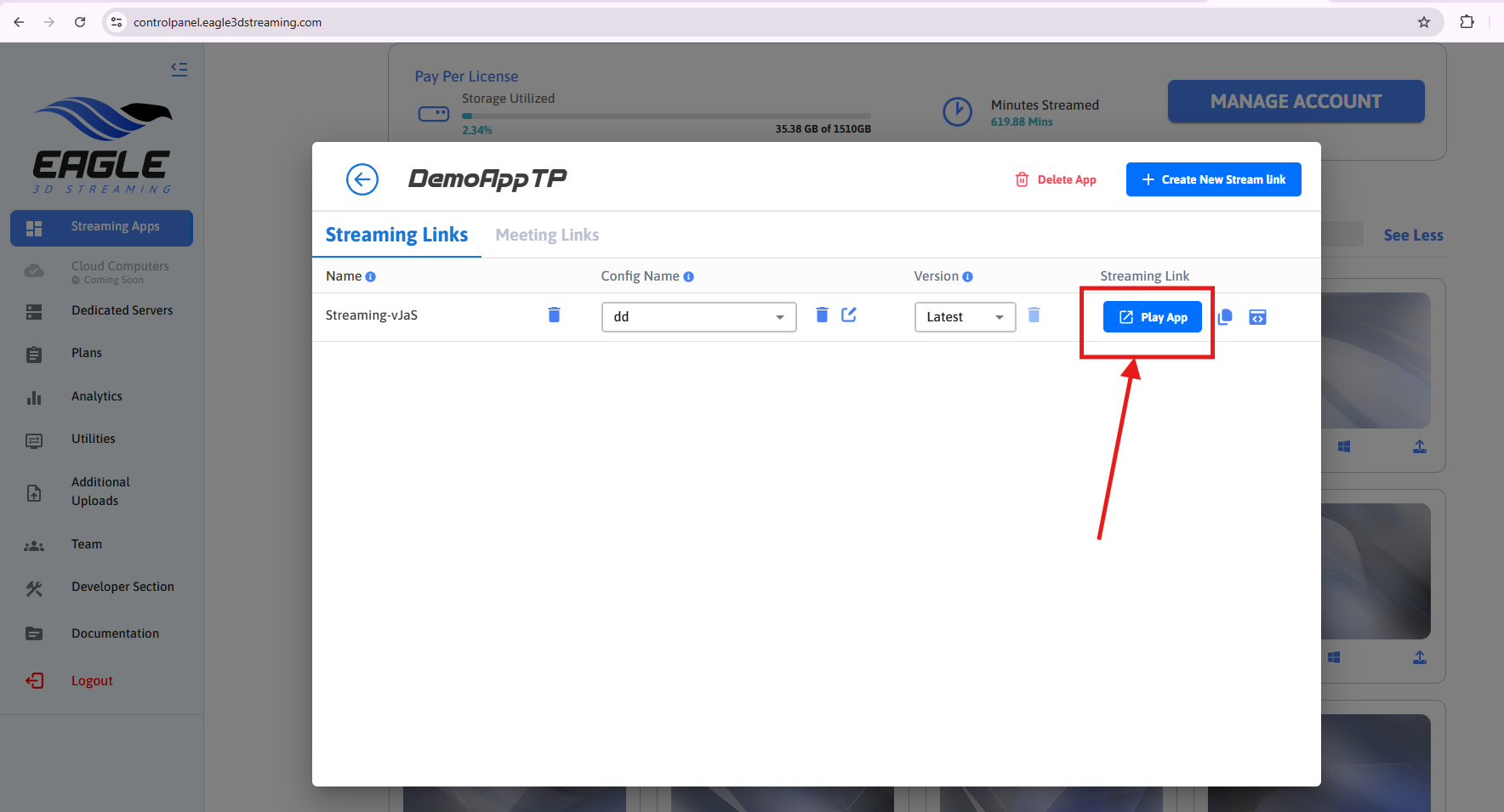
Select your app and play it
-
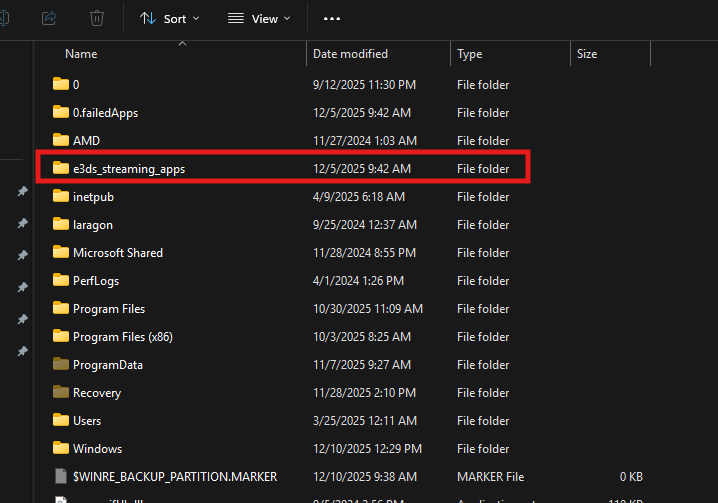
When you click Play App from your streamer machine, the system automatically creates a folder named
C:\e3ds_streaming_appson your local drive (if not avaialble it). This folder stores the applications downloaded from Eagle’s system for streaming.
-
When you play the app for the first time, it will enter the Acquiring Phase — downloading the app from Eagle’s system to your machine.
From the second run onward, the app will launch instantly.
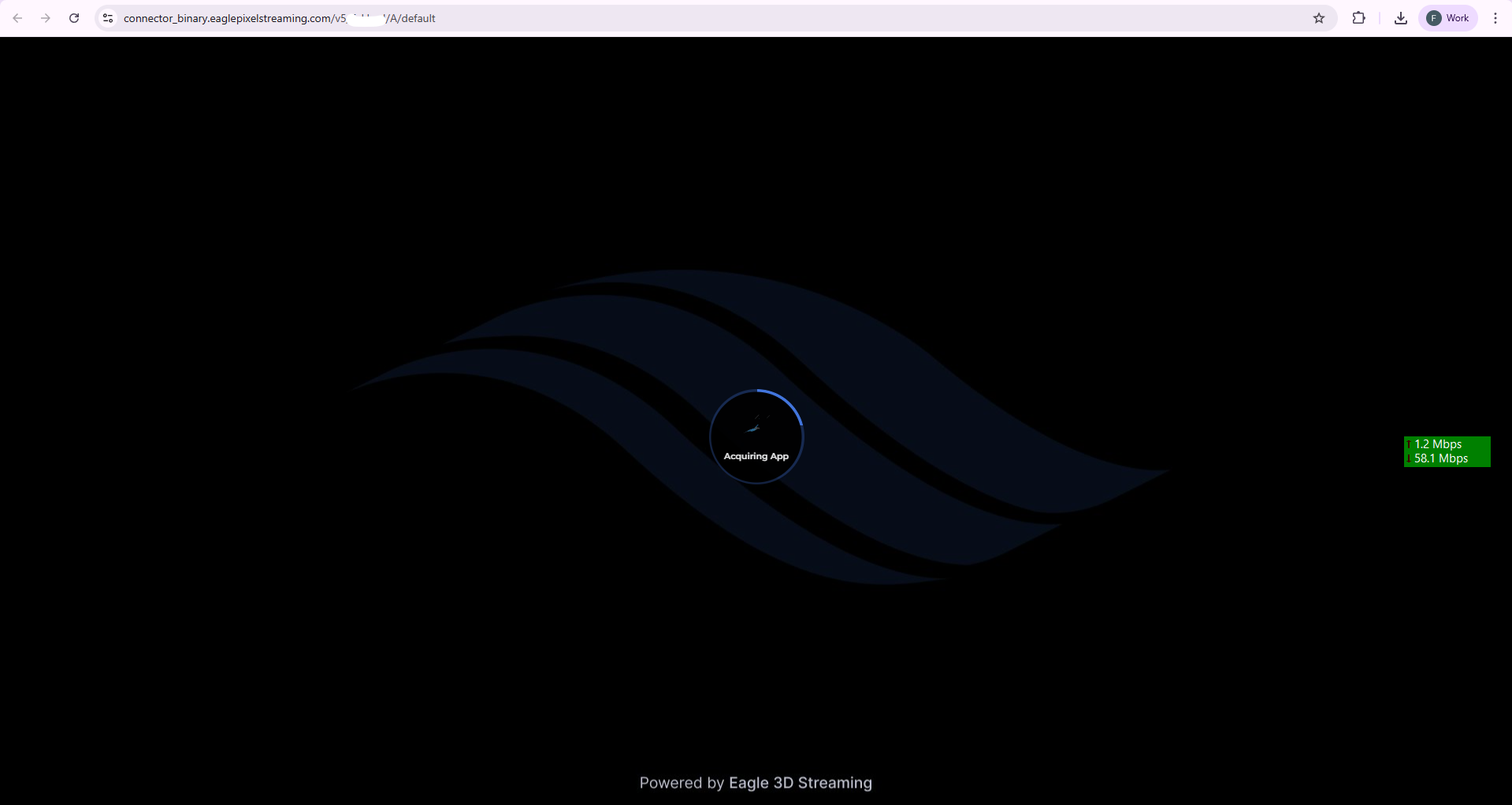
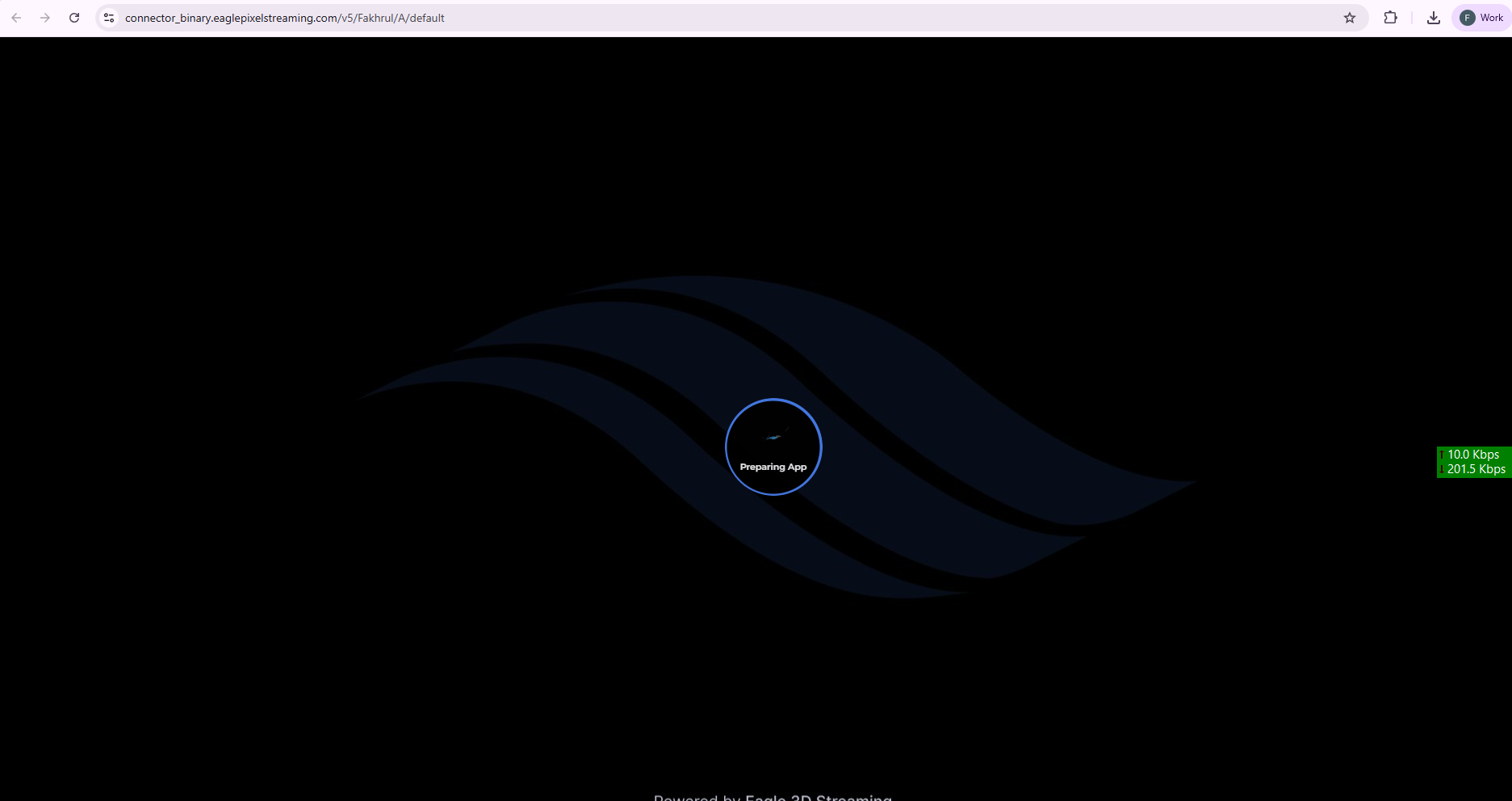
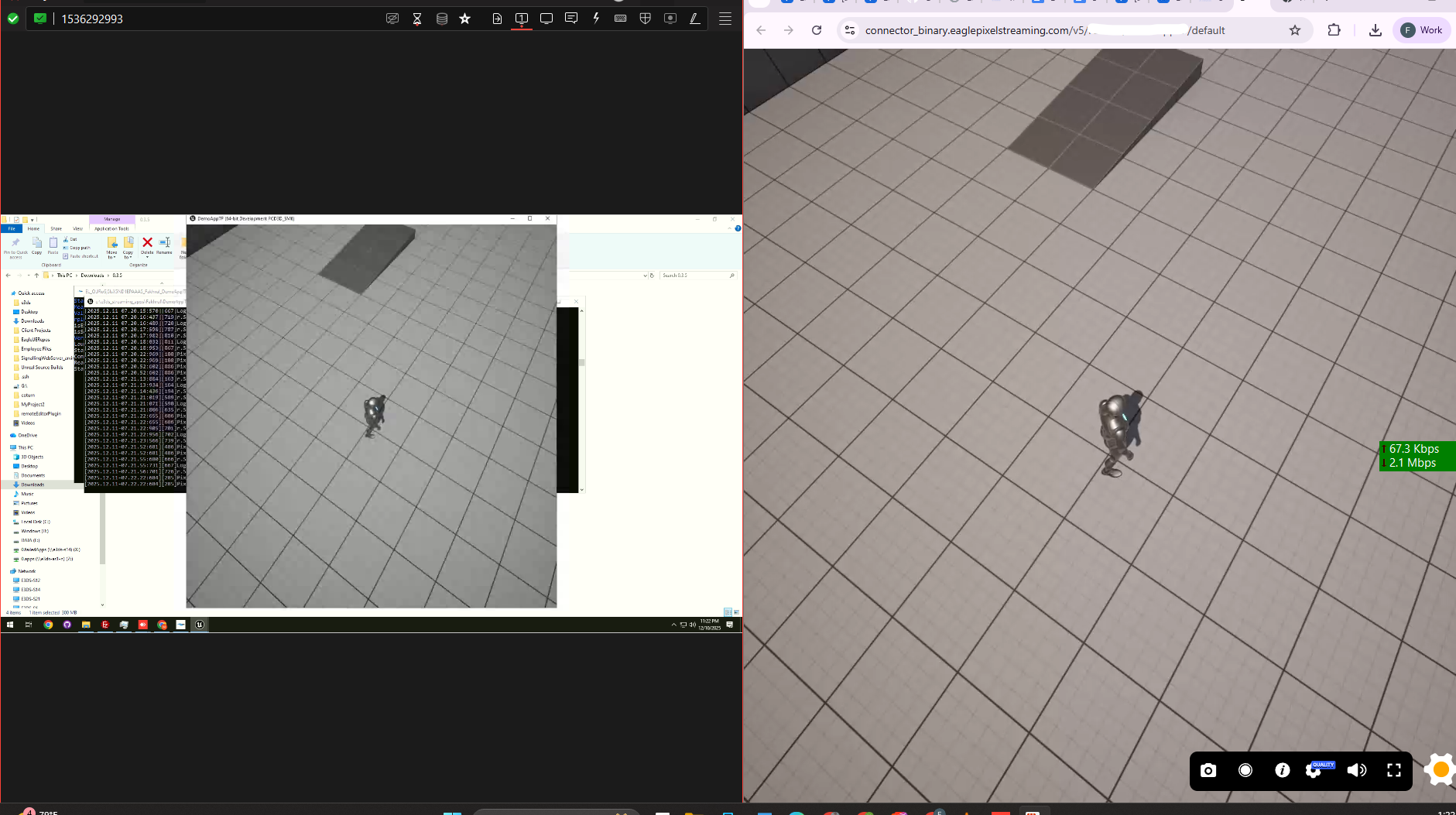
If the App is running, then the setup was successful. If not, you will get errors. Please contact Support.
Notes
One running EL can serve only one user at a time. (1 CCU per License).
Please keep the terminal window open because closing it will stop the stream.
Don’t click inside the EL’s black window or any other window started by the stream. If clicked by mistake, just press the Esc button one time.
Tip : On Sleep mode, the Stream stops. You need to make sure the EL is running non stop. You can change it from your computer’s settings.
Need help?
🛠️ Contact our Support Team
💬 Join the Community on Discord
Follow us on: