How to download and install the plugin
Plugin Download & Install
Video Demonstration
Check out the Desktop preview of this feature:
Experience here:
https://connector.eagle3dstreaming.com/v5/e3ds_dev1/ue55cpp/default
Follow the guidelines below:
Part 1: Blueprint Logic for Capturing a Screenshot
-
Open the level you intend to stream.
-
Ensure an instance of the
E3DS_PS_actoris in your level.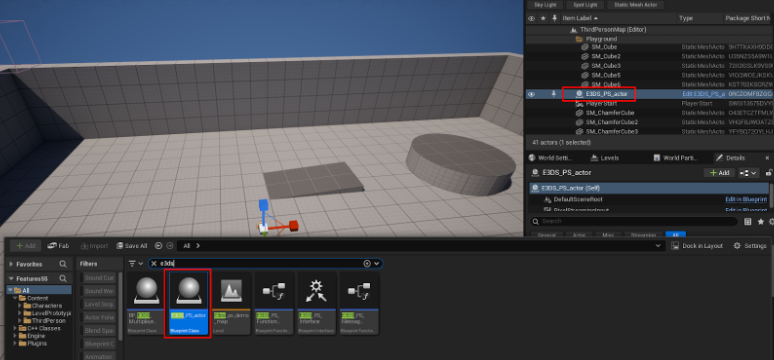
Figure 1. Drag and Drop E3DS_PS_actor into Your Level
-
Open the Level Blueprint.
-
In the Event Graph, right-click and search for the Keyboard 5 event to add it to the graph.
-
Drag from the
Pressedexecution pin of the 5 key event and search for the Capture Screen Shot node. -
Connect the nodes as shown below.
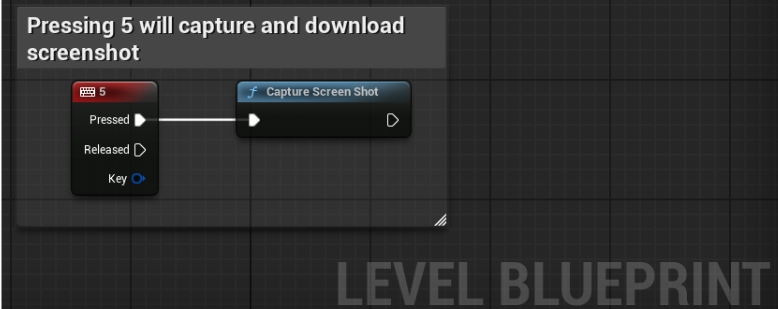
Figure 2. Connect the Nodes
-
Compile and Save the Blueprint.
Part 2: Verification
This section explains how to verify that the screenshot capture is working in your remote streaming session.
-
Connect to your remote editor session in your web browser. Click inside the editor viewport to ensure it has focus.
-
Press the 5 key on your keyboard.
-
Expected Result: Your browser should automatically download a
.jpgfile of the current view from the Pixel Streaming session.
-
This confirms that the Blueprint is successfully sending the command to capture the screen and trigger a download on the client's browser.
How to test in remote editor streaming
Remote Control Unreal Editor
How to do blueprint debugging incase something in not working
Need help?
🛠️ Contact our Support Team
💬 Join the Community on Discord
Follow us on:
Facebook | GitHub | LinkedIn | YouTube