

In this section we will guide you how you can test your app locally using VR headset. Now follow the steps below:
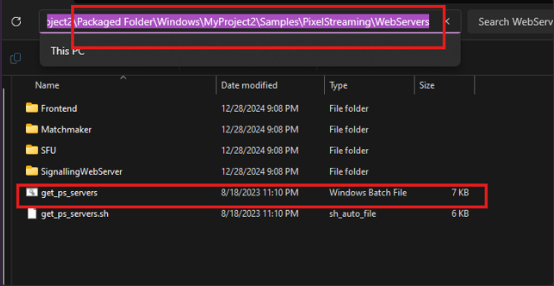
Step 1. Follow the path below and run the“get_ps_servers.bat” file
Selected Folder for Packaging > Windows > Your Project Name Folder > Samples > PixelStreaming > WebServers > get_ps_servers.bat
Let’s say your project name is MyProject2 and you have selected the “Packaged Folder” while packaging the project. The path of the get_ps_servers.bat file would be:
Packaged Folder > Windows > MyProject2 > Samples > PixelStreaming > WebServers
Step 2. Once you click on “get_ps_servers.bat” some file will start downloading and a terminal will be displayed like below:
After downloading all required files the terminal will be automatically closed.
Step 3. Run the “run_local.bat” file
Follow the path below and click on “run_local.bat”:
In newer versions of Unreal Engine, the run_local.bat file has been renamed to Start.bat.
Please follow the same path and click on Start.bat instead.
Selected Folder for Packaging > Windows > Your Project Name Folder > Samples > PixelStreaming > WebServers > SignalingWebServer > platform_scripts > cmd
Let’s say your project name is MyProject2 and you have selected the “Packaged Folder” while packaging the project. The path of the run_local.bat file would be:
Packaged Folder > Windows > MyProject2 > Samples > PixelStreaming > WebServers > SignalingWebServer > platform_scripts > cmd
Unknown Attachment
Step 4. All required files will be downloaded.
Once you click on “run_local.bat”, some files will be download and a terminal will be displayed like below:
Don’t close the terminal for rest of the tutorial of this section