

In this document, we’ll show you how to use Remote Control Unreal Editor inside an iframe.
Follow the steps below:
Step 1. Enable Remote Control Unreal Editor in you config
Follow the Remote Control Unreal Editor guide to enable it in your project configuration.
Step 2. Copy the iframe script
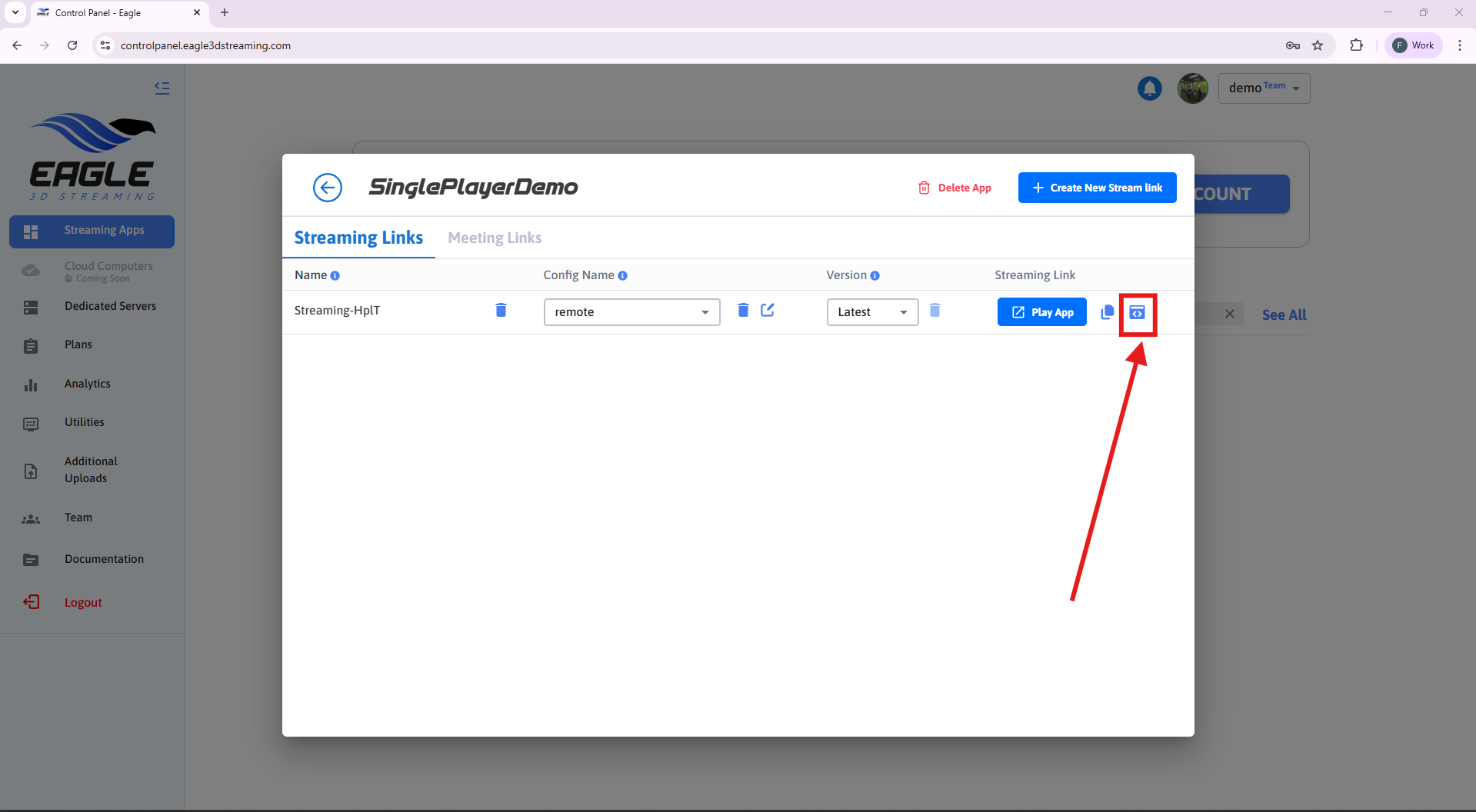
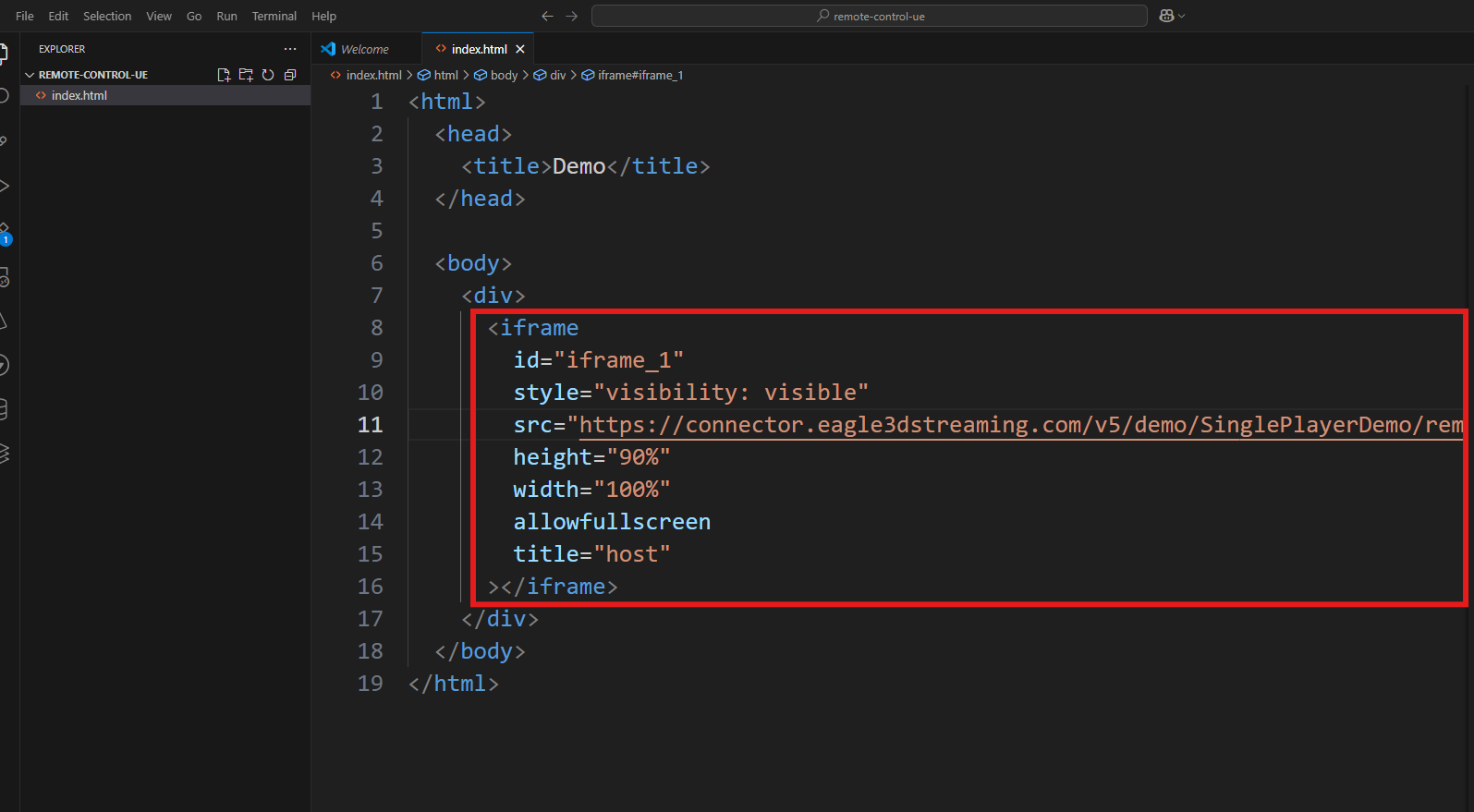
Step 3. Use this iframe script in your webpage
Step 4. Run the project locally
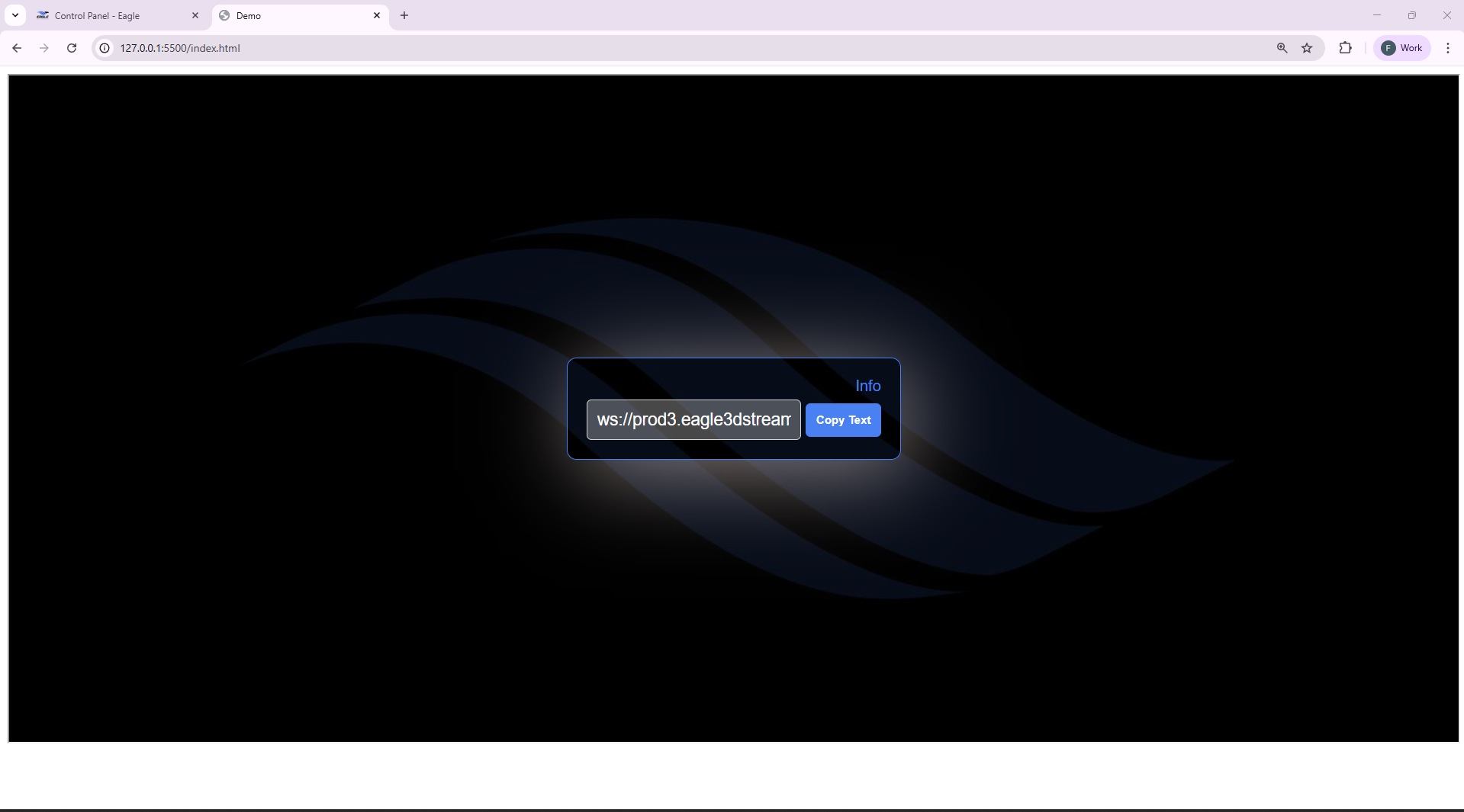
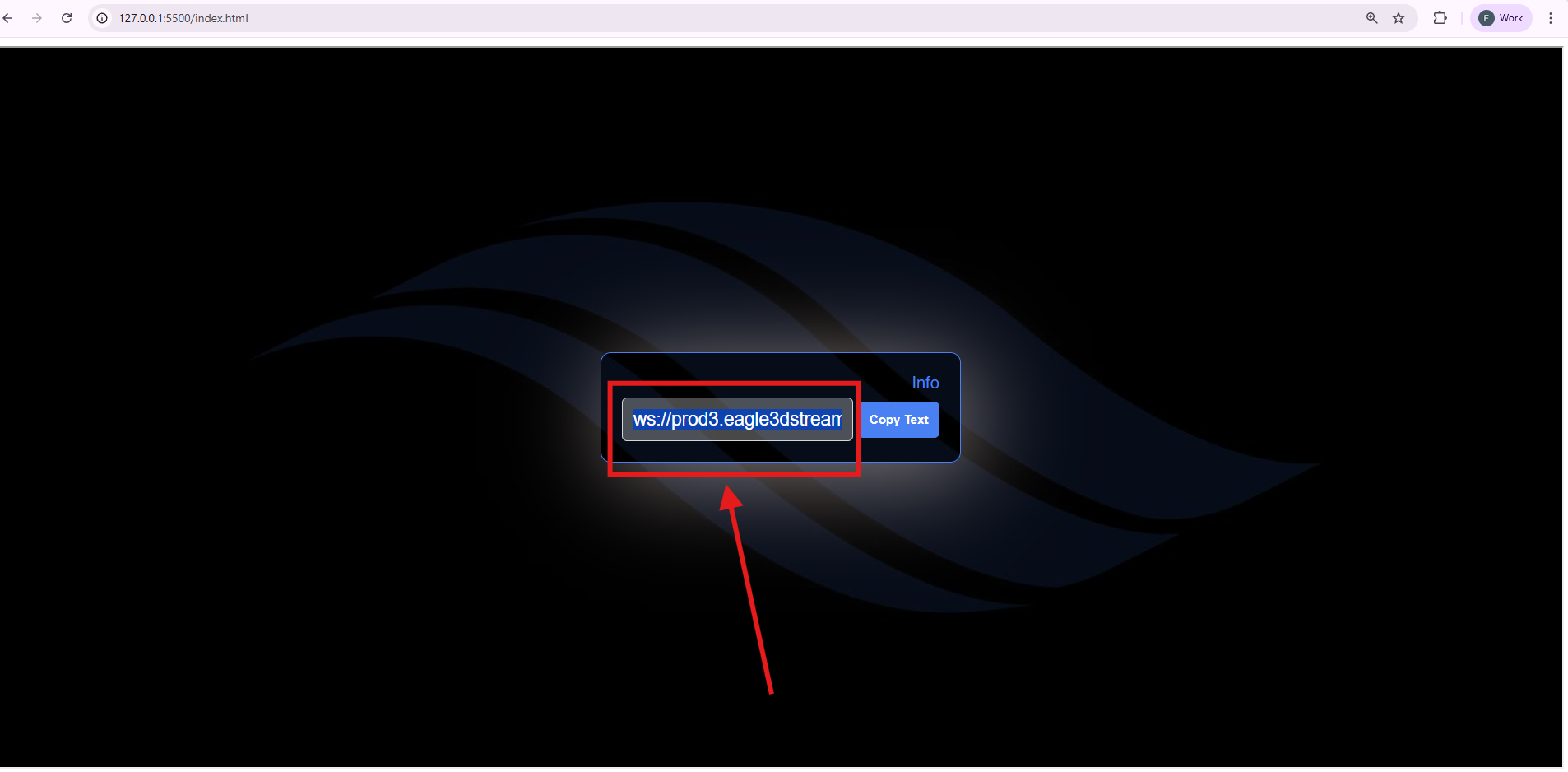
Step 5. Copy the Signaling Server URL
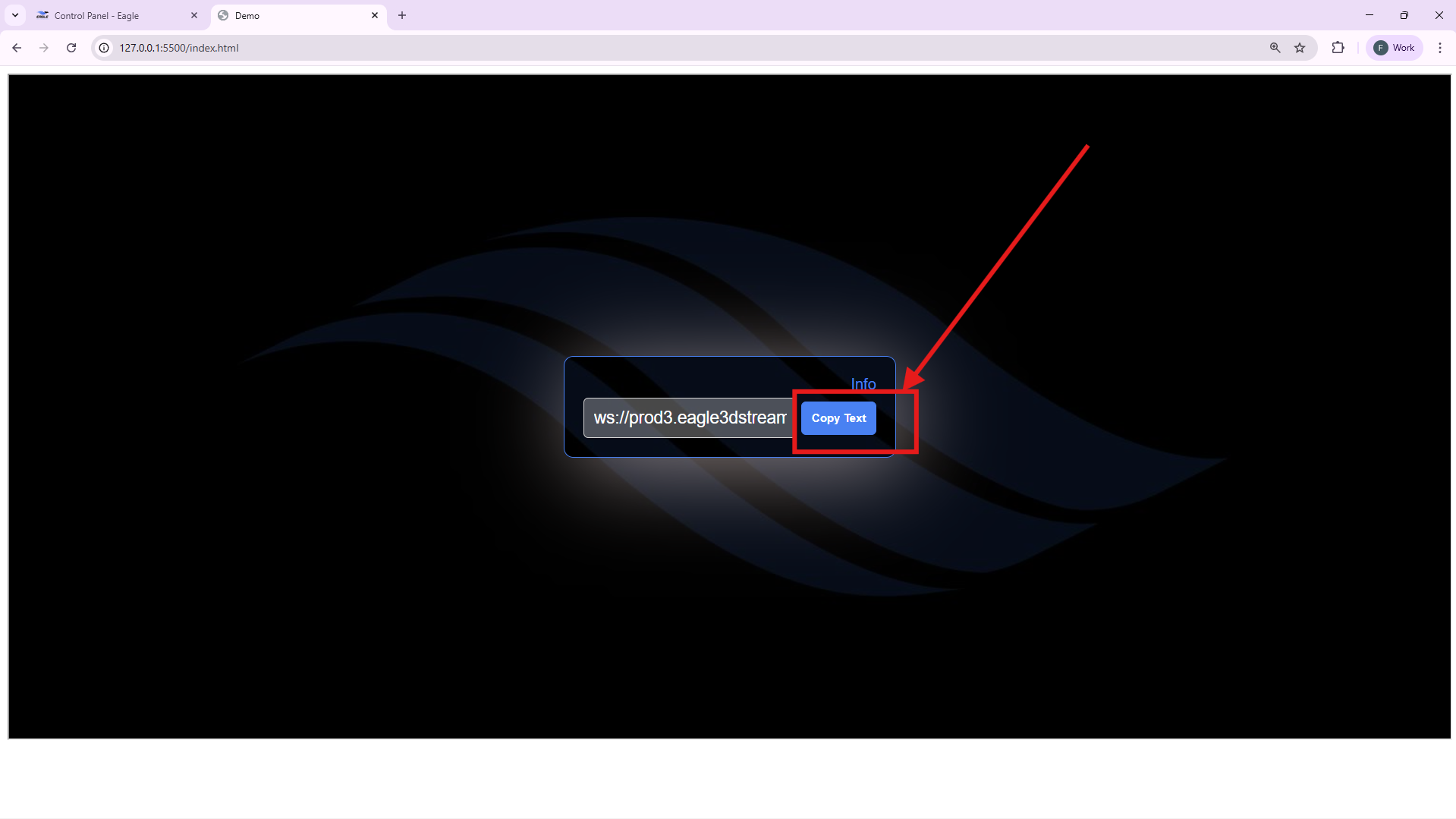
If the copy action fails, select and copy the URL directly from the text box.
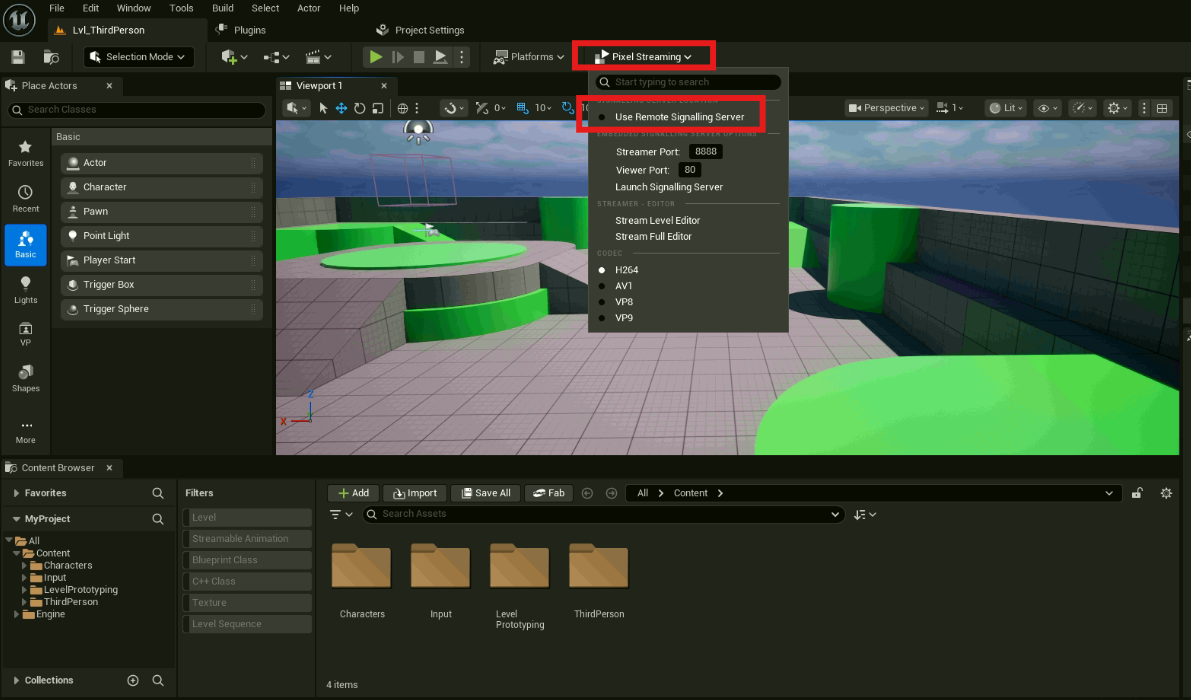
Step 6. Open your project in Unreal Editor in any remote computer and enable Use Remote Signaling Server option
-
Enable Use Remote Signaling Server.
-
Make sure the Pixel Streaming plugin is also enabled to use this feature.
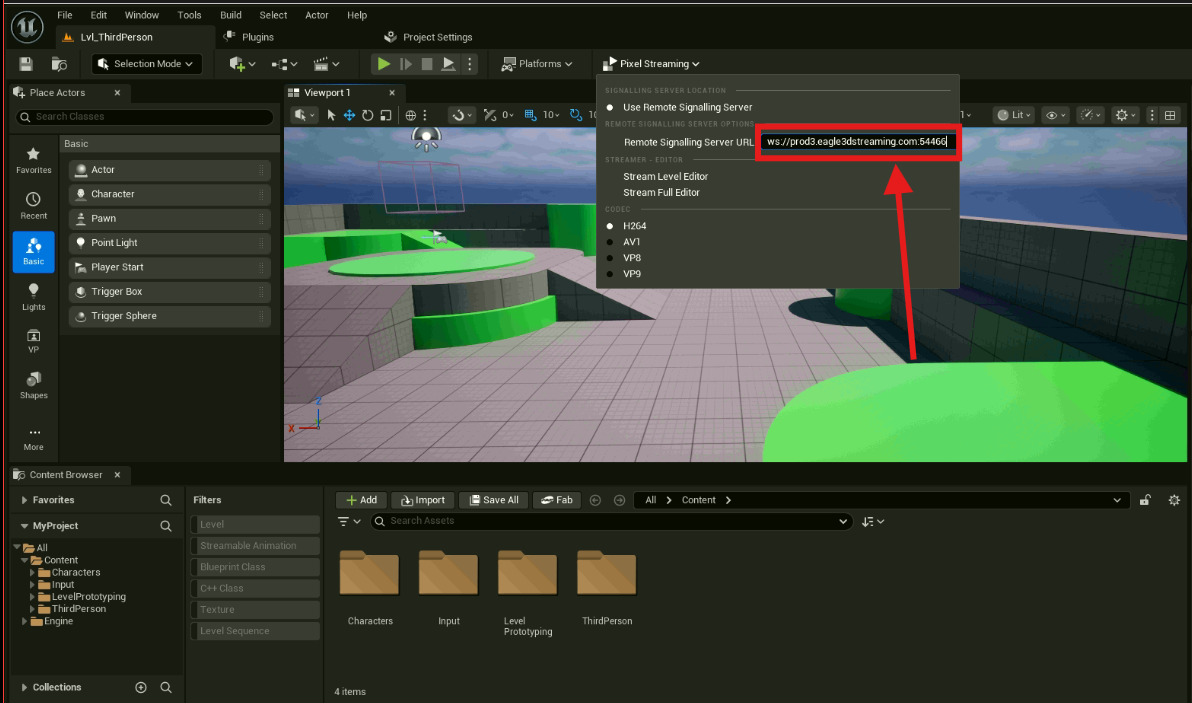
Step 7. Paste the Copied Signaling Server URL from Step 5
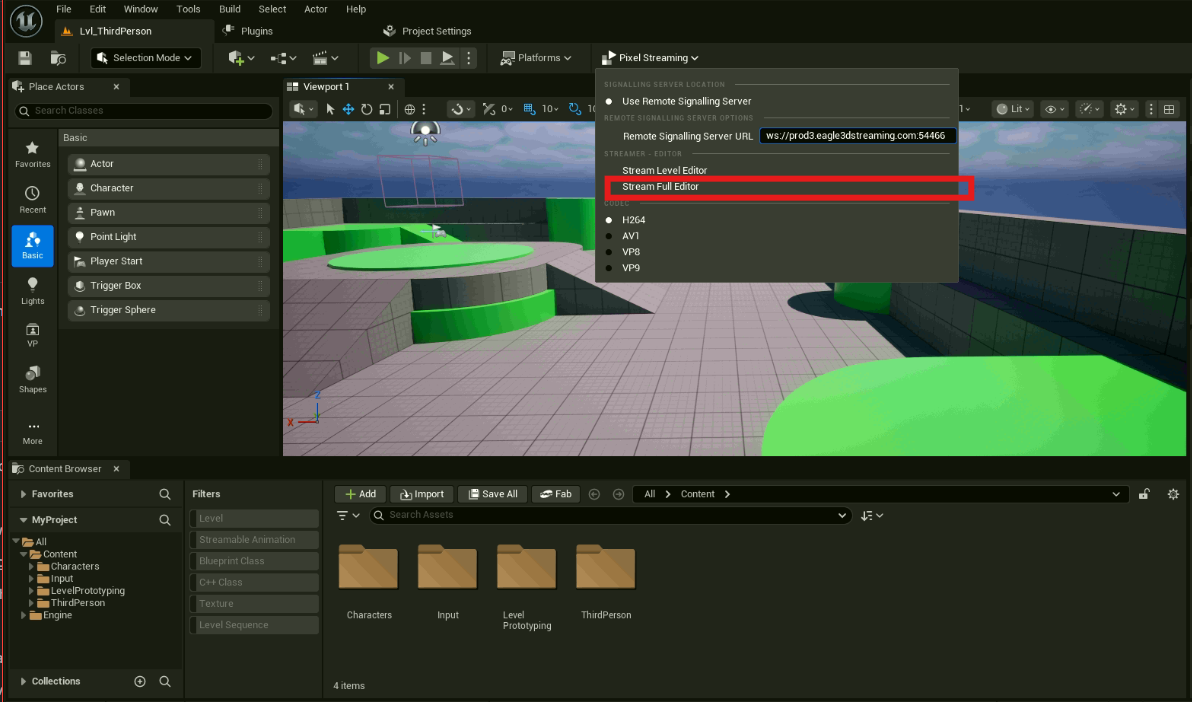
Step 8. Click on Stream Full Editor
Step 9. Return to the Browser Tab From Step 5
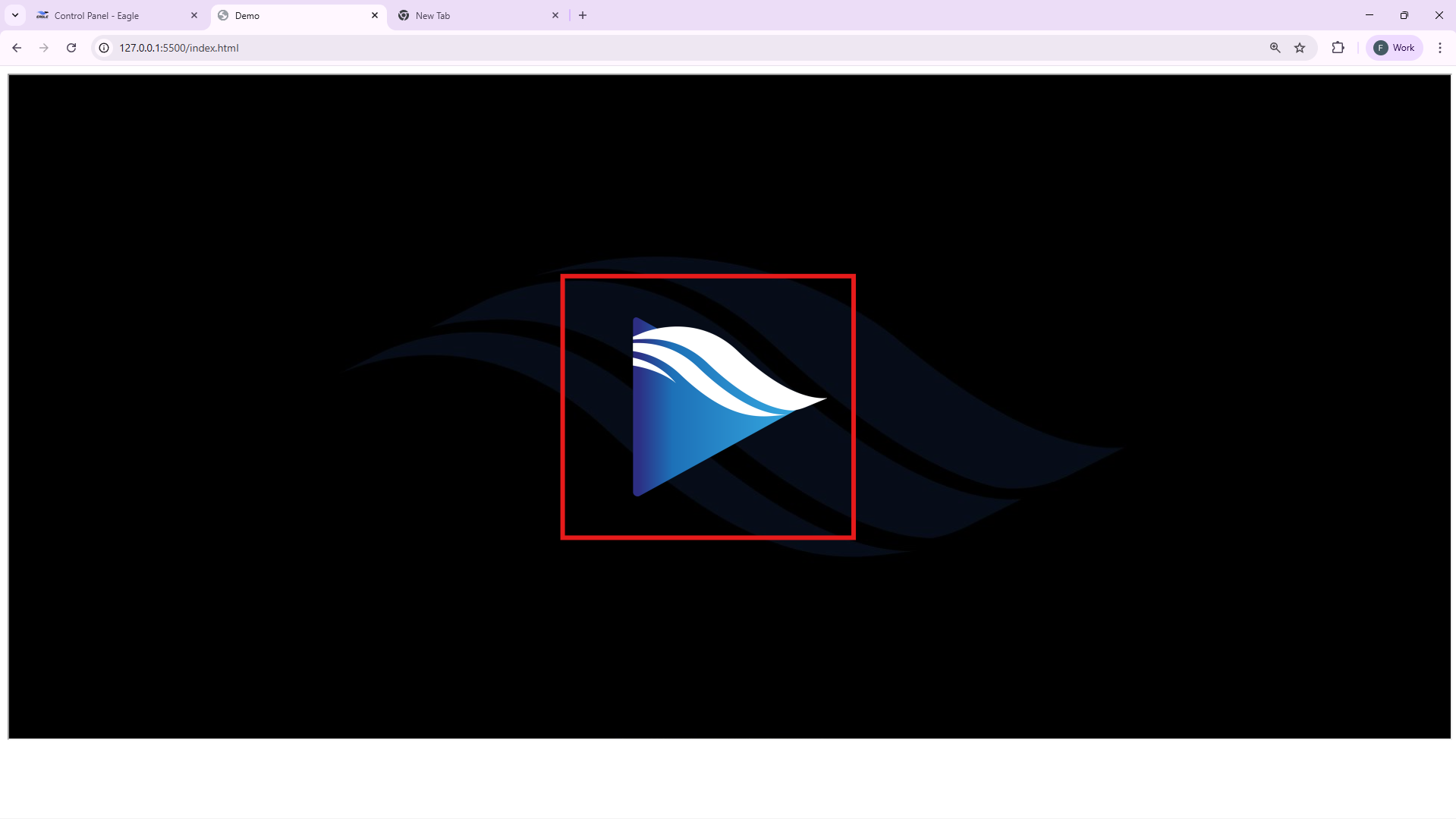
Step 10. Click on the Play button
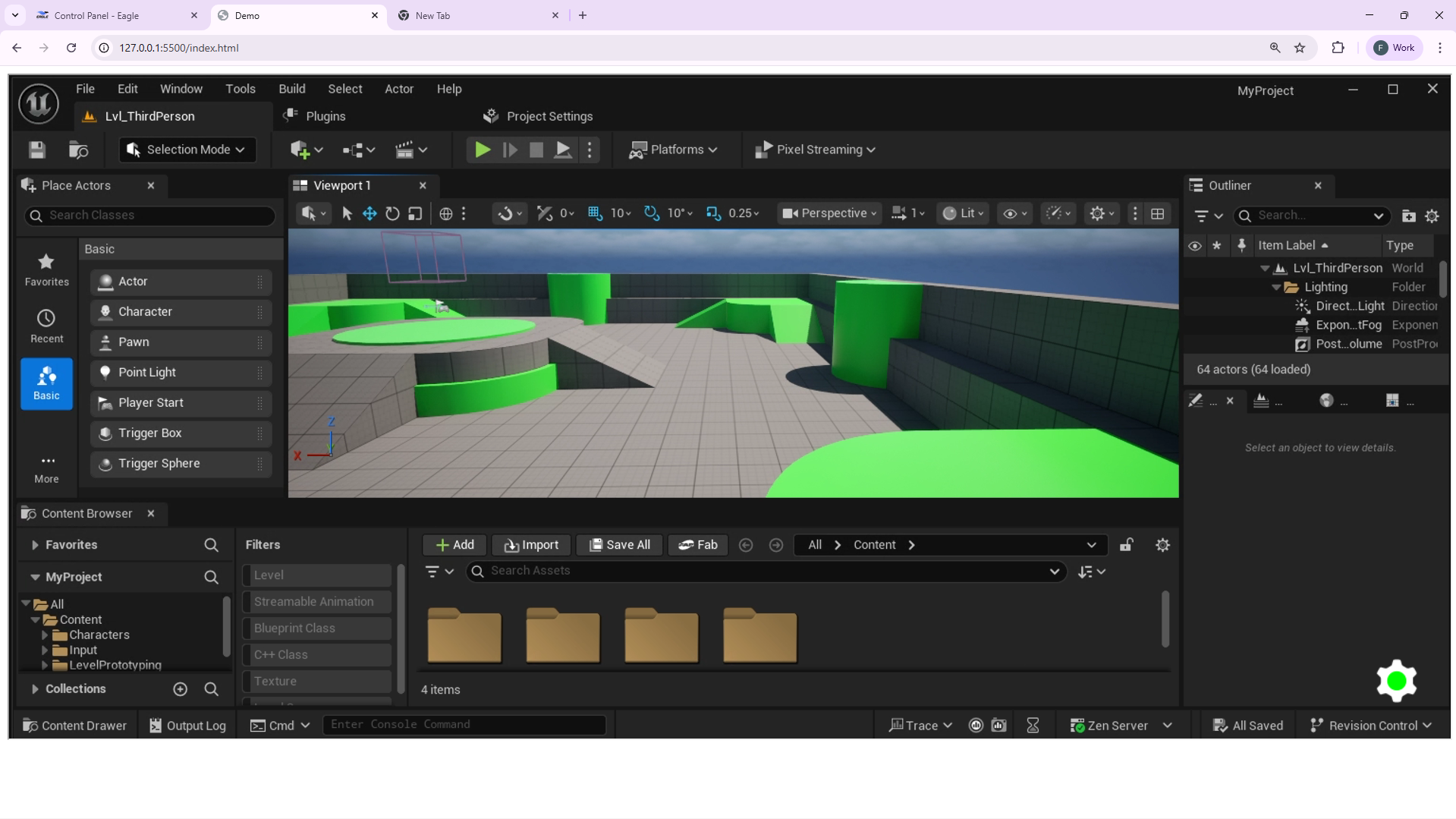
Step 11. Control the Unreal Editor Remotely
Important: After ending a streaming session, you’ll need to restart the Unreal Engine Editor before starting a new session using Remote Control Unreal Editor.
Need help?
🛠️ Contact our Support Team
💬 Join the Community on Discord
Follow us on: