

In this guide, you will learn how to receive and handle data sent from a webpage inside your Unreal Engine (UE) application.
Follow the steps below:
Step 1. Enable Pixel Streaming Plugin
Open your Unreal Engine project and enable the Pixel Streaming plugin.
Refer to the guide How to Enable Pixel Streaming Plugin
Step 2. Add the Pixel Streaming Input Component
Once the plugin is enabled, add the Pixel Streaming Input component to any Actor Blueprint.
Best Practice: For better organization and scalability, add this component to your GameMode Blueprint, or create a dedicated messaging handler Actor that exists in every level.
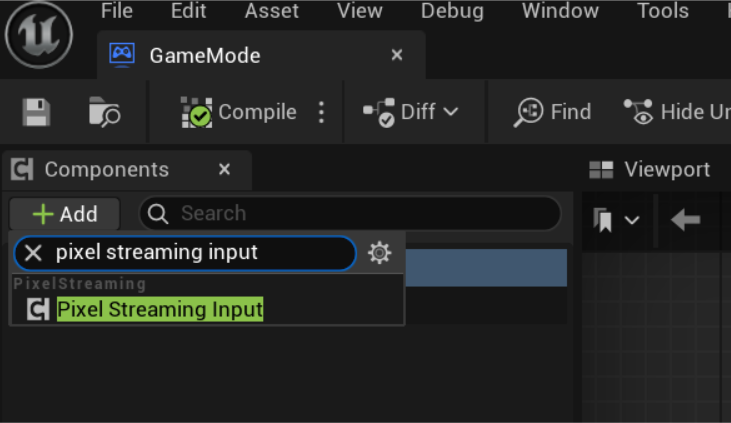
Step 3. Use the "On Input Event"
After adding the Pixel Streaming Input component, a new event becomes available: On Input Event.
You can use it by:
-
Selecting the Pixel Streaming Input component and finding the event under the Details Panel,
or -
Right-clicking in the Blueprint Event Graph and searching for "On Input Event"
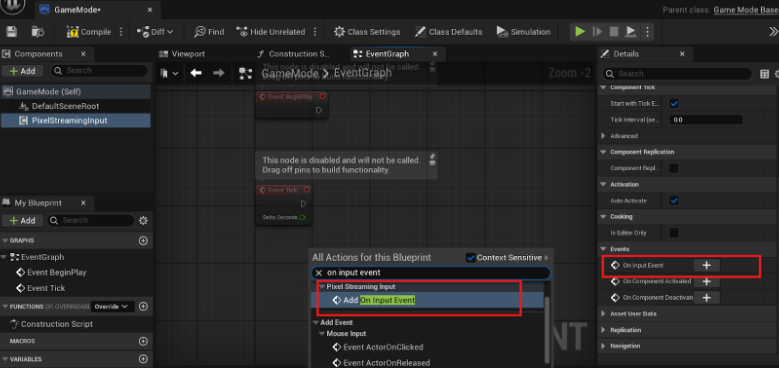
Step 4. Handle and Parse Incoming Messages
The On Input Event is triggered when a message is received from the frontend.
The event passes a string containing the message, which you can parse to trigger actions in UE.
In the below you can get multiple examples on how you can handle and parse incoming messages.
Example 1: Debugging with Print String
Use case: Display incoming messages for debugging.
Frontend sends:
{
  "Player123"
}
In UE:
-
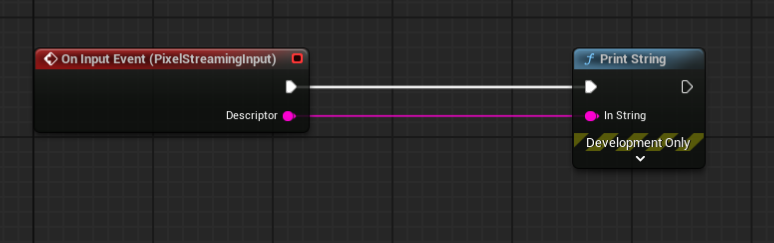
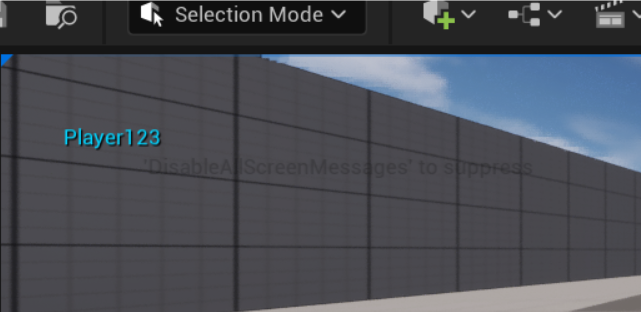
Use Print String to display the incoming message.
Need help?
🛠️ Contact our Support Team
💬 Join the Community on Discord
Follow us on: